

Settings
Settings holds the choices that belong to ProcessModel on your computer rather than to one model. Open it from the Welcome screen by choosing Settings in the left list. The pane is headed “Canvas, display, AI integration, and resets.”
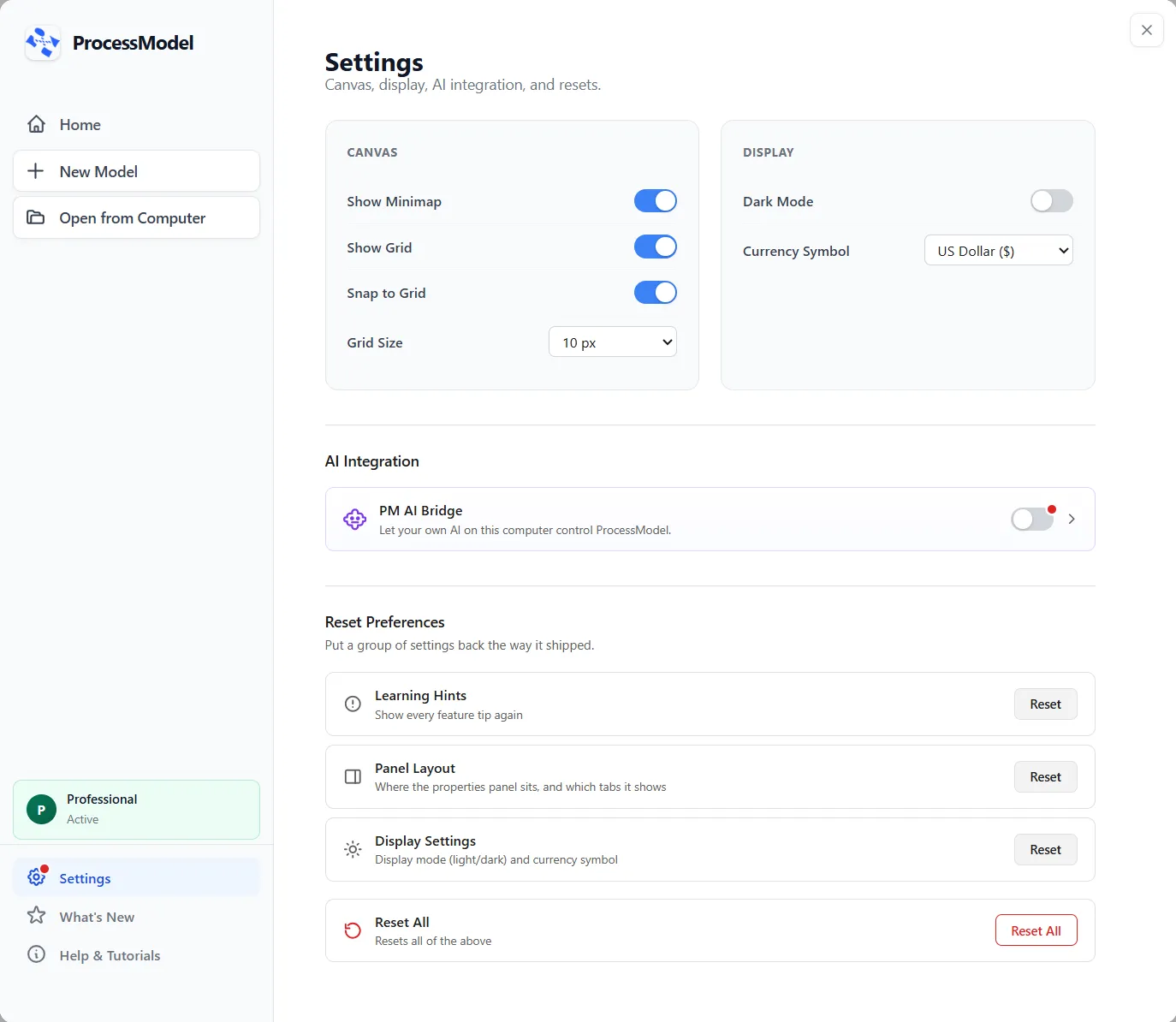
Canvas
Section titled “Canvas”- Show Minimap shows or hides the small overview of the model in the corner of the canvas.
- Show Grid shows or hides the grid behind the shapes.
- Snap to Grid makes shapes snap to the grid as you drag them.
- Grid Size is the spacing of the grid, from 5 to 100 pixels. It starts at 10 px.
The three switches start on. They are the same choices as View ▸ Show Minimap, View ▸ Show Grid and Arrange ▸ Snap to Grid, so a change made in one place shows in the other. A short message confirms each change.
Display
Section titled “Display”- Dark Mode switches ProcessModel between its light and dark looks at once. It starts off.
- Currency Symbol chooses the symbol shown with costs: US Dollar ($), Euro, British Pound, Japanese Yen, Indian Rupee, Korean Won, Swiss Franc, Brazilian Real or Mexican Peso. It starts on US Dollar. It changes the symbol only. ProcessModel does not convert any amount.
AI Integration
Section titled “AI Integration”This section holds one card, PM AI Bridge, with a switch and an arrow. The switch lets an AI app on this computer work with your models. See PM AI Bridge.
Learning Hints
Section titled “Learning Hints”A Learning Hint is a small red dot on a control you may not have noticed. Rest the pointer on the control for about three quarters of a second and a note opens beside it, with a short title, a line about what the control does, and a Got it button. Got it retires the hint, and so does using the control. A hint also retires on its own after you have read it a few times.
Two hints exist:
- Customize Your Tabs, on the eye icon of the Properties panel: “Click the eye icon to show or hide tabs in this panel. Your selection is remembered per node type.” Its note also opens by itself the first time the panel is opened.
- PM AI Bridge, on the switch of that card: “Turn this on to let your own AI on this computer control ProcessModel.” The same dot sits on Settings in the Welcome screen’s left list until the hint is retired. On a Personal license the card has no switch, so neither dot shows.
To see every hint again, use Reset beside Learning Hints, described next.
Reset Preferences
Section titled “Reset Preferences”Reset Preferences is headed “Put a group of settings back the way it shipped.” Each row has a Reset button, and each asks you to confirm first.
| Row | What it puts back |
|---|---|
| Learning Hints | Every feature tip shows again the next time you reach it. |
| Panel Layout | The Properties panel goes back to where it started, with every tab showing. |
| Display Settings | Light display and the US Dollar symbol. |
| Reset All | All three of the rows above. It asks twice: “Reset ALL Preferences?” and then “Are you absolutely sure?” |
A reset cannot be undone. Reset All leaves your recent models and pinned models alone.