

Variables
A variable is a single value that belongs to the whole model rather than to any one entity. Where an attribute travels along with each entity, a variable is one shared number, date, or label that any part of the model can read and change: a running count, a daily target, the current price, a queue’s high-water mark.
You define variables in the Logic Builder, on the Global variables tab. Open it from the Tools menu, with Ctrl+Shift+L, or from the toolbar.
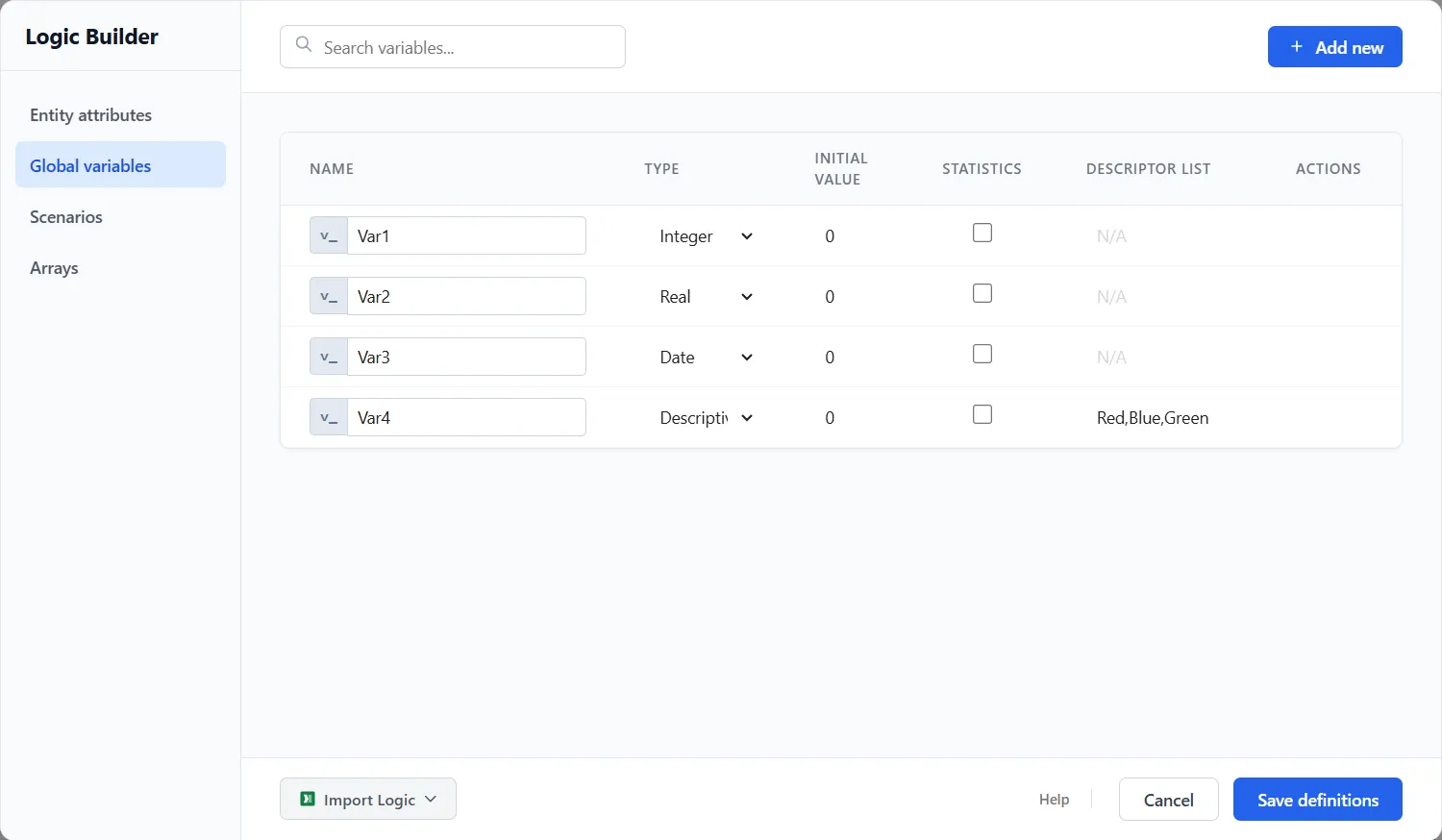
Defining a variable
Section titled “Defining a variable”Each variable has:
- Name: prefixed
v_so it reads clearly in logic, for examplev_Backlog. - Type: Integer, Real, Date, or Descriptive (a text label).
- Initial Value: what it holds at the start of every run.
- Statistics: when on, ProcessModel records every change during the run, giving you a full history, a time-weighted average, and a drill-down chart. When off, only the final value is kept.
- Descriptor List: for a Descriptive variable, the set of text values it is allowed to take.
A counter is simply an Integer variable you add to or subtract from in logic; there is no separate counter to set up.
A variable is global, one value shared across the whole model. When you need a value only inside a single block of action logic, use a local variable instead: declare it with Real or Int, prefixed lv_, and it exists only while that logic runs (see Assigning Values).
Using a variable
Section titled “Using a variable”Reference a variable by name anywhere an expression or action-logic statement is allowed: raise it when an entity passes, use it in a routing condition, or read it in a processing time. For example, INC v_Backlog on entry and DEC v_Backlog on exit keeps a live count of how many entities are inside a section.
Seeing variable values
Section titled “Seeing variable values”After a run, the Variables report lists every variable with its number of changes, range, time-weighted average, and final value; any variable with Statistics turned on opens a drill-down of its full history. You can also export the report to a spreadsheet for analysis.
LegacyHow this worked in the previous version
Global Variables store information referenced and manipulated by the model. Variables are global, meaning they can be seen and changed by the action of any entity from anywhere in the model. Variables can be set, incremented, decremented, and examined in the Action tab of the dialog - Access and use variables in many fields in dialogs throughout ProcessModel.
Values written to a variable are summarized in the output tables, may be plotted to a time-series graph, summarized in a histogram, and exported to Excel.
Examples of variable usage
Section titled “Examples of variable usage”Variables record changes during the simulation
Section titled “Variables record changes during the simulation”To see the volume of people in a waiting room over time, INC (increment) a variable when people arrive and DEC (decrement) when people leave.
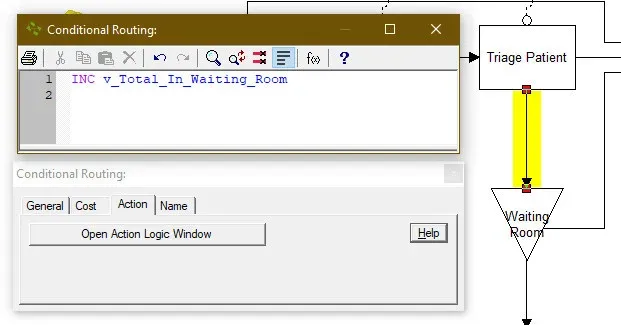
INC increases the value of the variable by one.
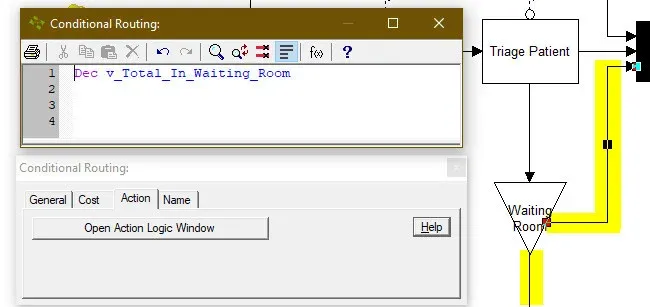
DEC decrements the value of the variable when a person leaves by one.
A plot of the variable shows the value over time. Charts such as the one below are easily accessible and valuable for uncovering opportunities. See How do I use Output Report?
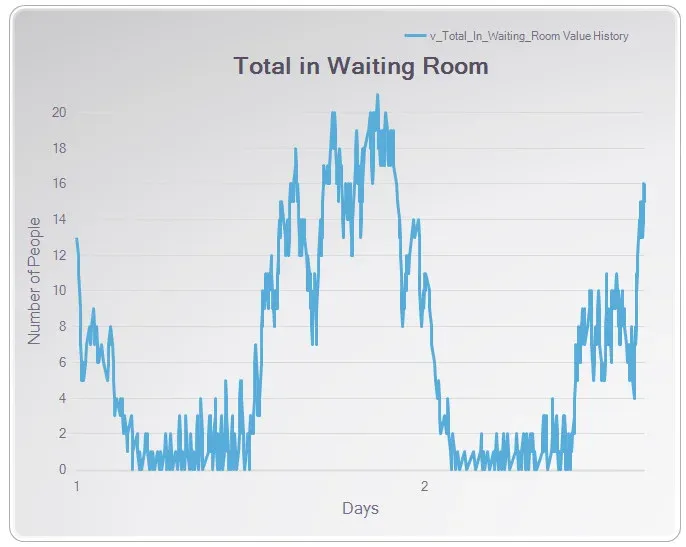
Variable changes plotted over time offer insight into problems and solutions.
A variable changed in one area of the model allows a gate to open and close in another model area.
Section titled “A variable changed in one area of the model allows a gate to open and close in another model area.”Several Model Objects provide the functionality of a gate. Each of the gate model objects (1-11) uses a variable to signal when the gate opens and closes. The variable combines with a trigger activity and a Wait Until statement. See What is a Trigger Activity? What is a Wait Until statement? What is a Model Object?
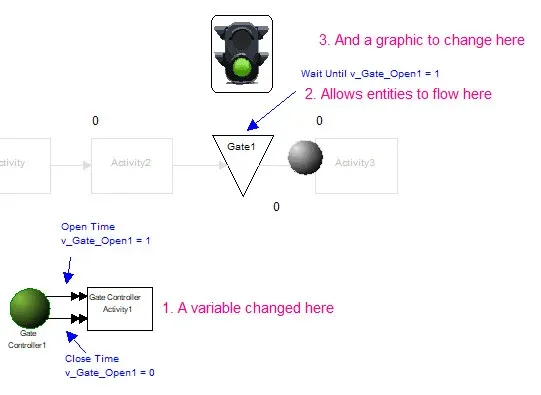
Scheduling a variable change in one area of the model opens a gate in another place.
Variables hold the value of an entity’s name.
Section titled “Variables hold the value of an entity’s name.”Many situations require a change-over or setup if the product changes. To track changes, the value of the past product must be stored in a variable and compared to the current product. If the product is different, then perform a setup.
An explanation of the previous example follows. Every entity entering this activity checks its current name (a_Name) against the value of the last name stored in a variable (v_PreviousName). If the name does not match, a setup time occurs, and the new name replaces the previous name in the variable. See the articles: What is an IF-Then statement? What is an Attribute? What is a Time statement?
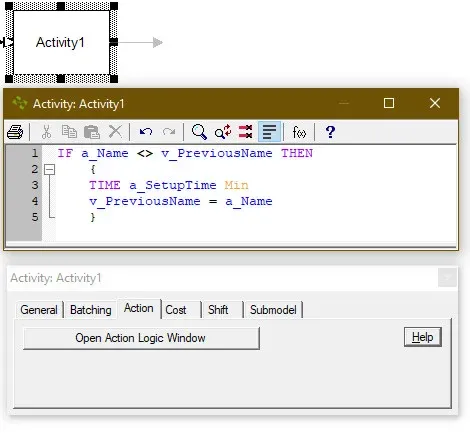
Store the name in a variable and compare the current to the previous to see if it has changed.
Variables used in fields
Section titled “Variables used in fields”Use variables in fields to modify information, such as times, or to check values to determine actions.
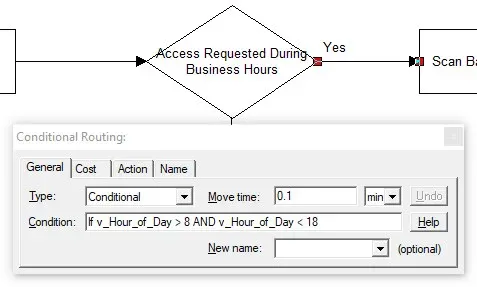
The condition is true if the “hour of day” is greater than 8:00 AM and less than 6:00 PM
The largest variable values ProcessModel can use is: 2,147,483,647.
Display user-defined variables on the scoreboard or in a user-defined position during the simulation.
Creating User-Defined Variables
Section titled “Creating User-Defined Variables”Create user-defined variables in the Attributes & Variables **dialog **accessed from the **Insert **menu.
The example above results from selecting the new New button and adding a variable.
**New **This button creates a new variable.
**Delete **This button deletes the selected variable.
Name The name of the variable. Letters, numbers, and the underscore ”_” character are allowed in the name. The name must be one continuous word (i.e., v_Inventory_Level).
**Type **Change the type of variable to Integer, Real, or Descriptive.
If you assign a real value (containing a decimal portion) to an integer parameter (user or system defined), the value will be truncated to 0 decimal places. It will not be rounded. Capacity, input queue, output queue, batch size, and resource quantity fields are all integer fields which will be truncated if you enter a number with a decimal value.
- Integer Any whole number (no digits to the right of the decimal).
- Real Any number, including those with digits to the right of the decimal.
- Descriptive Defined with a string of adjectives or descriptors allowable (Descriptors must be one continuous word).
For more information, see Using Descriptors below.
Initial value The value assigned to the variable at the beginning of the simulation. If you do not enter a descriptor, ProcessModel will use the first descriptor in the list as the initial value for the variable.
**Stats **Changes the type of statistics that are collected.
- **None **Collect no statistics
- **Basic **Collects basic statistics such as total changes, average minutes per change, current value, and average value. Observation-based.
- **Basic Time **Same information as Basic, but the information is Time-weighted.
- **Detailed **Allows the same information as the Basic option plus standard deviation information.
- **Detailed Time **Same information as Detailed, but the information is Time-weighted.
- Observation-based Variable information is calculated based on a simple average.
- Time-weighted Variable information is calculated based on the average of the products of the variable multiplied by the length of time it remained at that value.
**Paste Rule **How Global Variable add to the model when pasted.
- **Duplicate **If the Global Variable does not exist in the target model, add it to the Global Variable dialog. If the Global Variable exists in the target model, do not add it.
- **Clone **If the Global Variable does not exist in the target model, add it to the Global Variable dialog. If the Global Variable exists, add it with a suffix (v_Reject_Count will become v_Reject_Count1). In addition, all instances of the v_Reject_Count in the logic change to v_Reject_Count1.
**Scoreboard **With the scoreboard option enabled the variable displays on the simulation scoreboard.
**Descriptor list **The list of adjectives or descriptors allowed. Only available for variables whose Type is Descriptive.
Define a variable
Section titled “Define a variable”- Select **Attributes & Variables **from the **Insert **menu.
- Click on the Global Variables tab.
- Click on the **New **button.
- Enter the name of the variable.
- Select the type: Real, Integer, or Descriptive. If you select Descriptive, you must enter the list of descriptors in the box provided with a separate descriptor entered on each line.
- Enter an initial value.
Display a Variable on the Scoreboard
Section titled “Display a Variable on the Scoreboard”- Select Attributes & Variables from the **Insert **menu.
- Click on the** Global Variables** tab.
- Select the Scoreboard check box.
Display a variable in a user-defined position
Section titled “Display a variable in a user-defined position”- Select the Label palette from the Gallery.
- Select a Label graphic and place it on the layout to the left of where you want the variable to be displayed.
- In the label dialog box, select the variable name.
When a variable is marked to be displayed in the scoreboard, it cannot be displayed by a Label. Remove the checkmark from the Scoreboard option when defining the variable (click Insert / Variables & Attributes / Global Variables).
Hierarchical Model - Delete Variables
Section titled “Hierarchical Model - Delete Variables”Linked hierarchical model files synchronize data when you save each file. When you delete a variable, attribute, or scenario parameter in one model file, it is added back in from the other linked files during synchronization.
- Unlink your hierarchical model files.
- Make your change in each file and save it.
- Re-link the hierarchical structure
Declaring a global variable
Section titled “Declaring a global variable”What is a Global Variable?
Section titled “What is a Global Variable?”A global variable or variable is essential for process improvement. A variable is like having a “glass jar” to store numbers. It’s as if small sheets of paper, with the value written on the paper, were placed in the jar, one for every variable change. The most recent entry in the “jar” is visible anywhere in the model. You can set new numbers, increment or decrement, or perform mathematical functions on the last value entered into the “jar.” In addition, the system allows you to empty the “jar” contents at the end of the simulation for further analysis. Improve process improvement analysis using variables to collect specific information relevant to your project.
How to create a global variable?
Section titled “How to create a global variable?”Declare or create a variable by clicking the toolbar’s define Attributes, Variables, and Scenario Parameters button.
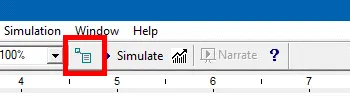
Select the Global Variables tab.
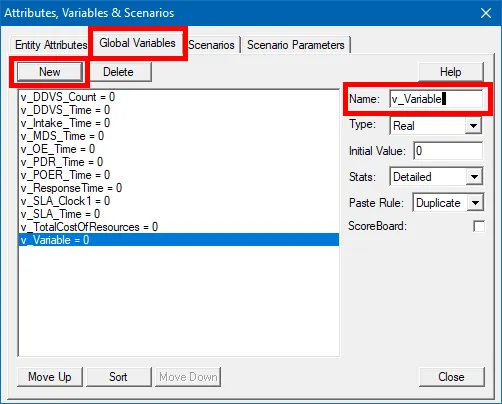
Depress the New button and enter a variable name. Starting variable names with the prefix “v_” is good practice, eliminating name conflicts with other model elements.
Use Real variables for any operation involving time or decimal precision. Use Integer variables for counting functions, such as tracking WIP or triggers. Use Descriptive variables to make the model easier to read.
Collect Detailed stats when plotting or exporting the variable history after the simulation. Use the option of collecting None if the variable acts as part of a control or trigger, requiring no history or further analysis.
Showing variable values during simulation
Section titled “Showing variable values during simulation”Show dynamic variables while the simulation runs.
Suggested Technique
Section titled “Suggested Technique”- Create a variable used to track the statistic.
- From the Variable dialog, select the Scoreboard check box.
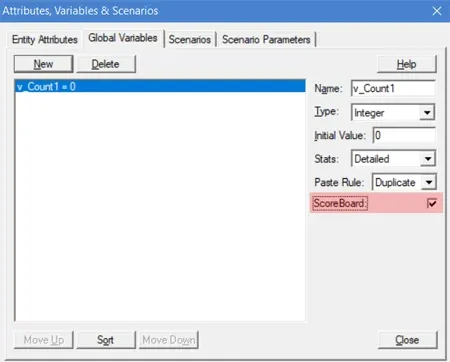
Example: A new statistic is created to show the number completions per day. The output graphs will adequately display the statistics but the dynamic view of the statistic on the screen will aid in developing understanding.
TO DO: Define a variable to collect the desired statistic and place a check in the check box labeled Scoreboard. Place the desired logic in the action tab to manipulate the variable and collect the statistic needed. Run the model and the view the variable on the scoreboard.
When variables are not showing
Section titled “When variables are not showing”Why won’t a Global variables show up in the Name drop down list in the Label properties dialog box?
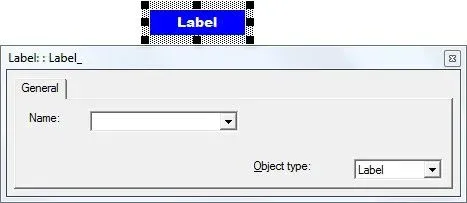
Label
Answer
Section titled “Answer”When a variable is marked to be displayed in the scoreboard, it cannot be displayed by a Label.
Remove the checkmark from the Scoreboard option when defining the variable (see Insert / Variables & Attributes / Global Variables).
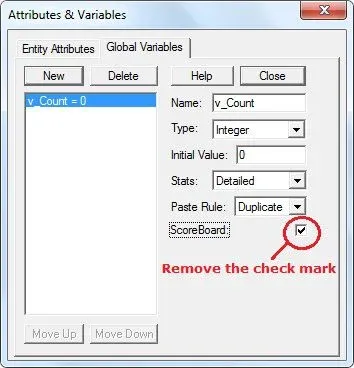
Remove Check
Exporting variable data
Section titled “Exporting variable data”ProcessModel can export variable data to Excel. This article will help explain how the data can be exported.
Exporting Variable Data
Section titled “Exporting Variable Data”- Make sure you have a model with variables, and variable status is set as ‘Detailed’ during declaration.
- Simulate your model, and open Output Report once the simulation ends.
- From the ribbon-bar, click the Variable button under Export.
- Select the variable(s) you wish to export, and click OK.
- Choose the location to save the Excel file, and click save.
- The Excel file should now automatically open for you.
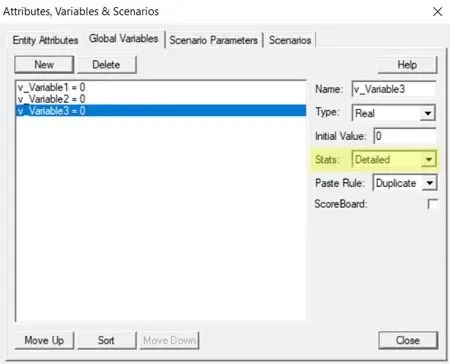
1. Declare variable
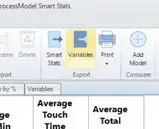
2. Export Variable
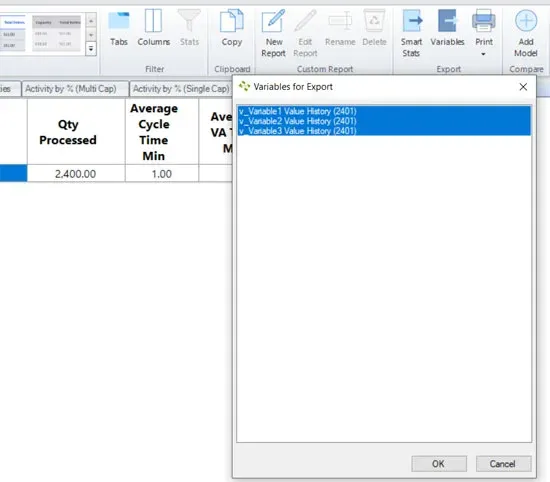
3. Choose Variables to export
How to Read the Variable Export?
Section titled “How to Read the Variable Export?”Each variable is exported with two columns of data
- Variable-Name_Value_History_Time: Reflects the simulation time when the data was recorded.
- **Variable-Name_Value_History_Value: **Reflects the value of the variable at a particular simulation time.
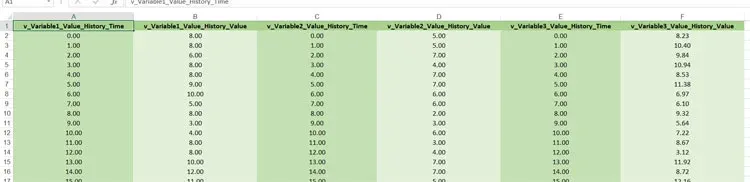
Displaying a variable
Section titled “Displaying a variable”When you need to create a visual display of variable values in your model during simulation. Create an easy method to debug logic by displaying variable values during a simulation run, and a single place where KPI’s can be displayed.
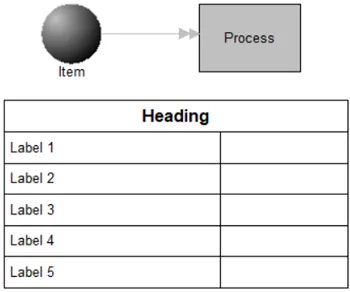
Where to Find the Model Object
Section titled “Where to Find the Model Object”The following model object can be found in the model objects directory:
- Visual Indicator - Display Variable - One
- Visual Indicator - Display Variable - Five
- Visual Indicator - Display Variable - Ten
- Visual Indicator - Display Variable B - One
- Visual Indicator - Display Variable B - Five
- Visual Indicator - Display Variable B - Ten
Difficulty Level
Section titled “Difficulty Level”- Ease of Use: Easy
- Ease of Modification: Easy
How to Use the Model Object
Section titled “How to Use the Model Object”-
Open Your Model: Open your model or create a new blank model.
-
Insert the Model Object into Your Model
-
Locate the model object Display Variable - # and select the insert button.
-
Move the cursor to the point of insertion and left mouse-click. The upper left corner of the model object will be inserted at the location of the mouse-click.
-
Update Objects
-
Double click on the label name to **change **the label name.
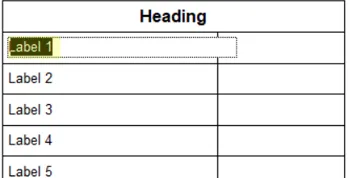
- Double click the label to **edit **the text.
- **Use **the properties dialog to select the variable you wish to display at this position from the name drop down.
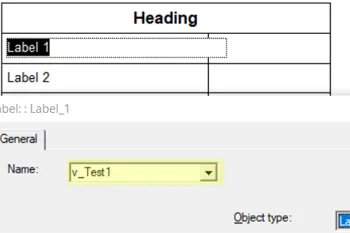
- **Remove **the temporary variables, v_Test1 - 5 after you have replaced them with your own.
If you need less variables to display than the quantity provided, simply delete variable displays. Start at the bottom and delete the box and then the label for each variable.
The variables (v_Test1 - 5) declared in this model are temporary variables, and should be removed (using Insert Attributes & Variables) once the model object is copied into your model.
- Completion: The model object is now integrated into your model, you should now be able to save and then simulate the model.