

Time Tables
A Time Table gives a step or a move a different time for each kind of entity. It is a short list of rules on an entity’s values, such as “priority 1 takes 3 to 8 minutes, priority 2 takes 6 to 14”, with a time for everything else. You write it into a time field by name, as TimeTable("Service Time"). Nothing in a time table reads the clock.
Choose a Time Table
Section titled “Choose a Time Table”Open the Time Expression window from a time field, or from the Tools menu, and choose its Time Table tab. Select Time Table lists the tables in the model. Choose one and the window writes the reference under Expression Preview, with “Valid TimeTable reference” below it, and shows the table’s rows under Conditions Preview.
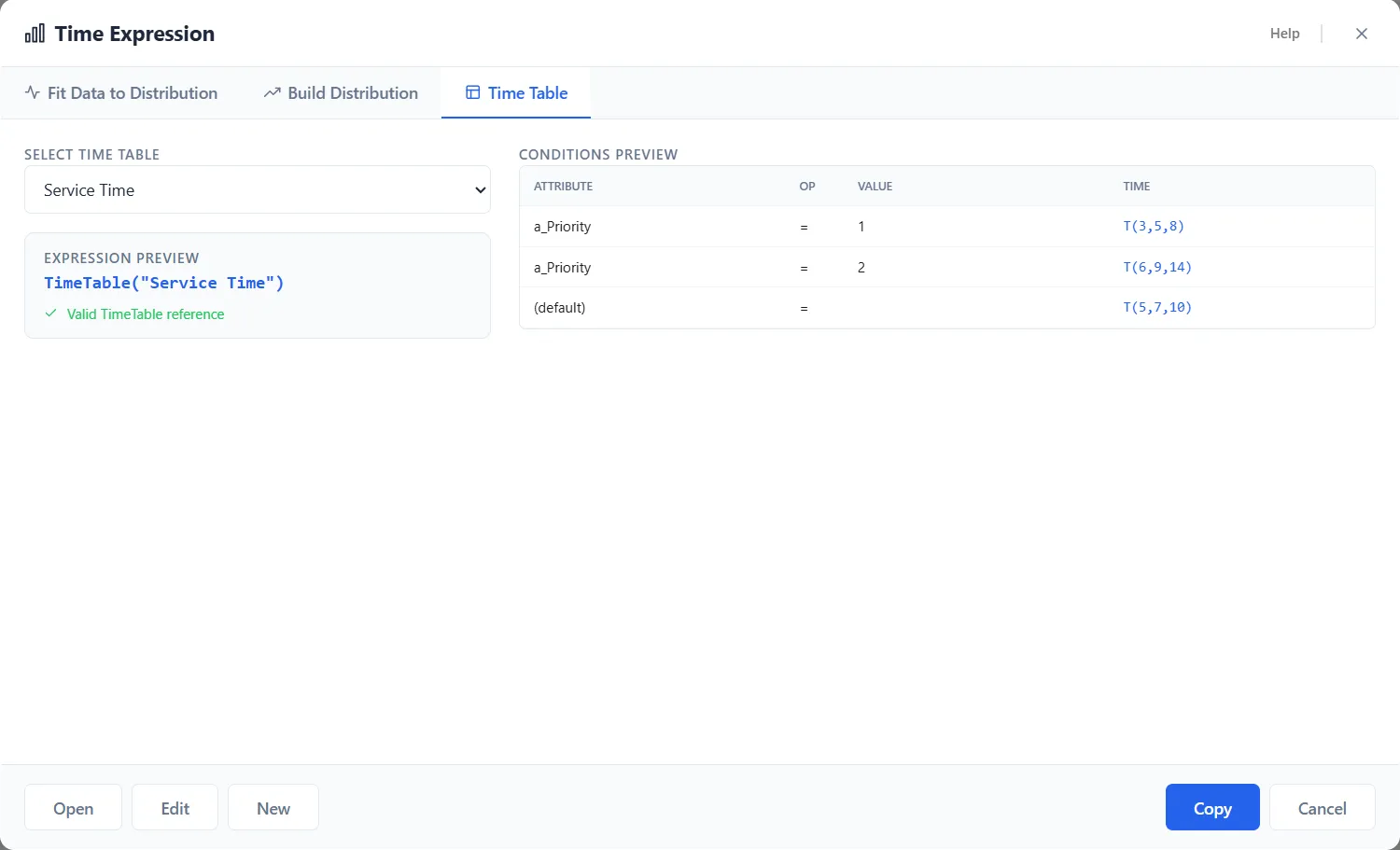
The buttons at the foot of the window work on the tables:
- Open lists the tables in the model, and choosing one selects it.
- Edit opens the chosen table in the Time Table editor.
- New opens the editor for a new table.
Opened from a time field, the main button reads Apply and puts the expression in the field. Opened on its own from the Tools menu, as in the picture, it reads Copy and puts the expression on the clipboard.
Build one in the Time Table editor
Section titled “Build one in the Time Table editor”New opens the editor, headed Create TimeTable. Edit opens it headed Edit TimeTable.
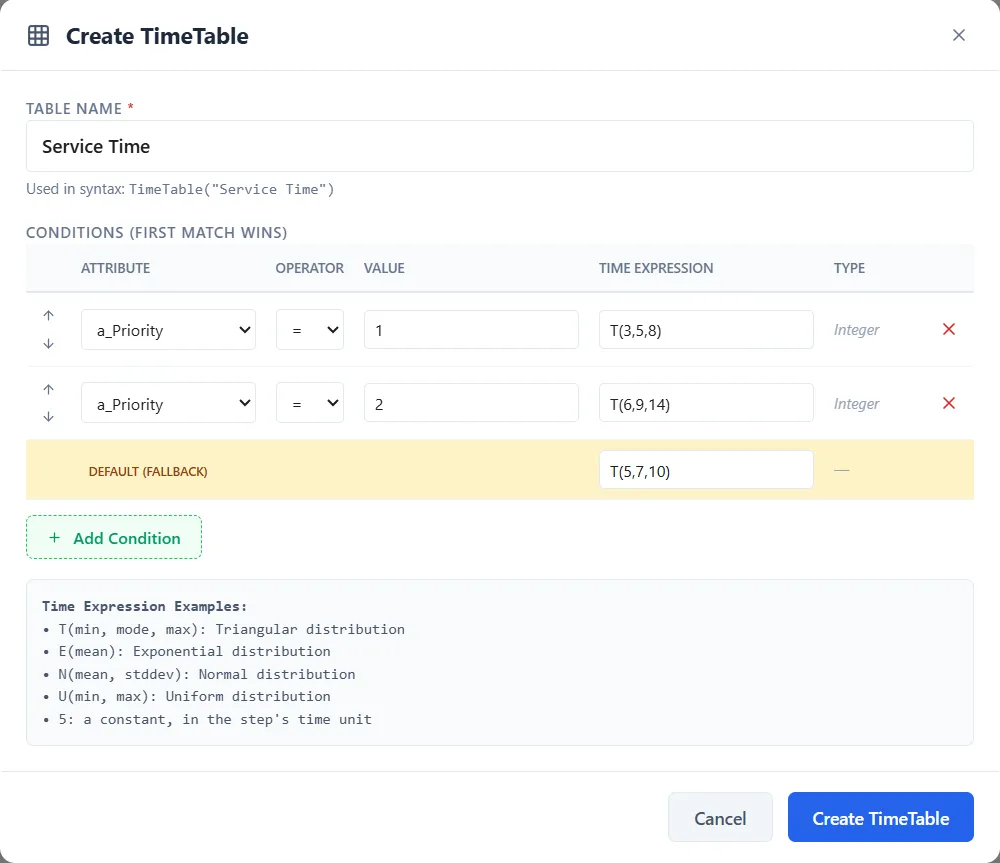
- Table Name takes letters, numbers, underscores and spaces, and starts with a letter. Under it the editor shows how the name is written, as
Used in syntax: TimeTable("Service Time"). A name that breaks the rule shows “Start with a letter; use letters, numbers, underscores and spaces”, and a name already in use shows “A Time Table with this name already exists”. - Conditions (first match wins) is the list of rules, checked from the top. Each row has an Attribute, an Operator (
=,≠,<,≤,>or≥), a Value and a Time Expression. The Type column shows the kind of the attribute. The arrows move a row, the red X removes a row once there are two or more, and Add Condition adds another. - Default (fallback) is the last row. Its Time Expression is the time when no condition matches.
- A Time Expression is a number or a distribution. The box under the table lists the forms: T(min, mode, max), E(mean), N(mean, stddev), U(min, max), and “5: a constant, in the step’s time unit”.
Create TimeTable, or Save Changes on an existing table, saves it. A table needs at least one condition with a time expression.
Use it in a time field
Section titled “Use it in a time field”A time table works in an activity’s Processing Time and a route’s Move Time. Write its name in double quotes:
TimeTable("Service Time")Single quotes work too, and TableFunc("Service Time") means the same as TimeTable("Service Time").
The reference may also be a term in a longer expression. This step takes the row’s minutes for every piece in the tote:
Entity.GroupQty * TimeTable("Inspection Times")Each reference in a field draws on its own. Limits go after the reference, as they do after a distribution: TimeTable("Service Time"),0,60 keeps the time between 0 and 60. A value outside the limits is drawn again, up to 1,000 times, and then held to the nearest limit.
A row’s time is in the unit chosen for the field, like every other number in it. In a field set to Hours, a row of 2 takes 120 minutes. See Time fields and their unit.
If the table is not there
Section titled “If the table is not there”A time table named inside an expression that the model does not have stops the run. The message names the field and the table, for example:
The Timetable "Inspection Times" named in the activity 'Drill' OperationTime ('Entity.GroupQty * TimeTable("Inspection Times")') is not in the model.Check the name against the Select Time Table list.