Shift Assignment
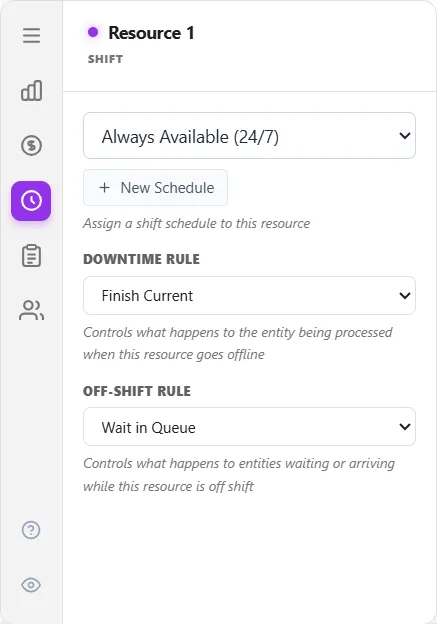
A shift assignment points a node at a shift schedule. Assignment is per node: each resource or activity uses one schedule, and one schedule can be shared by many nodes. A node with nothing assigned is Always Available (24/7).
Assign from the node
Section titled “Assign from the node”On the Shift tab of a resource or activity, choose a schedule from the dropdown, or select New Schedule to build one. The picker shows a quick summary of the schedule’s weekly hours and availability.
Review every assignment in one place
Section titled “Review every assignment in one place”The Shift Manager lists every activity, resource and Shift Calendar gate, one row each, with the same picker you get on the Shift tab. Open it from the Tools menu, or with the Shift Manager button on the toolbar. It is the fastest way to see the shift coverage of your activities and resources at a glance and to change any of it without hunting node by node. Dumpers, discharges, fillers, machines and transfer lines carry an Operating Window instead, set on the node itself.
LegacyHow this worked in the previous version
Once one or more shift files have been defined, resources and activities may be assigned to these shift schedules in the model. To designate a particular shift as the default shift for all activities or resources, see Default Shift File below. To override the default shift, you may assign a shift schedule to a particular resource or activity in its properties dialog. If different units of the same resource have a different schedule, they should be defined as separate resource types (e.g. Shift1_operators, Shift2_operators).
How To - Assign shift schedule to a resource or activity
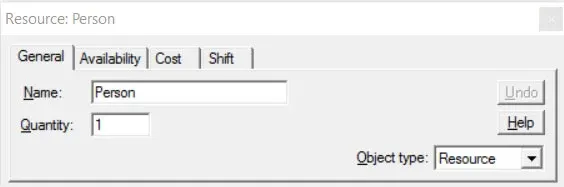
Section titled “How To - Assign shift schedule to a resource or activity”- Select the resource or activity on the layout. (Double click if the properties dialog has been closed.)
- Click on the Shift tab to display the shift schedule properties.
- Enter the name of the shift file or use the Browse button to find the file. Or click on the Create shift file button to create the file and return to enter the name.
- Check the Interrupt current activity to go off shift or on break box if the activity or resource is to be interrupted, if busy, in order to go off shift or on break. If not checked, the priority is 99 which is the highest non-interruptive priority, meaning that the activity will finish processing the entity or the resource will complete its assignment before going off shift or on break.
Default Shift File
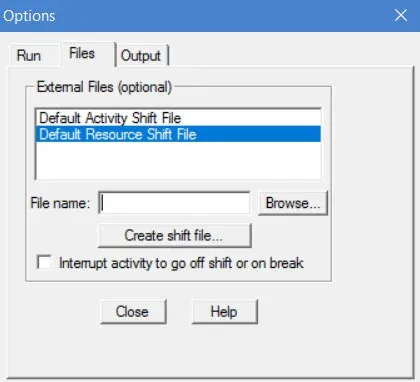
Section titled “Default Shift File”The Files tab on the Options dialog accessed from the Simulation menu allows you to specify a default shift file for activities and a default shift file for resources. A default shift file may be overridden by selecting a different file in the properties dialog for that specific activity or resource.
How To - Define a default shift file for activities or resources
Section titled “How To - Define a default shift file for activities or resources”- From the Simulation menu, select **Options **and select the **Files **tab in the dialog.
- Select Default Activity Shift File or Default Resource Shift File , then click on the Create shift file button.
- Create a shift file following the instructions in Shift Definition.
- Enter the name of the shift file in the File Name field.
- Check the Interrupt activity/resource to go off shift or on break box if activities or resources that are currently busy are to be interrupted in order to go off shift or on break. If not checked, the priority is 99 which is the highest non-interruptive priority.
- Click on the Close button when finished.