

High Volume Conveyor Section
LegacyHow this worked in the previous version
When you need to mimic the behavior of a simple accumulating conveyor for high volume production that does not slow the simulation even while using large accumulating sections. The trade off is that you do not see every individual part on the conveyor, but the animation is fast. Conveyors accumulate based on the size of the entity. Entries for conveyor length and speed determine the holding capacity and travel time.
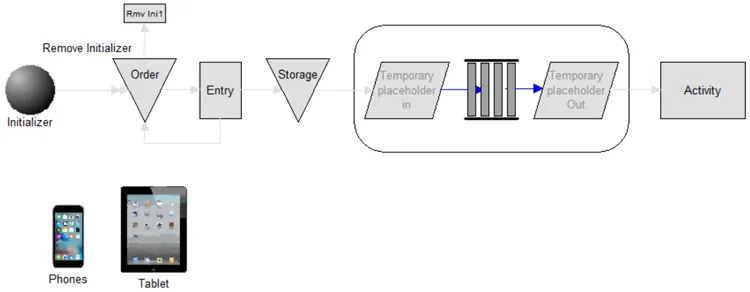
Where to Find the Model Object
Section titled “Where to Find the Model Object”The following model object can be found in the model objects directory:
- High Volume Production - High Volume Conveyor Section
Difficulty Level
Section titled “Difficulty Level”- Ease of Use: Moderate
- Ease of Modification: Moderate
How to Use the Model Object
Section titled “How to Use the Model Object”-
Open Your Model: Open your model or create a new blank model.
-
Insert the Model Object into Your Model
-
Locate the model object High Volume Conveyor Section and select the insert button.
-
Move the cursor to the point of insertion and left mouse-click. The upper left corner of the model object will be inserted at the location of the mouse-click.
-
Connect to Your Model
-
**Disconnect **the blue route from the Temporary placeholder in and **connect **it to the activity in your model, from which the entities would arrive to the conveyor.
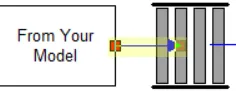
- **Disconnect **the blue route from the Temporary placeholder Out and **connect **it to the activity in your model, to which the entity should flow after the conveyor.
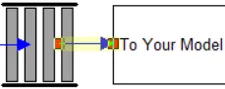
- **Remove **the activities Temporary placeholder in and Temporary placeholder Out.
- Define Values
**Define **the value for attribute **a_ProductSize **based on the information provided under the heading Attributes below. The values must be provided before simulating the model. The values must be provided before an entity enter the conveyor.
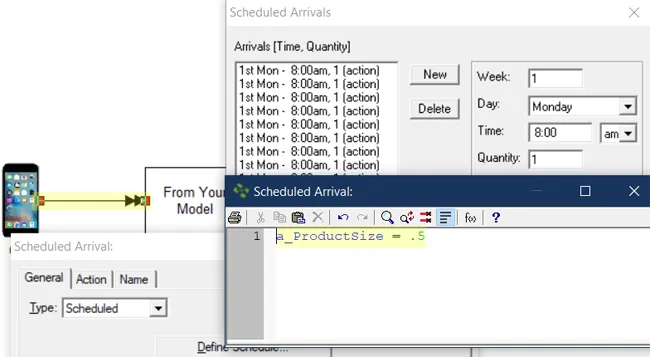
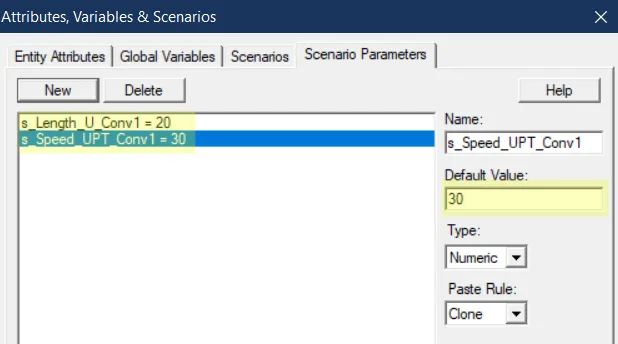
- **Define **the values for scenario parameters **s_Length_U_Conv1 **and **s_Speed_UPT_Conv1 **based on the information provided under the heading Scenario Parameters below. The values must be provided before simulating the model.
- Completion: The model object is now integrated into your model, you should now be able to save and then simulate the model.
Controls Usage
Section titled “Controls Usage”Attributes:
Section titled “Attributes:”- a_ProductSize: This is the length of the conveyor (keep the units consistent). The product size attribute will produce the size of the product on the conveyor.
- If length of conveyor (s_Length_U_Conv1) is 20 and the product size (a_ProductSize) is .5, then 20 / .5 = 40. This means that 40 items can fit a conveyor.
Variables:
Section titled “Variables:”- v_LengthUsedConv1: This variable tracks the amount of space being used by the conveyor.
- v_ItemCountConv1: The purpose of this variable is to keep track of how many items are on the conveyor. If you want to see this variable statistics, change the variable statistics settings to detailed.
Scenario Parameters:
Section titled “Scenario Parameters:”- s_Length_U_Conv1: This is the length of the conveyor (keep the units consistent).
- s_Speed_UPT_Conv1: This is the speed of the conveyor in Length Units per Time Unit. (Keep the units consistent with Length).