

Shift Manager
The Shift Manager is a single window listing the activities, resources and Shift Calendar gates in the model, each with its shift schedule picker on the row beside it. It saves you selecting each node in turn and opening its Shift tab.
Open it from the Tools menu, or with the Shift Manager button on the toolbar.
What the list shows
Section titled “What the list shows”One row per node, sorted alphabetically by name. Each row carries the node’s icon, its name, its type, and its shift picker.
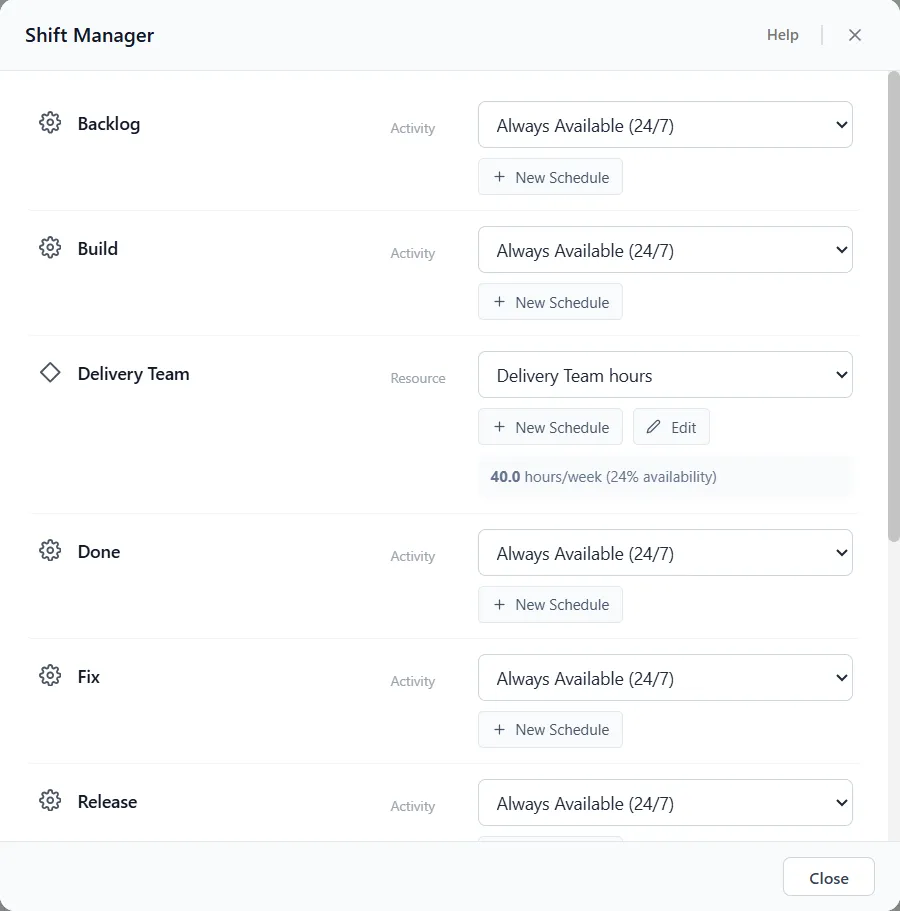
Three kinds of node appear:
- Activities and resources, always.
- Gates, but only when the gate’s Schedule Type is set to Shift Calendar. On any other schedule type a gate has no shift setting, so it has nothing to show here.
Queues never appear, because a queue has no shift setting at all. Dumpers, discharges, fillers, machines and transfer lines carry their schedule as an Operating Window on the node itself, so they never appear here either.
If there is nothing to list, the window tells you so: “No activities or resources yet. Gates appear here when their Schedule Type is Shift Calendar.”
The picker is the one from the Shift tab
Section titled “The picker is the one from the Shift tab”The control on each row is the same shift picker the Shift tab shows in the Properties panel. Choosing a different schedule, editing one, building a new one and clearing a node back to Always Available (24/7) all behave exactly as they do on the node itself. Nothing about a shift assignment is specific to this window, so you can work in whichever place suits the moment and get the same result.
One schedule can be shared by any number of nodes, which is what makes the central view worth having. Point a dozen activities at the same Day Shift from here and every one of them follows that calendar.
Built-in presets and your own schedules
Section titled “Built-in presets and your own schedules”The picker lists nine built-in presets first: Day Shift, Swing Shift, Night Shift, Office 9-5, Day 12hr, Night 12hr, Retail Open, Retail Close and Four-Ten. Any schedules you have built yourself are listed below them.
Every row carries a + New Schedule button. Edit appears beside it only when the row is set to a schedule you built yourself, because that is the only kind you are allowed to change. Either button opens the same Shift Schedule Builder you get everywhere else.
Built-in presets cannot be edited. To get a variation on one, click + New Schedule, then click that preset’s chip in the Quick Presets row at the top of the builder. It fills the whole week in for you, ready to adjust and name before you choose Create Schedule. The result is a schedule of your own and the built-in is left untouched.
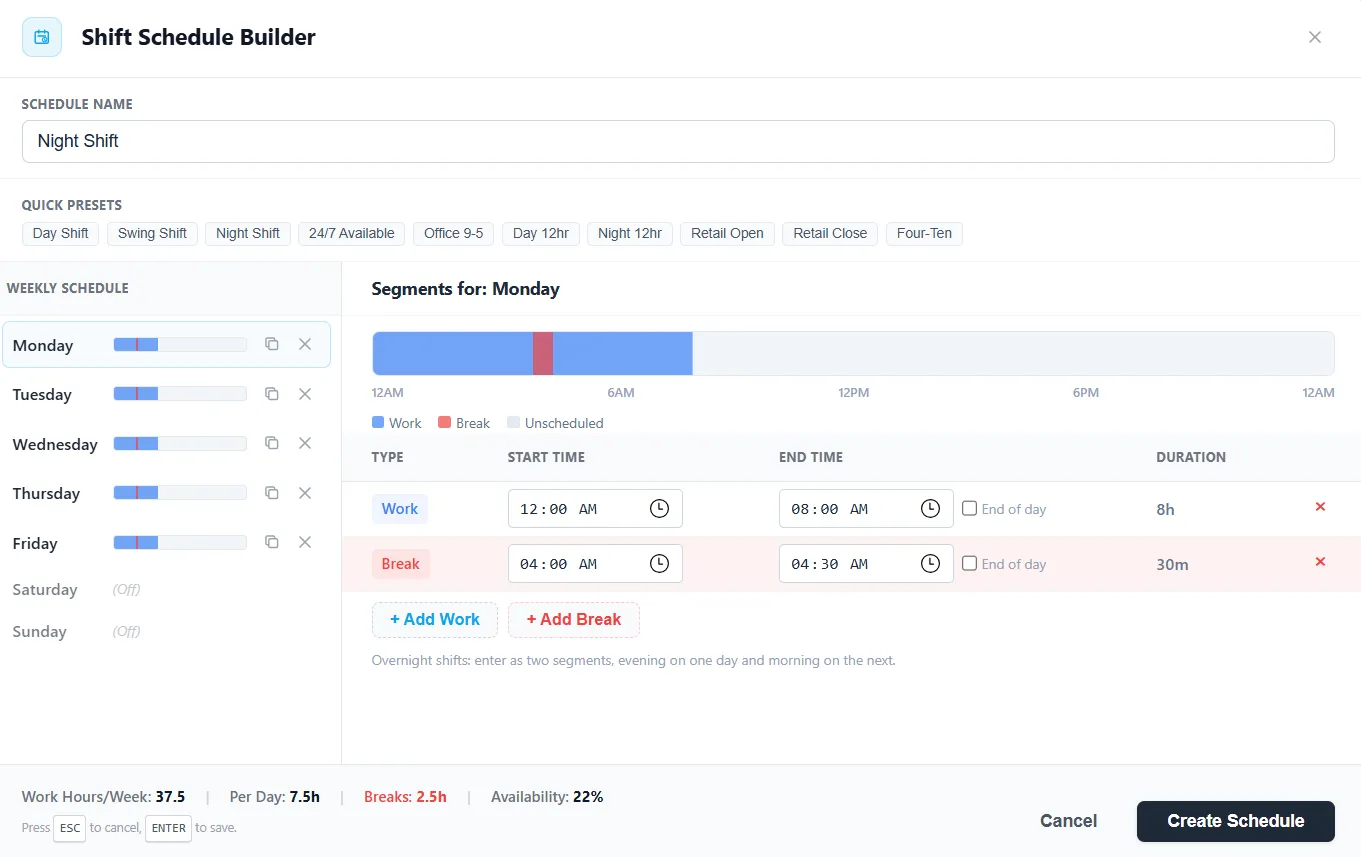
That row of chips is also where 24/7 Available lives. It is a Quick Preset in the builder and not an entry in the picker, since the picker already opens on Always Available (24/7) for any node you have not given a schedule. The two are not the same: the 24/7 Available preset has a 30 minute break from 12:00 to 12:30 every day (98% availability), while Always Available (24/7) has no break at all.
Where the off-shift rules live
Section titled “Where the off-shift rules live”The Shift Manager assigns the schedule. It does not carry the rules for what happens when a node goes off shift: the Downtime Rule and the Off-Shift Rule stay on the node’s own Shift tab. See Activity Shift and Resource Shift for those options.
Closing the window
Section titled “Closing the window”Press Escape to close the Shift Manager. Clicking outside it does not close it, because reassigning shifts across a large model is real work and a stray click should not throw it away.