

Unbatch
An Unbatch node splits a batch back into individual entities. It is the partner to the Batch node: whatever was grouped for boxing, palletizing, or transport is separated here so the pieces carry on their own.
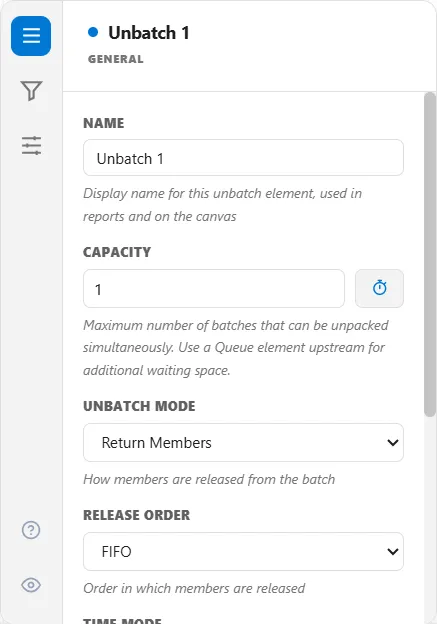
Return the originals, or create new
Section titled “Return the originals, or create new”Unbatch Mode decides what comes out:
- Return Members restores the exact entities that were batched, with the attributes they carried in. Use it to undo a temporary batch.
- Create New discards the batch and releases a set Quantity to Create of fresh entities, for when the batch is a raw lot that yields a number of new pieces.
The batch’s cost goes with the pieces: each member takes an equal share, and the emptied batch is left at 0. See Cost follows the parts.
Release order and timing
Section titled “Release order and timing”Release Order sets how the freed entities come out: first in first out, last in first out, by priority, or all at once. Time Mode adds an unbatch time per batch, per member, or both, and Capacity limits how many batches are being split at the same time.
Collecting statistics
Section titled “Collecting statistics”Collect Stats on the General tab is on by default. It tracks throughput, wait times and utilization for the unbatch node. Clear it to stop collecting them.
Splitting nested batches
Section titled “Splitting nested batches”If batches were grouped inside larger batches, Unbatch Depth chooses how far to go: peel one level, drain the whole thing down to individual entities, or stop at a set level. The same tab decides whether the emptied container is destroyed or kept for a return trip.
Passing values back to the members
Section titled “Passing values back to the members”The inverse of batch aggregation: attribute allocation pushes a value from the batch back onto its members. Split a total equally, copy a value such as a lot number onto every member, or divide it by weight.
The unbatch node’s other tabs
Section titled “The unbatch node’s other tabs”Two more tabs hold the finer settings. Every tab shows by default, each with its own icon, and the eye icon in the tab strip lets you hide the ones you do not use:
- Unbatch: Intermediate: unbatch depth and what happens to the empty container
- Unbatch: Advanced: allocation rules and the unbatch resource
LegacyHow this worked in the previous version
Unbatching before an activity
Section titled “Unbatching before an activity”For entities routed to an activity as a batch, it may be desirable to unbatch the entities prior to the activity (in the input queue) for processing each entity individually.
Suggested Technique
Section titled “Suggested Technique”- Select Unbatch in the Before Activity section of the Batching tab for the activity.
Example: The sales department accumulates a stack of 20 purchase orders, Orders , which move together as a batch to accounting for billing. At the Billing activity, an invoice is created for each purchase order and sent on individually to a data entry activity.
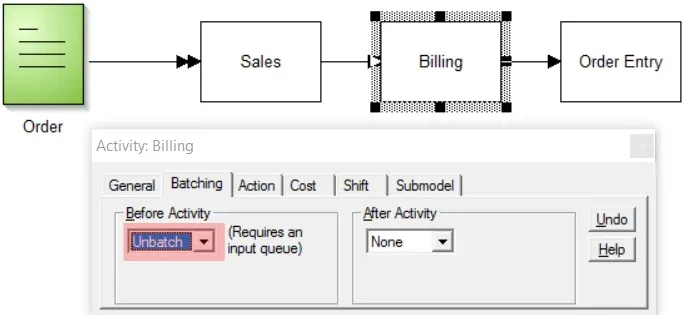
TO DO: Select the Billing activity and select the Batching tab. Now choose Unbatch for Before Activity as shown above.
- If you want to accumulate the same entities back into a batch after the activity, select Rebatch for After Activity and make sure an output queue capacity is defined to meet or exceed the quantity that will be rebatched.
Unbatching after an activity
Section titled “Unbatching after an activity”Separate an entity batch into individual entities after the completion of an activity. It is assumed that entities have been previously batched. To create entities from a single entity that has not been batched, see Creating Entities.
Suggested Technique
Section titled “Suggested Technique”- Select Unbatch in the After Activity section of the Batching tab for the activity.
** Example**: After being painted and dried in batches, Parts are unbatched before moving on. The Parts enter the Dry activity already grouped (in the Paint activity). They are dried as a batch and then unbatched to be routed to the next activity individually.
TO DO: Select the Dry activity’s Batching tab. Choose Unbatch for After Activity. You may need to define an output queue for the activity if you don’t want to block up the paint and dry activities.
- To see how the Parts are grouped before the Paint activity, see Grouping or Batching Before an Activity.
- All batches or groups are unbatched when the batched entity exits the model in order to complete statistics collection on each entity.
Creating a disassembly
Section titled “Creating a disassembly”Detach one or more entities from another entity to which they have been attached.
Suggested Technique
Section titled “Suggested Technique”-
Create an activity where the disassembly is to occur and define the disassembly time.
-
Use a Detach routing for the entities to be detached from the assembly. (Use Name = entity_name in the Condition field to detach only certain entities.)
-
Define a routing (not a Detach) for the entity to which the others were attached (the base or main entity).
-
If you want to separate one or more entities from another entity and they have not been previously attached to the entity somewhere in the model, use the create routing. See Creating Entities.
Example: A store rents Skis to Customers for a random period of time and the Customer later returns the Skis to be checked back into the Ski Storage.
TO DO: Attach the Skis to the Customer at the Rental activity. Define the random rental time in the Rental activity, then route the Customer to the Return_Skis activity. Detach the Skis from the Customer using a Detach routing as shown above and route the Customers out of the Return_Skis activity with a 100% routing.
Processing individual entities from a batch
Section titled “Processing individual entities from a batch”A batched entity enters an activity input queue where each entity in the batch is processed individually. The entities may be rebatched optionally in the output queue.
Suggested Technique
Section titled “Suggested Technique”- Route the previously batched entity to the activity. Make sure the activity has an input queue capacity greater than zero (the default is 999).
- In the activity’s properties dialog under the batching tab, select Unbatch for Before Activity. (Optionally select Rebatch for After Activity if you wish to have the entities regrouped in the same quantity as they came in.)
Example: A batch of 48 PC boards must be unpacked (unbatched) and individually inspected at the Inspection activity and then batched together again before they are moved to the Packaging activity. (It is assumed that the PC Boards have been previously batched.)
TO DO: Select Unbatch for Before Activity and Rebatch for After Activity in Batching tab of the Inspection activity. Enter 48 (or a higher number) in the Output Queue Cap. field in the General tab.
- If individual entity statistics are unimportant, it is easiest to leave the batch intact at each activity (or let a single entity represent the batch) and specify an activity time equal to the time needed to process the entire batch at the activity. See GroupQty( ) to change the time based on quantity in the batch.