

Time Expression
The Time Expression window writes the time and distribution expressions that drive your model, such as an activity’s processing time or a route’s move time. Open it from any time field and it builds a valid expression for you, so you do not have to remember the syntax. It has three tabs.
You can also open it on its own, with no field waiting for the answer, from the Tools menu or with Ctrl+Shift+T. Opened that way it starts on Fit Data to Distribution, and its main button reads Copy rather than Apply: it puts the finished expression on the clipboard, ready to paste wherever you need it.
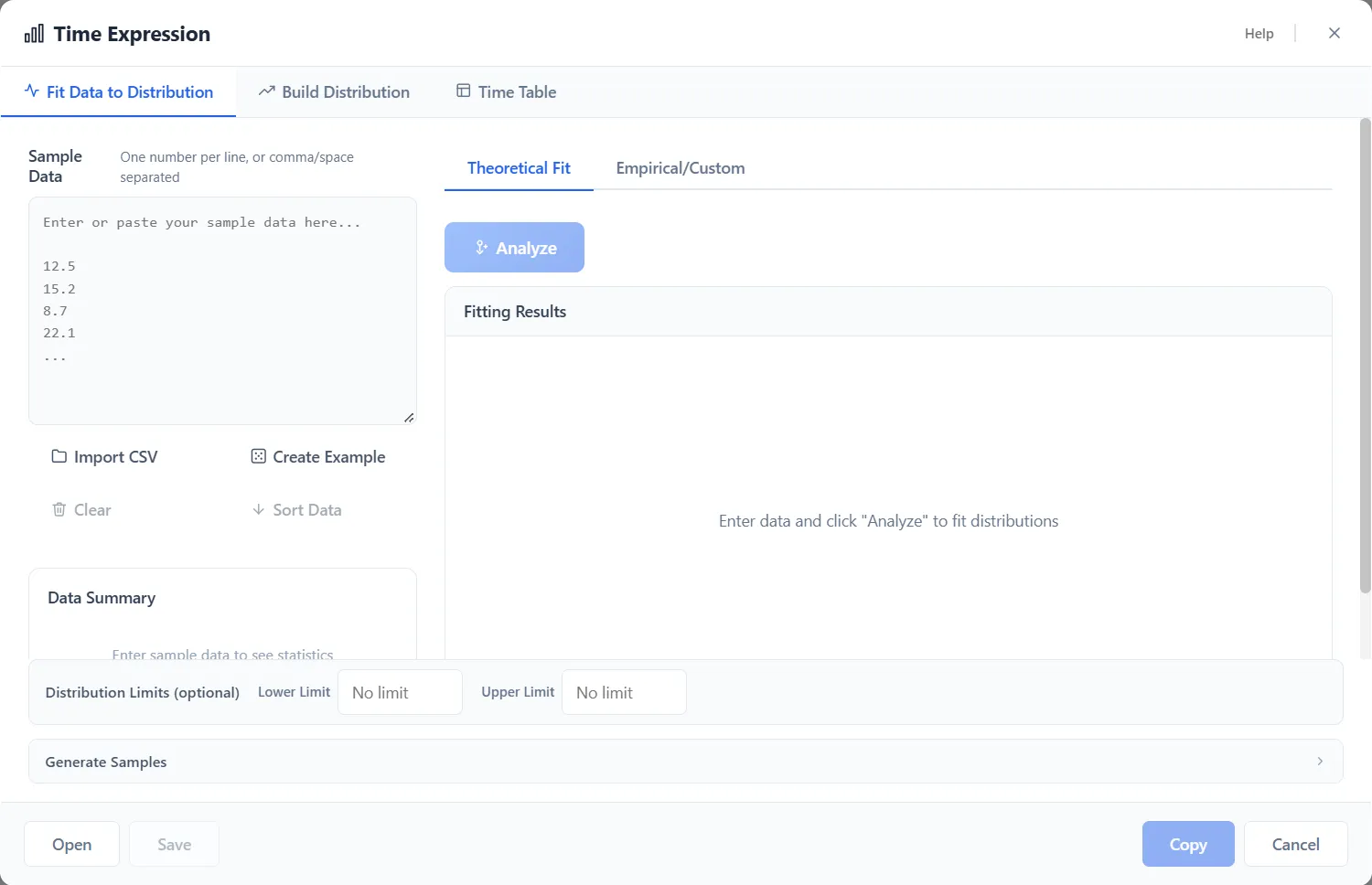
Fit data to distribution
Section titled “Fit data to distribution”Have real timing data? Paste or import it, one number per line or separated by
commas or spaces, and choose Analyze. ProcessModel fits every
distribution it knows to your data, ranks them by how
well each one fits, and hands you the best-fit expression, for example
Weibull(5.597, 21.984).
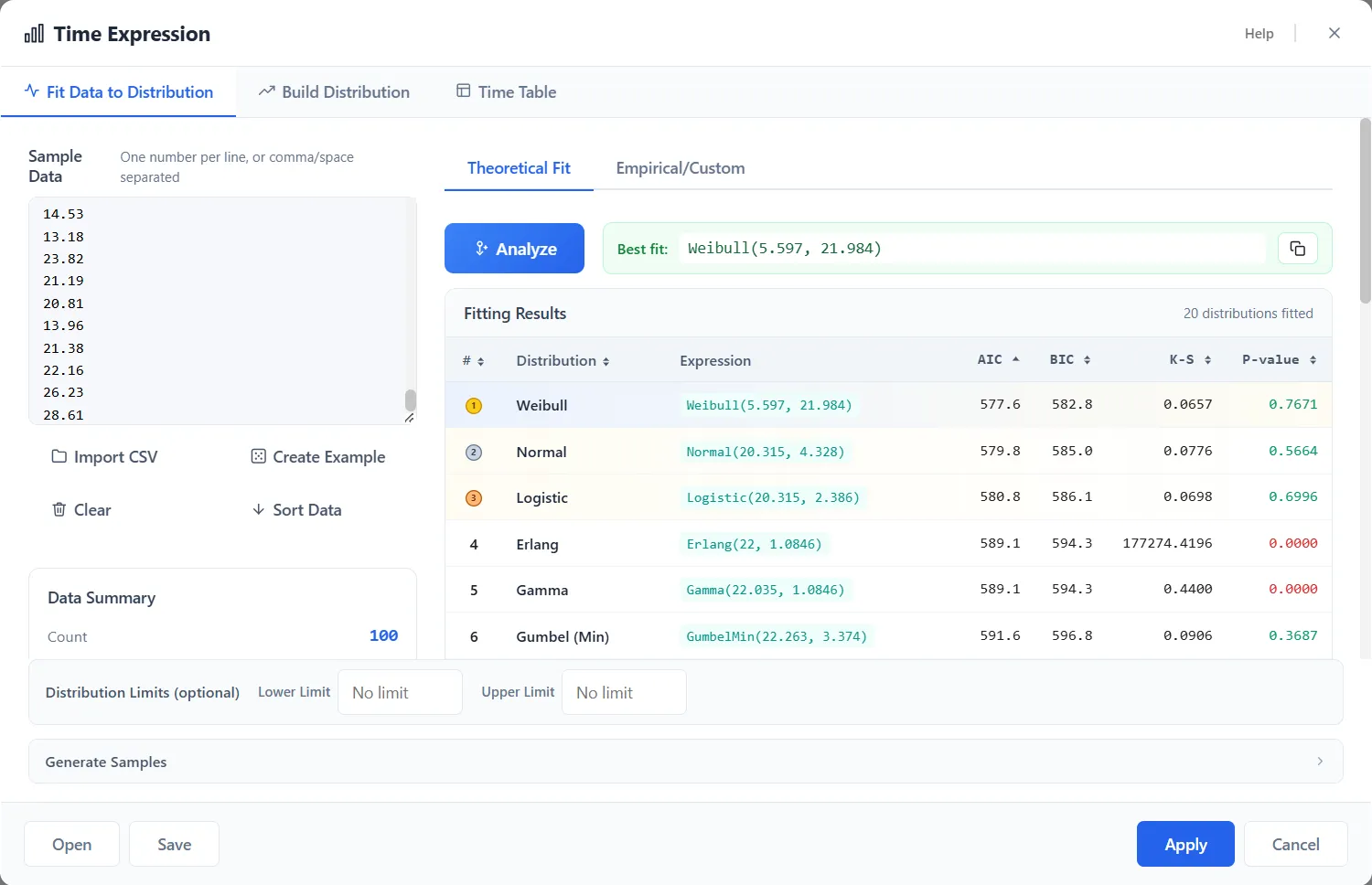
ProcessModel has its own built-in fitting, so no separate tool is needed.
Build distribution
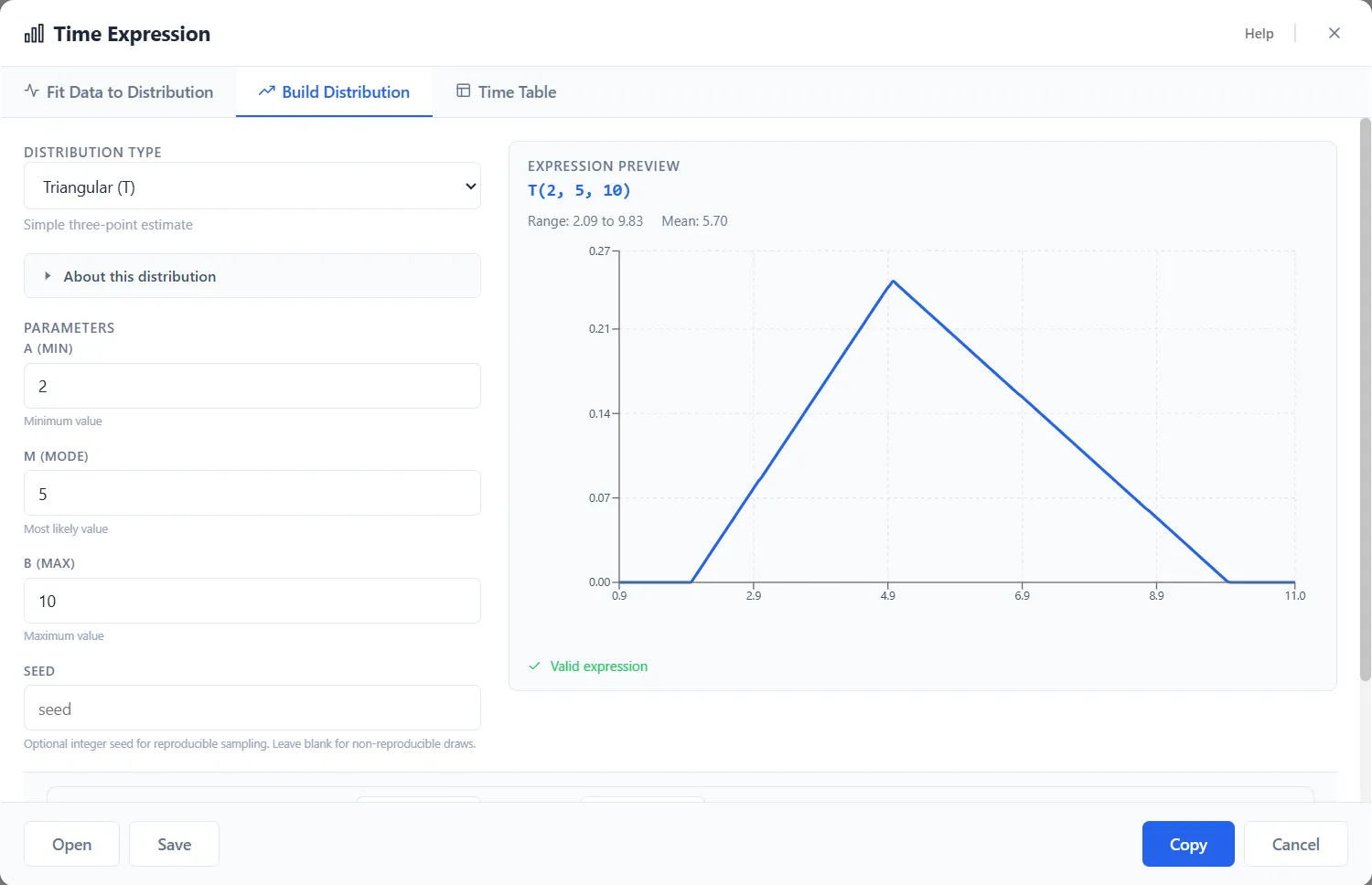
Section titled “Build distribution”No data yet? Pick a distribution type and enter its parameters. The window shows
a live preview of the expression and its shape as you type, for example
T(2, 5, 10) for a triangular distribution. You can also set lower and
upper limits so sampled values stay within a range.
Time table
Section titled “Time table”Use a time table when the time depends on the entity itself, such as a service time that is shorter for one kind of customer and longer for another. A time table is a table of rules on entity values: each row has an Attribute, an Operator, a Value and a Time Expression, listed under Conditions (first match wins), and a Default (fallback) row gives the time when no condition matches. Nothing in a time table reads the clock.
Use it in an activity’s processing time or a route’s move time by writing its
name in quotes, as in TimeTable("Inspection Times"). The tab, the editor and the
rules for a table’s name are in Time Tables.
The numbers in an expression you build here are in the unit of the field you use
it in: T(2, 5, 10) in a field set to Hours means 2, 5 and 10 hours. How each
kind of expression is read is in
Time fields and their unit.
Applying and reusing
Section titled “Applying and reusing”Choose Apply to validate the expression and drop it into the field. You can Save a distribution you built or fitted and Open it again later, and you can generate a sample of values to check the shape before you commit to it.