The Emergency Department palette
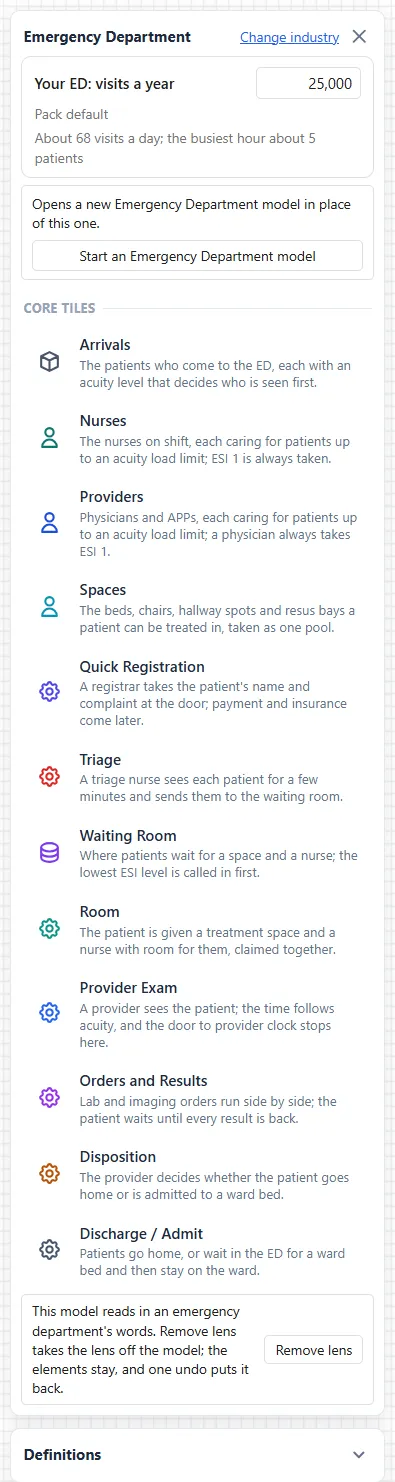
The Emergency Department face of the industry palette is where you build a department from parts. Open it with View ▸ Show Industry Palette and choose Healthcare, as Emergency department modeling describes. Under the header and its Change industry link come the visits box, the button that starts a typical department, and the tiles.
The twelve tiles
Section titled “The twelve tiles”All twelve tiles sit under one heading, CORE TILES. Each shows its name and a sentence about it.
| Tile | Its sentence |
|---|---|
| Arrivals | The patients who come to the ED, each with an acuity level that decides who is seen first. |
| Nurses | The nurses on shift, each caring for patients up to an acuity load limit; ESI 1 is always taken. |
| Providers | Physicians and APPs, each caring for patients up to an acuity load limit; a physician always takes ESI 1. |
| Spaces | The beds, chairs, hallway spots and resus bays a patient can be treated in, taken as one pool. |
| Quick Registration | A registrar takes the patient’s name and complaint at the door; payment and insurance come later. |
| Triage | A triage nurse sees each patient for a few minutes and sends them to the waiting room. |
| Waiting Room | Where patients wait for a space and a nurse; the lowest ESI level is called in first. |
| Room | The patient is given a treatment space and a nurse with room for them, claimed together. |
| Provider Exam | A provider sees the patient; the time follows acuity, and the door to provider clock stops here. |
| Orders and Results | Lab and imaging orders run side by side; the patient waits until every result is back. |
| Disposition | The provider decides whether the patient goes home or is admitted to a ward bed. |
| Discharge / Admit | Patients go home, or wait in the ED for a ward bed and then stay on the ward. |
The Room tile has a setting of its own, Rooming needs. See Settings for an emergency department model.
Drop a tile
Section titled “Drop a tile”Drag a tile onto the canvas. Rest the pointer on a tile first and it shows the tile’s sentence and the line “Drag it onto the canvas.”
A dropped tile is wired to the tiles already on the canvas, whatever order you drop them in.
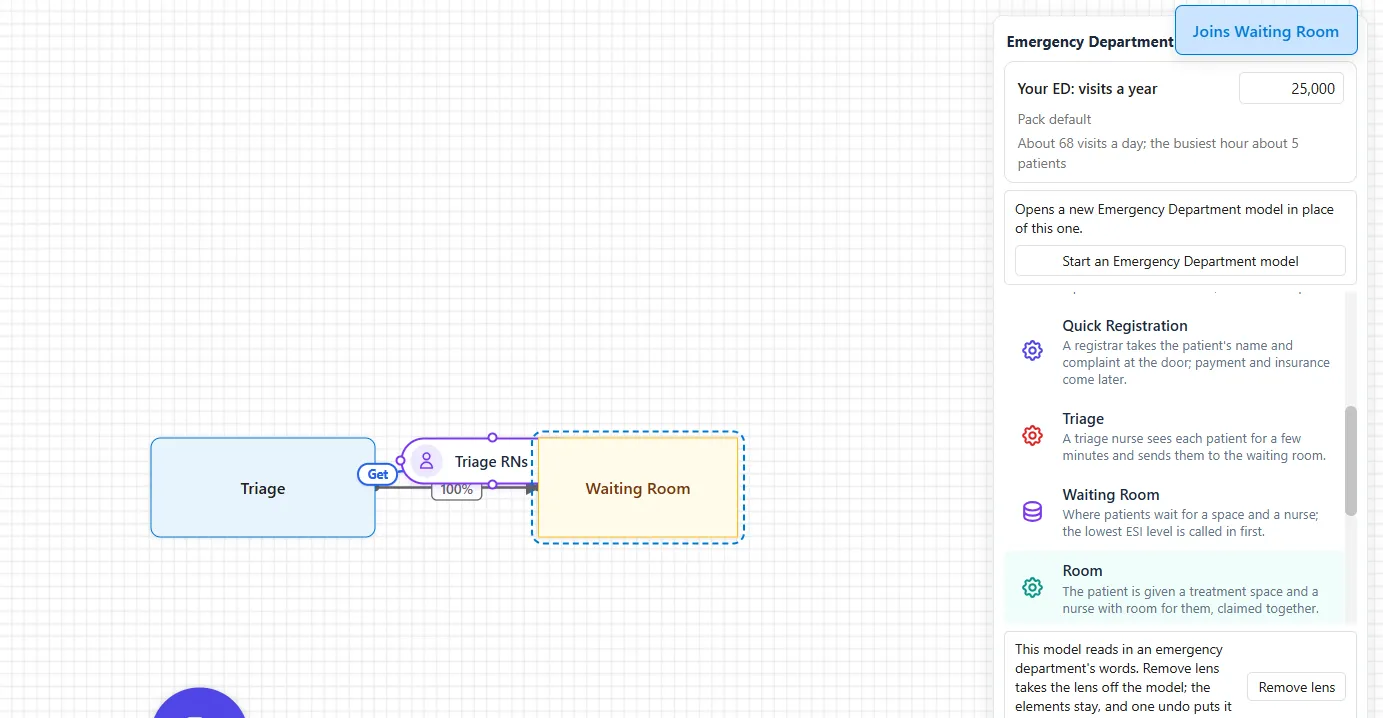
- While you drag. The tiles the new one will join are outlined, and a note names them, such as “Joins Waiting Room”.
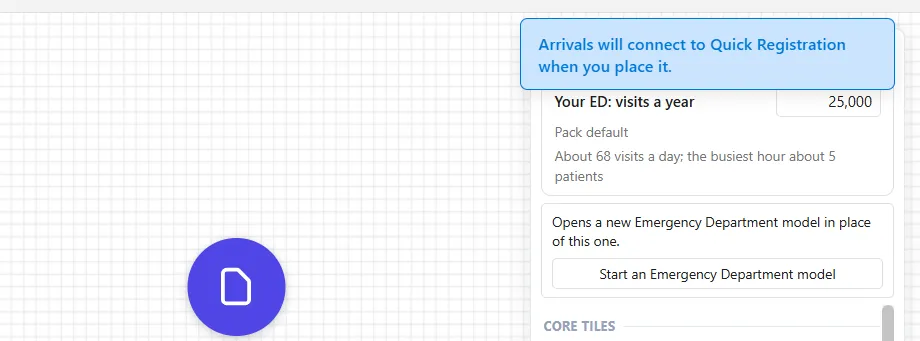
- If a tile is missing. When a tile it should join is not on the canvas yet, the link waits, and a note says so, such as “Arrivals will connect to Quick Registration when you place it.” Place that tile and the link is made.
- After the drop. A drop is one Undo.
The first tile you place also adds the patient types: Discharged, Admitted, Transferred out, Died in ED, LWBS, Eloped, AMA and Diverted. They are the kinds of departure the report counts.
The palette hides while a run plays.
The right-click menu
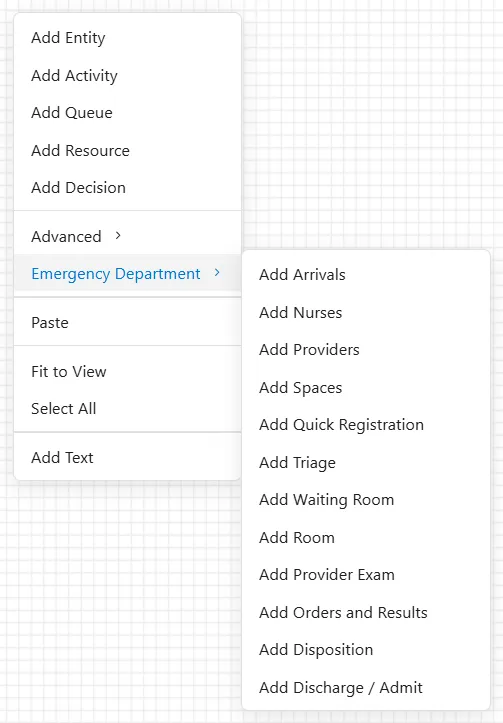
Section titled “The right-click menu”With the Emergency Department lens on, right-click the empty canvas. The menu has the usual Add entries, then Advanced and, just under it, Emergency Department. Its submenu has an Add entry for each tile, from Add Arrivals to Add Discharge / Admit.