

The Action Logic Editor
The Action Logic Editor is the full code surface for writing action logic. Open it from a node’s Logic tab: the inline editor gives you two ways in, Open Editor for the code editor and Compose for the visual card builder. Both produce the same logic, so you can start in one and finish in the other.
Syntax highlighting
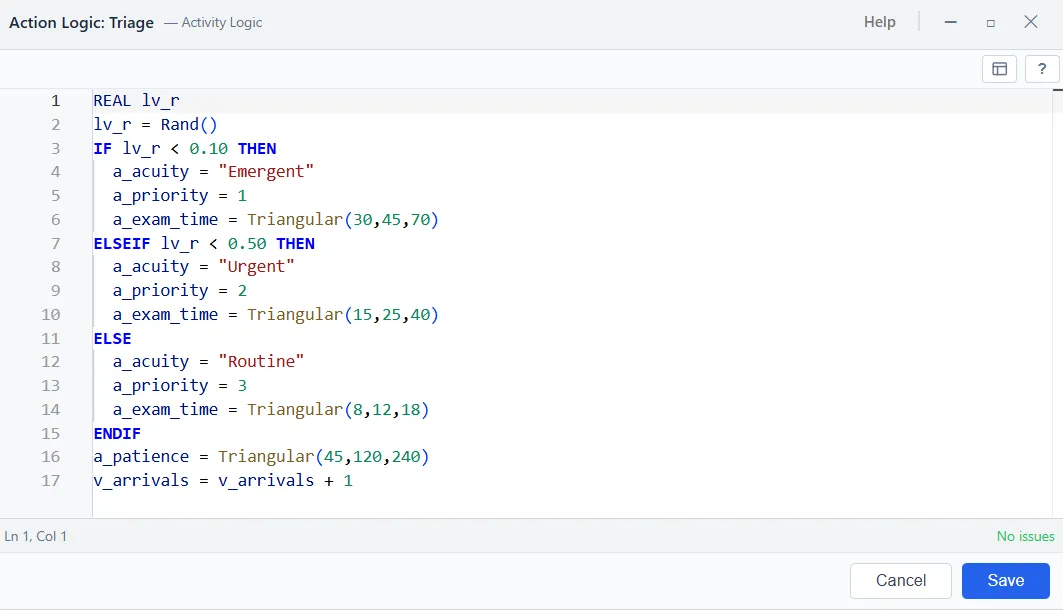
Section titled “Syntax highlighting”The editor colors your logic as you write it, so statements, functions, distributions, names, numbers, text, and comments each stand out. It follows the light and dark themes, and it pairs opening and closing keywords such as IF and ENDIF, or WHILE and LOOP, highlighting the partner when your cursor sits on one.
Checking as you type
Section titled “Checking as you type”Every change is checked against your model. A mistake is underlined in place, with the reason shown on hover, and the running count of errors and warnings sits in the status bar beside the line and column. When everything is sound the bar reads No issues. Because the check knows your model, it catches a misspelled name or a resource that does not exist, not just a broken line, and a save is held while errors remain.
Suggestions as you type
Section titled “Suggestions as you type”Press Ctrl and Space, or just start typing, and the editor lists what fits at that point: statements, functions, distributions, and the names already in your model. Each suggestion carries a short description and, where it takes them, its parameters, along with a worked snippet you can accept and fill in. Suggestions also appear on their own after you type a ., (, [, or a space, so a resource query completes as you reach for it, and they reach inside an expression as much as a whole statement, completing a function or a name wherever it belongs in a formula or a condition. Hover a keyword for its documentation, and a function shows its parameter hints while you write the arguments.
Inserting a distribution
Section titled “Inserting a distribution”To drop in a timing distribution without recalling its exact form, right-click and choose Insert Distribution. Pick the shape and its values in the picker, and the editor writes the call at your cursor, for example N(10, 2).
Inserting a process table
Section titled “Inserting a process table”The Insert Process Table button on the toolbar writes a process table reference such as ProcessTable("Name") at your cursor. A process table already named in your logic becomes a link you can follow to open that table, and a name you have not defined yet offers to create it.
Creating a name as you use it
Section titled “Creating a name as you use it”When you reference an attribute or variable the model has not declared yet, the editor offers to add it in one click instead of stopping you with an error. Its underline is softened to a note rather than a red mark, a small Add button appears, and hovering it names exactly what will be created, with the type and starting value it worked out from the statement.
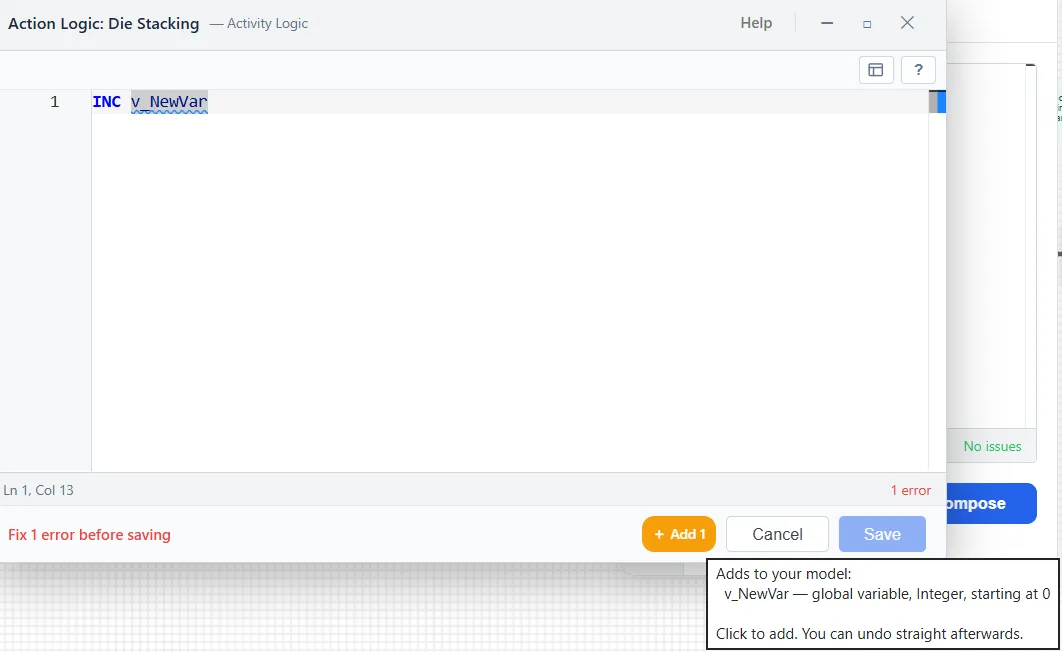
It reads the type from how you used the name: INC or DEC makes an integer starting at zero, a text value makes a descriptive, a plain number makes an integer or a real, a date makes a date, and copying another name takes that name’s type. Anything it cannot read falls back to a real starting at zero.
Two safeguards keep it honest. It waits until a name is finished, so typing v_Count a character at a time offers to add it once, not at every keystroke. And a name within one character of one you already have is treated as a probable typo and flagged rather than added, so v_Totals never quietly becomes a twin of v_Total. Adding is a single click, and the message that follows names what was created and offers to undo it.
The reference panel
Section titled “The reference panel”The ? button opens a reference panel beside your code: the statement families, the dot-property queries for resources, activities, gates, and inventory, array syntax, entity properties, common patterns, and the distributions, each with a small example. It is a quick reminder without leaving the editor.
Moving between code and cards
Section titled “Moving between code and cards”The editor is one view of your logic and the card builder is another. A Show Code toggle on the cards displays the generated code beside them, and the code is the single source of truth: anything written here opens correctly as cards, and anything built as cards reads back here as code.
Editing shortcuts
Section titled “Editing shortcuts”The editor supports the usual editing, selection, and multiple-cursor keys, find and replace, go to line, folding, and a command palette. See Keyboard Shortcuts for the full list.