

Demo Models
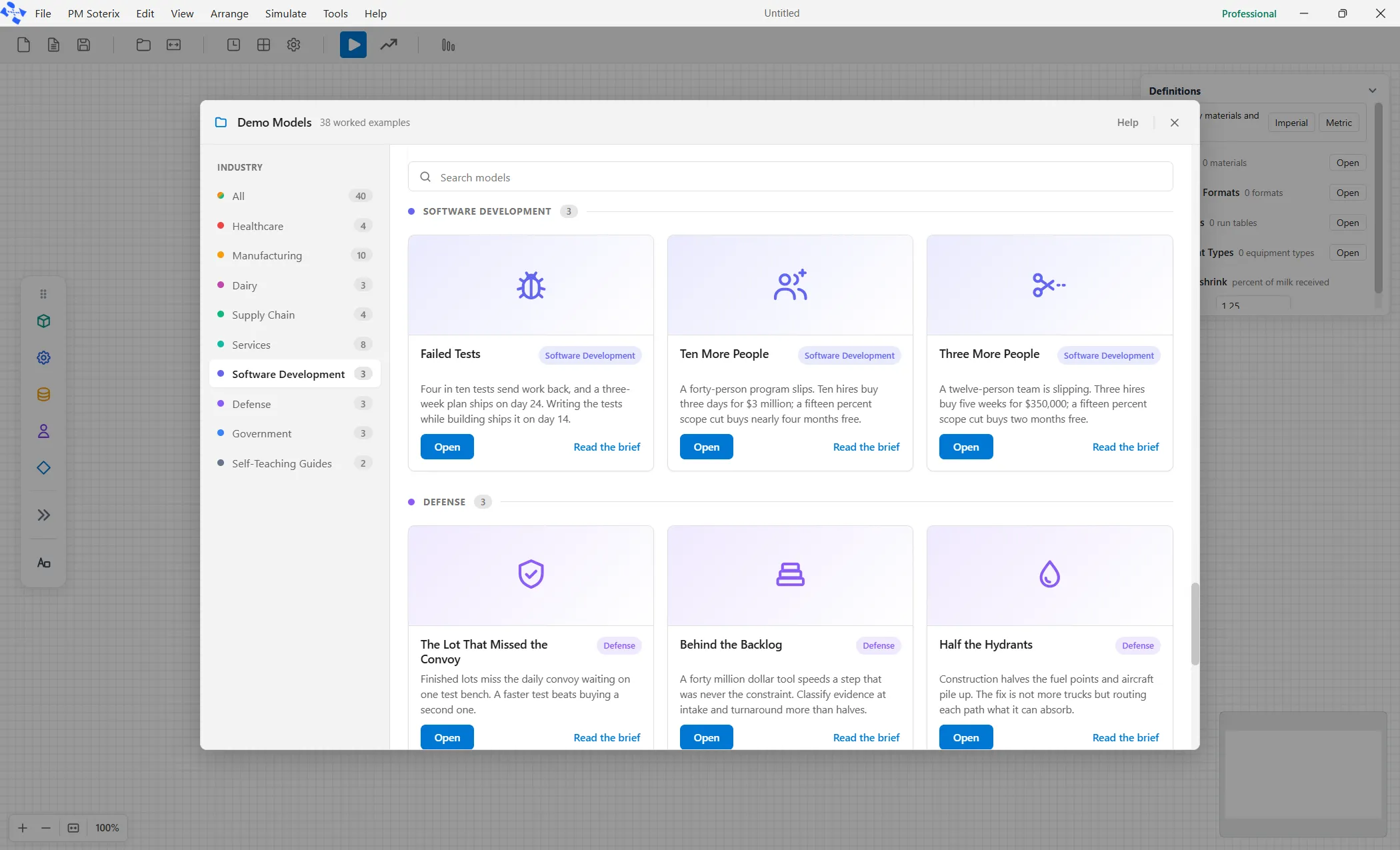
Demo Models is a library of complete, ready-to-run models that ship with ProcessModel. Every one is a finished process built around a real problem, with the arrivals, resources, shifts and logic already set up, so you can open one and run it without building anything first.
They are the fastest way to see what a working model looks like, and a good starting point for one of your own: open the demo closest to your process, then change it.
Open the library from File ▸ Demo Models, or with the Demo Models button on the toolbar.
How the library is organized
Section titled “How the library is organized”The rail down the left side groups the models by industry, with the number of models in each: All 41, Healthcare 5, Manufacturing 10, Dairy 3, Supply Chain 4, Services 8, Software Development 3, Defense 3, Government 3 and Self-Teaching Guides 2, the two models the self-teaching guides build rather than showcase demos. Clicking an entry scrolls the grid to that industry’s heading and hides nothing. All at the top shows the whole set, grouped in that same order, and the window’s header counts the worked examples: 39. Each industry has its own color, which carries through to the badge on every card, so you can tell at a glance where a model came from.
Each card gives you the model’s name, its industry, and one line describing the problem it is about. A Search models box tops the cards, with an “N of 41 models” line that counts the matches. Press Ctrl+F or / to put the cursor in it. Escape clears a search first, and closes the window only when there is no search to clear.
Reading a model before you open it
Section titled “Reading a model before you open it”Read the brief, the link on each card, slides a panel over the grid with the full story behind that model: the situation, what was tried, what the simulation showed and the takeaway. It is worth reading first, because each demo is built to make one specific point, and the brief tells you what to look for once you run it. A click anywhere else on a card opens its brief too.
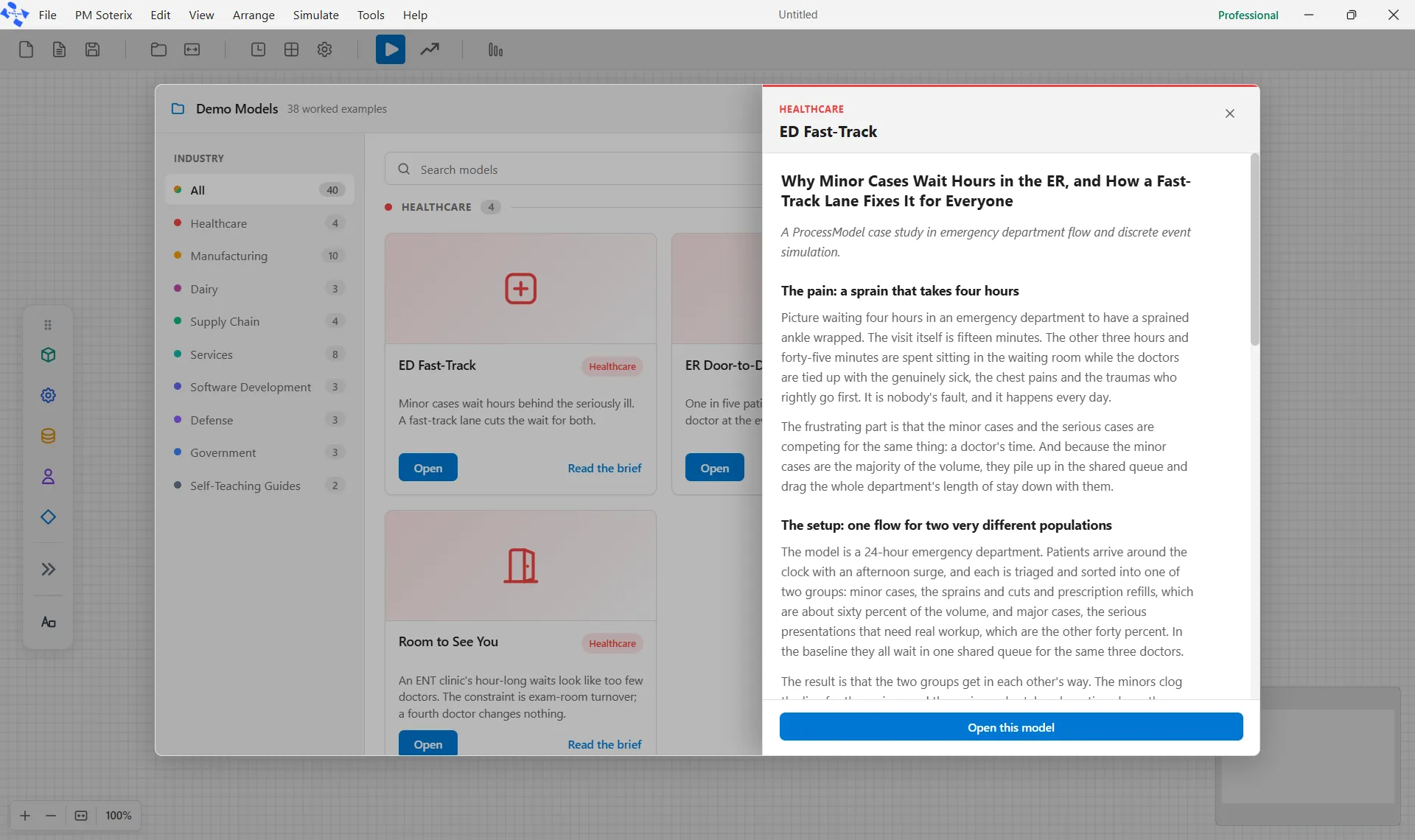
Open this model, along the foot of the panel, loads the model you are reading about, so you can go straight from the story to the model without returning to the grid.
Press Escape to close the brief and go back to the grid, or use the ✕ in its corner, or click the grid behind it. Press Escape again to close the library.
Opening a demo
Section titled “Opening a demo”Open loads that model onto the canvas. It comes in ready to run, so you can press Run straight away and watch it.
A demo replaces whatever is on the canvas. If the model you have open has unsaved changes, ProcessModel asks first, with Save, Don’t Save and Cancel. Cancel leaves everything as it was and the demo is not loaded. With no unsaved changes, the demo loads immediately.
A demo opens as a new, unsaved model with no file of its own. That matters in two ways:
- The originals are read-only and you can never overwrite one. Change a demo as much as you like.
- Save will ask you where to put it, exactly as it would for a model you built yourself. Until you do, it is not on disk anywhere.
The five on the welcome screen
Section titled “The five on the welcome screen”The welcome screen carries five of the demos as tiles, beside Blank Canvas, so there is something to run within seconds of a first launch. They behave exactly like the cards in the library, and the full set is always a click away under File ▸ Demo Models. The Welcome screen describes the rest of that screen.
Related
Section titled “Related”- The fastest way to build a model covers the other quick starting points.
- Simulation options for changing the run length and replications on a demo.
- Output Report for reading what a run produced.