

Resource Shift
A resource shift sets when a resource (people or equipment) is available, and what happens when it goes off shift.
Assign a schedule
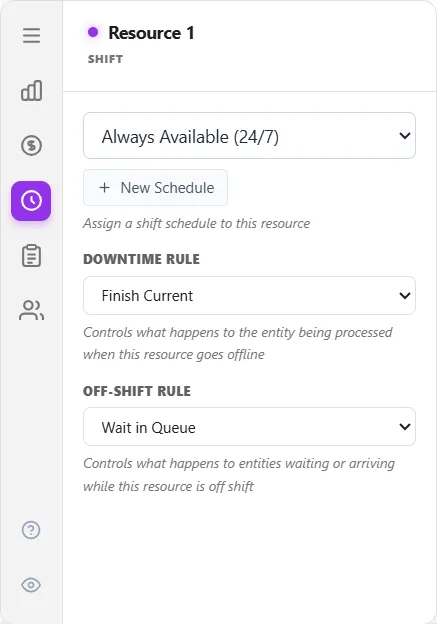
Section titled “Assign a schedule”On the resource’s Shift tab, pick a schedule from the dropdown (the default is Always Available (24/7)) or build one with New Schedule. The schedule can also be picked in the Shift Manager; the two rules below are set here, on the resource.
Downtime Rule
Section titled “Downtime Rule”The Downtime Rule decides what happens to the entity a resource is working on when its shift ends or a scheduled break starts:
- Finish Current (default): finish the entity in progress as overtime, then go off shift.
- Preempt & Wait: stop at the shift boundary, save the remaining work, and resume the same entity when the resource returns on shift.
- Preempt & Pass: stop and hand the work to an alternate resource if one is connected. With no alternate connected it behaves like Preempt & Wait.
- Clear Queue First: keep working past the boundary until everything already waiting has been processed, then go off shift.
A unit held by a Get / Keep connection or a GET statement keeps the shift end or the break waiting until it is freed, and any overtime is booked there. A FREE in action logic settles it too.
Off-Shift Rule
Section titled “Off-Shift Rule”The Off-Shift Rule decides what happens to entities waiting or arriving while the resource is off shift:
- Wait in Queue (default): they wait until the resource comes back on shift.
- Balk (Leave System): they leave the system.
Clear Queue First and Balk cannot be combined, since one drains the waiting queue and the other discards it.
Staying available after a shift ends
Section titled “Staying available after a shift ends”Because the default Downtime Rule is Finish Current, a resource keeps working past the end of its shift to finish the entity in progress, rather than stopping mid-task. That overtime is priced at the resource’s Overtime Multiplier (1.5 times the normal rate by default). If you want a resource to stop exactly at the end of its shift, set the Downtime Rule to Preempt & Wait: it saves the remaining work and resumes it when the resource is next on shift.
LegacyHow this worked in the previous version
Resource Shift
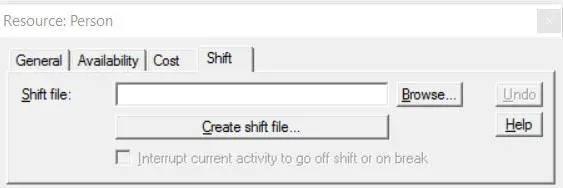
Section titled “Resource Shift”Shift file The name of the shift file which defines the times during which this resource is scheduled to be available. If different units of the same resource have a different schedule, they should be defined as separate resource types (e.g. Shift1_operators, Shift2_operators).
- A default shift file for all resources may be defined in the Options dialog under the Simulation menu.
**Browse **Allows you to search through one or more directories to locate a shift file.
Interrupt current activity to go off shift or on break Check this option if the current use of the resource is to be interrupted in order to go off shift or on break. If not checked, the priority is 99 which is the highest non-interruptive priority.
If an entity is being worked on when it’s resource goes off-shift, the entity will wait at the activity until that same resource comes back on shift. The only way to get the entity to be passed to the next shift coming on-line is to use action logic. There is a model object in the ProcessModel software that demonstrates how to make that occur. It is under the category Shifts Release Entity To Next Shift.
Create shift file Opens the shift editor for defining a shift and saving it as an.SFT file. See Shift Definition.
Adding shifts and breaks for resources
Section titled “Adding shifts and breaks for resources”In situations where one or more resources are available during different shifts or time periods, it may be useful to reflect this difference in a schedule during the simulation.
Suggested Technique
Section titled “Suggested Technique”Define a default schedule for all resources that are available during “normal” hours as follows:
- In the Simulation -> Options dialog (Files tab), select Default Resource Shift File and click Create Shift file… to open the shift editor.
- Using the Shift Editor , specify a shift to be used as the normal or default shift.
- After closing the Shift Editor , assign the created shift file as the Default shift in the Options dialog.
Define a schedule for each resource that has a working period that is different than the normal working period. This is done as follows:
- Select Create shift file… in the resource properties dialog under the Shift tab. This opens the Shift Editor.
- Using the Shift Editor , specify a shift to be used for this resource.
- Enter the name of this shift file in the Shift file field of the Shift tab.
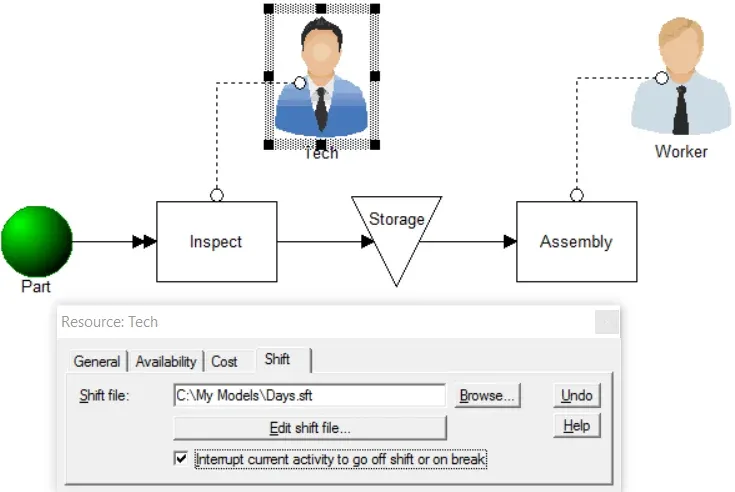
Example: A Part arrives from an outside vendor and must be inspected and placed in storage before it can be used. The same number of workers are assigned to the Assembly activity both the day and the swing shift, but the technicians assigned to the Inspection activity are scheduled only for the day shift.
TO DO: Create a shift file for day and swing shifts (7:00 a.m. to 12 p.m. with two 1 hour lunch breaks) and enter it as the default resource shift file in the Options dialog. Create a day shift file (7 a.m. to 3 p.m. with a hour lunch) and enter it as the shift file for the Tech resource. Check the Interrupt current activity to go off shift or on break box so that the Techs can go home at 3 p.m. even when they are in the middle of inspecting Parts.
For more information on creating, editing, and assigning shift files, see Defining & Editing Shift & Break Blocks.
Why a resource can remain available after a shift ends
Section titled “Why a resource can remain available after a shift ends”If a break is defined at the end of the shift, the end of break signal occurs -after- the end of shift signal. Therefore, the shift ends, but the resource is put back on shift when returning from the break. Since the end of shift signal has already past, the resource remains on shift.
Either change the break so it ends before the end of the shift or delete the break and shorten the shift by the length of the break.