

Decision Trace
While a run is animating, Decision Trace puts a small chip on the canvas each time a routing decision fires, saying why the entity went the way it did. The chips appear beside the source node’s output side, fade in, hold for about a second and a half, and fade out.
There is nothing to switch on: running the model produces them.
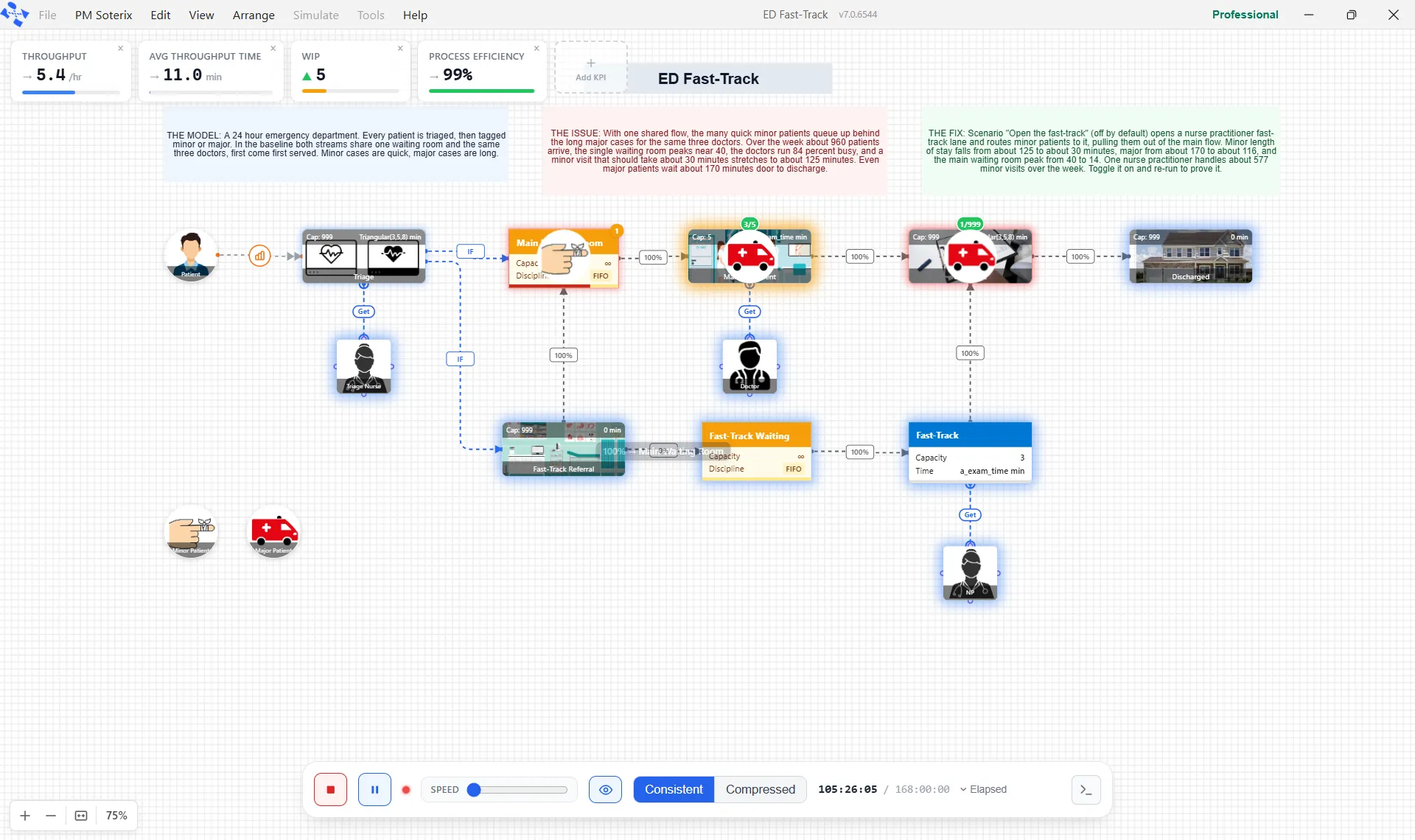
What a label says
Section titled “What a label says”Every chip reads the same way: the reason, then the route it took.
- Percent: the share that sent it, such as 60% and the target it chose. An expression-driven percent shows as a function instead of a number.
- Conditional: the word Condition and the target, as in “Condition → Packing”. The condition itself is not printed.
- Balancing: which rule picked the target, Shortest Queue, Least WIP, Lowest Utilization or Shortest Cycle.
- Schedule, Available and Alternate: the route taken because of a schedule, because a target was available, or because the alternate was used.
A plain single route, or a default one, produces no chip at all. Only a real decision is annotated, so anything you see on the canvas is a fork the model actually chose between.
Saving and replaying a trace
Section titled “Saving and replaying a trace”Two separate things sit on the File menu, and they can be used together.
File ▸ Save trace as copies the session’s trace file, a .pmdtrace, to a location you pick. It stays grayed out until a run has produced a trace to save.
File ▸ Open Simulation Trace opens a saved animation trace and puts the model into replay mode, so you can watch a run back without running it again. The picker takes .pmdtrace files and the trace files that runs store. The simulation bar appears paused, with the note “Trace loaded. Press Play to replay.” While a run is going it is refused: “Stop the running simulation before opening a trace file.”