

Resource Availability
A resource’s Availability tab controls how much of its scheduled time it is actually available, separate from its shift. Choose Percent or Time.
- Percent: set an Availability % (100 means always available). Below 100, the resource takes short random breaks so that, over a long run, it is available that percentage of the time.
- Time: set a Time Between Interruptions and an Interruption Time for a regular, predictable pattern of downtime.
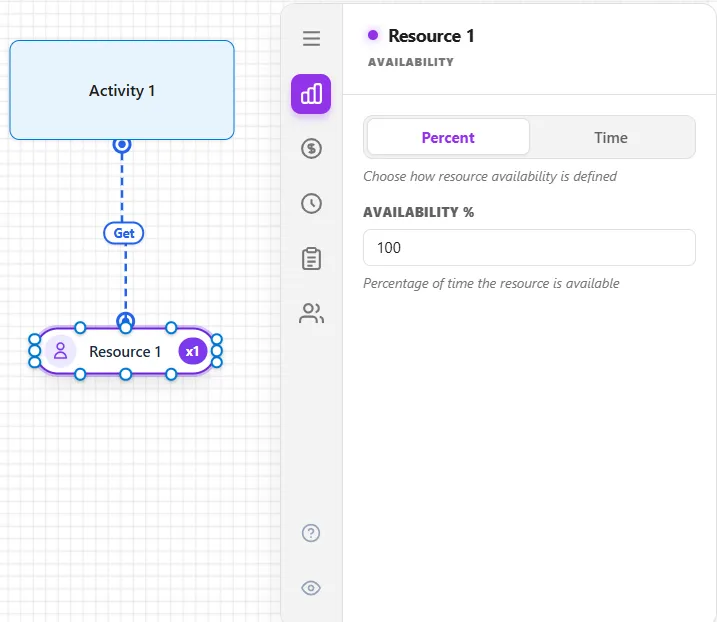
Availability downtime waits for a unit to finish its current entity before going down, so it never interrupts work already in progress. To interrupt in-progress work instead, use the shift Downtime Rule, or add a row to the Interruptions table on the People tab (see Resource Downtime and Maintenance).
LegacyHow this worked in the previous version
Percent Available Enter the percentage of time the resource is to be available for use. If a percent is entered that is less than 100, interruptions will occur randomly and last for times that are also random with an average time of five minutes. Any expression excluding attributes is valid.
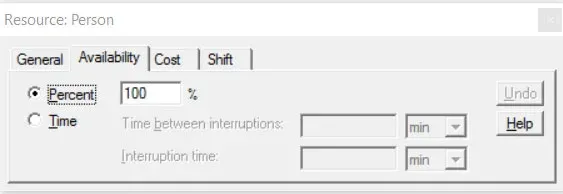
**Time Available **As an alternative to entering a percent availability, you may define availability in terms of Time between interruptions and the Interruption time, both of which may be defined as probability distributions or any other expression excluding attributes. Another way to look at this would be Mean Time To Failure (MTTF) and Mean Time To Repair (MTTR).
The length of time a resource is unavailable is randomly determined. But the average break in availability will be approximately 5 minutes.
A resource availability can be changed using a variable as the percentage, in the availability tab of the properties dialog. The following rules apply, assuming there is at least one change during simulation. 1. No value can be greater than 99%. Example: 100 & 10 will not work. 2. One of the values has to be less than 90%. Example: 99 & 89. 3. If one of the values is greater than 90% the other value can not be less than 10% of the first value. Example: 99 & 9. 4. Both values can be less than 90%. Example: 50 & 80.
Adding availability to a resource
Section titled “Adding availability to a resource”Taking into account the employee’s additional duties, not defined in the model, using resource availability. Useful when an employee is not always available to perform the activity assigned to him or her in the model due to personal circumstances or extraneous duties.
Suggested Technique
Section titled “Suggested Technique”- Select the resource to which additional duties are to be assigned.
- In the properties dialog, select the Availability tab.
- Use the percentage option to indicate the percentage of time the employee is available to perform duties within the model.
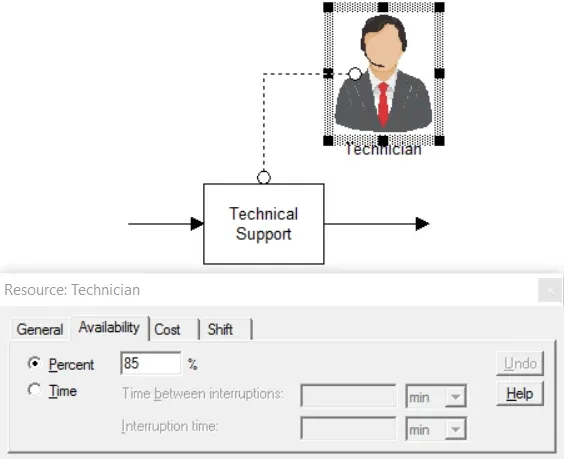
Example: A Support Technician is primarily responsible for answering technical support calls, however, about 15% of his time is spent in administrative duties and other activities unrelated to the process.
TO DO… Select the Technician resource and click on the Availability tab. Enter 85 in the Percent field. Now the Technician is available 85% of the time and performs duties and activities outside the scope of the model 15% of the time.
Optionally, you can assign the resource to one or more activities that represent the extraneous work. Use a periodic arrival to have tasks randomly arrive at these activities.