

Industry palettes and the lens
ProcessModel is one general tool that models a hospital, a milk plant, a warehouse or a software team from the same handful of elements. The industry palette adds a second, optional panel, docked on the right, that curates those elements for one industry. It offers three industries: Process plant, Software delivery and Healthcare. Process plant holds three faces, Fluids, Bulk and Dairy, and they are element-curation faces. Software delivery has one face, Software, and Healthcare has one, Emergency Department. Those two are lenses, which is something more.
Turning the palettes on
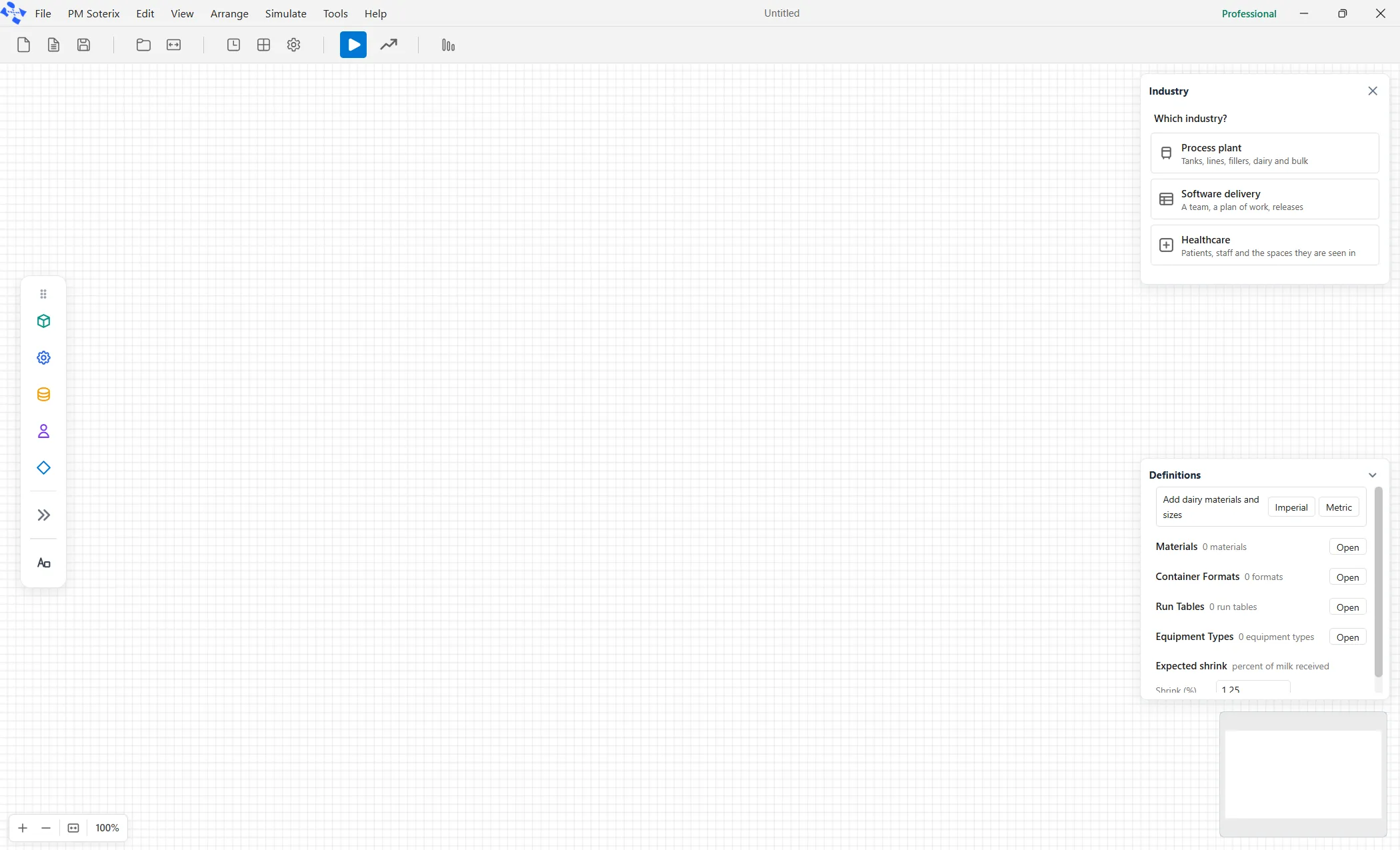
Section titled “Turning the palettes on”Open the View menu and click Show Industry Palette. A panel docks on the right. On a model with no industry it asks Which industry?, with one card each for Process plant, Software delivery and Healthcare, and no tabs.
View ▸ Show Industry Palette is a toggle, and it remembers. Click the menu item again to close the panel. Whether the panel is shown or hidden, and the last tab you used within Process plant, are kept on this computer. Which industry shows belongs to the model: File ▸ New, and any file with no industry, open on Which industry?. The Change industry link in the header of every face takes you back to that question. It leaves the canvas alone, and one press of Ctrl+Z undoes it.
On an empty canvas with no industry the panel shows Which industry? and no faces. Pick Software delivery there and the software view turns on at once, so the lens row at the foot then reads Remove lens.
The faces
Section titled “The faces”Pick Process plant and the tabs across the top of the panel are its three faces: Fluids, Bulk and Dairy. Software delivery shows the Software face and Healthcare shows the Emergency Department face. Each of those has one face, so neither shows a tab strip.

Fluids, Bulk and Dairy are element-curation faces. Each one offers the elements a given industry needs, arriving already sized and named for the job, and it changes nothing else. The words on your fields, the tabs in the report, and the run settings all stay exactly as they are in general ProcessModel.
The Software lens
Section titled “The Software lens”The Software face does everything the curation faces do, and then puts the whole model into a delivery team’s language. Turning it on changes what you read in four places. It changes nothing about what is computed.
The ten tiles
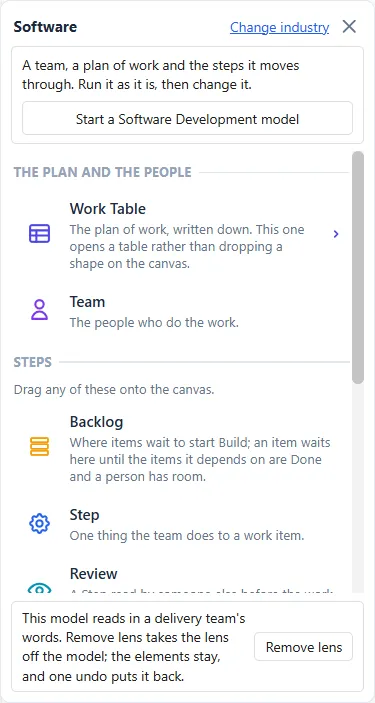
Section titled “The ten tiles”A row at the top of the Software face, Start a Software Development model, opens a ready-made model (see Software development modeling). Below it are ten tiles, each with its name and a sentence, under two headings. THE PLAN AND THE PEOPLE holds Work Table and Team. STEPS holds the other eight, Backlog, Step, Review, Test, Pipeline, Release, Freeze and Done, with the line “Drag any of these onto the canvas.” Nine of the ten drop an element on the canvas; Work Table opens the plan of work instead.
The words on the fields
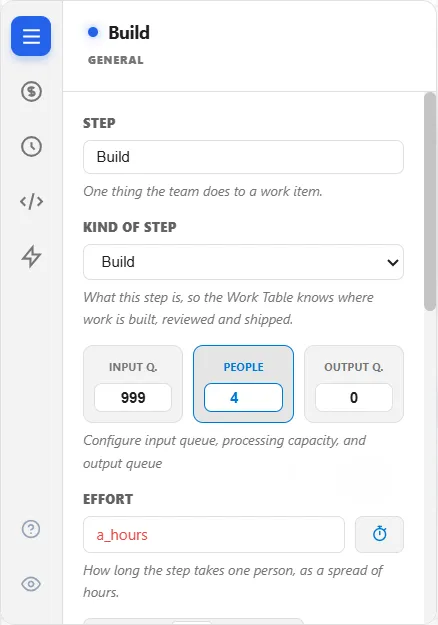
Section titled “The words on the fields”With the lens on, the fields you edit carry the team’s words. Each one is the same setting as before, computed the same way, wearing a different label.
| General ProcessModel | With the Software lens |
|---|---|
| Entity | Work item |
| Activity name | Step |
| Processing Time | Effort |
| Queue | Backlog |
| Resource | Team |
| Quantity | People |
| Capacity | People (per step) |
| Overtime multiplier | Overtime rate |
| Shift schedule | Working hours |
| Renege after | Dropped from scope |
The report and the run settings
Section titled “The report and the run settings”With the lens on, the Output Report hides its general tabs and shows five in the team’s language: Forecast, Flow, Team, Quality and Cost. In the run settings, Replications is called Runs. The Run group also shows the run length in weeks, a Plan date and a Working day, and hides the warm-up period and its unit.
The Emergency Department lens
Section titled “The Emergency Department lens”The Emergency Department face is a second lens. It has its own words for the fields, its own run settings, twelve tiles, eight care models, and six report tabs: Front Door, Flow, Getting Out, Crowding, Team and Spaces and Money. To build and read an emergency department model, see Emergency department modeling.
The lens row
Section titled “The lens row”At the foot of the Software face is a single row about the lens itself. What it offers depends on the model that is open.
A model that already wears the lens offers Remove lens, and so does an empty canvas that wears it.
A model that has general elements and no lens is asked first. Picking Software delivery puts a question at the top of the face: “This model has general elements. Use the software view anyway?” with Use and Not now. Use turns the lens on. After Not now, the foot row offers Use the lens instead, until the canvas is emptied or another model opens. In every other case there is no row.
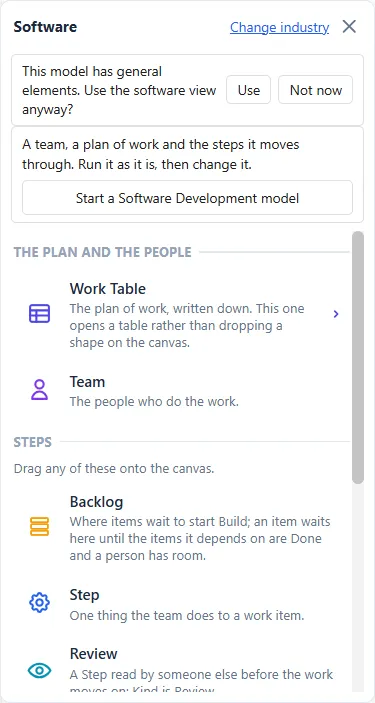
Use, Use the lens and Remove lens each change the model, and one press of Ctrl+Z puts it back. Nothing is lost either way, because the lens only decides what you read.
Picking Process plant on a model that wears the lens takes the lens off without asking, because the elements stay as they are. One press of Ctrl+Z puts it back.
Where the lens lives
Section titled “Where the lens lives”The lens is stored inside the model file, so a model either wears it or it does not, and two models open side by side can differ. A model that wears the lens still opens in a copy of ProcessModel that never heard of it: the words fall back to the general ones, and the model runs exactly the same.
That is what a lens is. It is a pure view of what you read, never a change to what is computed. Take the lens off, and the same model gives the same answer, to the last decimal place.