

Action Logic
Action logic is a short set of instructions that runs on an entity as it passes through a step. Use it to change a value, seize a resource, branch on a condition, set a processing time, or send a signal, so a model captures the real decisions and rules of a process.
Where action logic runs
Section titled “Where action logic runs”Each place logic can be attached runs it at a set moment:
- On an activity: on entry (before processing), during the operation (the main logic), and on exit (as the entity leaves).
- On a queue: as an entity enters the waiting queue.
- On a route: as an entity travels along the route.
- On a gate: when it opens, closes, releases, or blocks. These four hooks run the language below minus the statements that cannot wait, so read that article before using them.
- On an arrival: as each entity is created.
Two kinds of building block
Section titled “Two kinds of building block”Action logic mixes two kinds of thing:
- Statements: commands that do something and sit on their own line:
SET,GET,TIME,IF,ROUTE. - Functions: calls that return a value to be used inside a statement or condition:
Resource("Doc").FreeUnits,Round(a_X),WIP("Line").
One name spans both: block IF … THEN … ENDIF is a statement that runs different lines, while inline IF(condition, a, b) is a function that returns one of two values.
Comments
Section titled “Comments”Start a note with a double slash. Everything from // to the end of that line is ignored, whether the note sits on a line of its own or follows a statement. A note on its own line is the clearest:
// The base rate every order starts fromSET v_Rate TO 10An apostrophe is not a comment
Section titled “An apostrophe is not a comment”// is the only comment marker, and it is worth knowing why an apostrophe is not one, because it looks like it should be.
Outside parentheses an apostrophe ignores nothing. It opens a piece of text that never closes, so the words after it are read as part of the statement and the statement fails:
GET 1, "Doctor" // take one doctor, note ignored, statement runsGET 1, "Doctor" ' take one doctor, nothing ignored, statement failsInside parentheses an apostrophe means something else again: there it opens a piece of text, which is why a name in a query can be quoted either way. One character with two jobs is one too many, so write notes with // and text with double quotes, and neither case can catch you out.
Writing it
Section titled “Writing it”You write action logic two ways, and switch between them freely: as visual cards in the Action Logic Builder, or as code in the Action Logic Editor.
LegacyHow this worked in the previous version
Comments
Section titled “Comments”Comments You can add explanatory comments to your action logic by placing special characters in front of the comment. Comment lines are for user information only and the simulation ignores them during run time. To include a single-line comment, use a pound sign ”#” or two forward slashes ”//” at the beginning of the line. Multiline comments begin with a ”/”… and end with a ”/”. Some statements and functions such as GET or FREE are not ignored when found in a single comment line. To ensure they are ignored, you must use the multiline /* … / comment indicators, and the ending ”/” must appear on a different line than the opening ”/*”.
FREE, GET, and JOINTLYGET, PERCENT and GROUP statements are not ignored by the // comment indicator. Use the /* … */ comment indicators. These indicators are normally used to comment multiple lines. So if you are only commenting out a single line, the closing / must appear on a second line since it cannot exist on the same line as the opening /.
For example:
SUYgVGVzdCA9IFJlamVjdCBUSEVOIElOQyBSZWplY3RRdHkKLypOdW1iZXIgb2YgcmVqZWN0cyBpbmNyZWFzZWQKZm9yIGVhY2ggdGVzdCByZWplY3QuKi8Kb3LigKYKLy8gVGhlIGxvZ2ljIGJlbG93IGRlc2NyaWJlcyBob3cgcmVqZWN0cyBhcmUgaGFuZGxlZC4=
- Comments
- ( ) = ( ) assignment
- ANIMATE
- DEC
- DISPLAY
- FREE
- GET
- INC
- IF…THEN…ELSE
- JOINTLYGET
- NEWGRAPHIC
- NEWNAME
- PAUSE
- REPORT
- STOP
- TIME
- WAIT UNTIL
- WHILE…DO
Action logic in the input queue
Section titled “Action logic in the input queue”When you need to provide added control of detailed action logic in the input queue, or to use selective resource assignment in the action logic of the input queue, or to refine collection of statistics in the input queue

Where to Find the Model Object
Section titled “Where to Find the Model Object”The following model object can be found in the model objects directory:
- Flow Control - Action Logic in the Input Queue
Difficulty Level
Section titled “Difficulty Level”- Ease of Use: Easy
- Ease of Modification: Easy
How to Use the Model Object
Section titled “How to Use the Model Object”-
Open Your Model: Open your model or create a new blank model.
-
Insert the Model Object into Your Model
-
Locate the model object Action Logic in the Input Queue and select the insert button.
-
Move the cursor to the point of insertion and left mouse-click. The upper left corner of the model object will be inserted at the location of the mouse-click.
-
Connect to Your Model
-
**Connect **from the your model to the Process2 InQ.
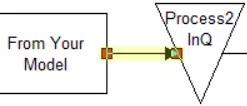
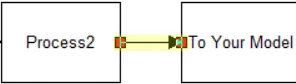
- **Connect **from Process2 to the remainder of your model and rename the Process2 InQ and **Process2 **as is appropriate for your model.
- Add Action Logic
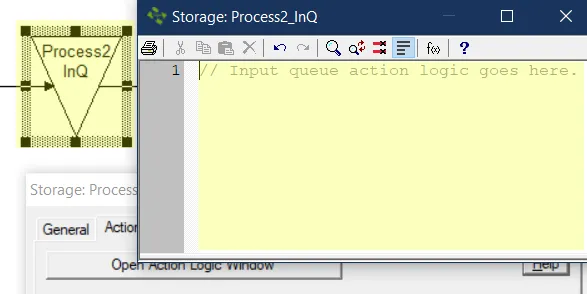
Add action logic to the Process2 InQ as needed.
The addition of action logic in the input queue makes it possible for this section to behave in the same way as if a resource was attached with a connector line and yet have more capability to select and control resources, and record specific statistics.
- Completion: The model object is now integrated into your model, you should now be able to save and then simulate the model.
STOP statement (legacy)
Section titled “STOP statement (legacy)”Terminates the current replication and optionally displays a message. The simulation will then continue with the next replication. Use STOP to end a replication when a user-defined condition becomes true.
Syntax
Section titled “Syntax”U1RPUCBbPOKAnCB0ZXh0IHN0cmluZ+KAnSA+XQpTVE9QClNUT1Ag4oCcTm9ybWFsIHRlcm1pbmF0aW9u4oCd
text string An optional message to display when the replication stops.
Example
The example below uses a STOP statement to terminate the simulation whenever the variable v_Total_Complete reaches 100.
SU5DIHZfVG90YWxfQ29tcGxldGUKSUYgdl9Ub3RhbF9Db21wbGV0ZSA9IDEwMCBUSEVOCgpTVE9Q
- Comments
- ( ) = ( ) assignment
- ANIMATE
- DEC
- DISPLAY
- FREE
- GET
- INC
- IF…THEN…ELSE
- JOINTLYGET
- NEWGRAPHIC
- NEWNAME
- PAUSE
- REPORT
- STOP
- TIME
- WAIT UNTIL
- WHILE…DO
PAUSE statement (legacy)
Section titled “PAUSE statement (legacy)”Pauses the simulation and (optionally) displays a user-specified message. This pause allows you to examine the system in detail by using menu items from the Options and Information menu. The simulation will continue only when the user selects Resume Simulation from the Simulation menu.
Syntax
Section titled “Syntax”UEFVU0UgWzwgdGV4dCBzdHJpbmcgPl0KUEFVU0UKUEFVU0Ug4oCcV29yayBpbiBQcm9jZXNzIGxldmVscyBhcmUgY3JpdGljYWxseSBsb3cu4oCd
text string The optional message ProcessModel will display.
Example
The simple example below pauses the simulation after the 100th Claim has been processed at activity Quality Check. The purpose for doing this might be to view the current state of the system at this particular point in time.
SU5DIHZfVG90YWwKSUYgdl9Ub3RhbCA+PSAxMDAgVEhFTgp7ClBBVVNFIOKAnFRvdGFsID0gMTAw4oCdCnZfVG90YWw9MAp9
[
Logic Statements](/help/statements/)
What is action logic
Section titled “What is action logic”ProcessModel allows you to design custom behavior in your model by using action logic in which you enter simple but powerful logic statements. Action logic allows you to define special logic that may not be easily defined using the normal property fields. Examples would include assigning values to attributes and variables or performing a test using an IF…THEN statement.
Action logic can be defined for any activity, storage, arrival or routing by clicking on the Action tab of the properties dialog.
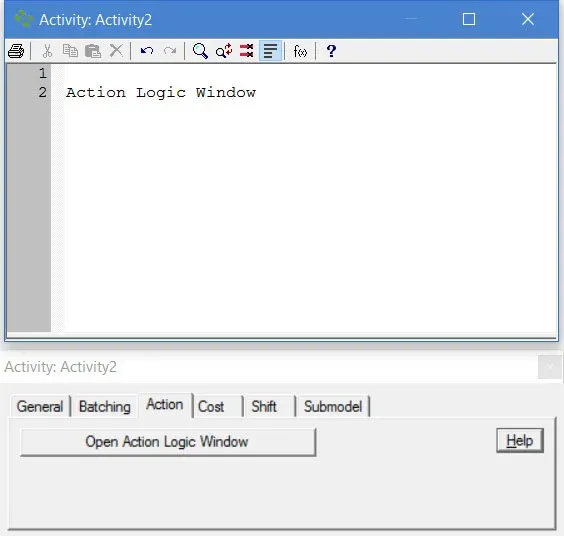
Depending on the object or connection for which the action is defined, only certain statements and other logic elements are meaningful and therefore valid. The valid statements and logic elements (variables, attributes, resources, distributions, operators, and scenario parameters) are available via the Keywords and Filters () dialog. These statements and elements may be pasted from the list box into the action window to help you construct the desired action logic.
You may also start typing your saved attributes, variable, scenarios, scenario parameters, activity, entity, resource names or any of the ProcessModel supported statements, functions or distributions to see a help menu popup to help you easily populate what you wish to add.
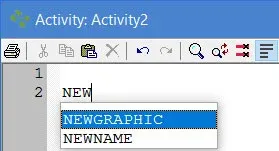
Paste elements into the action window
Section titled “Paste elements into the action window”-
Click the Keywords and Filters Keywords & filters button on the action logic window.
-
Select the type of element (including statements) you want from the pull down box.
-
Select the specific element or statement from the list box.
-
Press the **Insert **button to insert the element at the position of the cursor in the action edit window or simply double-click the item.
-
Action Logic often uses **expressions **(combinations of attributes, variables, numbers, and operators) in assigning values to attributes or variables, testing the value or state of a variable or attribute, etc. For more information on expressions and valid operators, see Expressions.
-
To learn advance functions / Keyboard shortcuts, see “Advanced Options for Action Logic Window”.
Functions
](/help/functions/)
Logic Statements](/help/statements/)