

The People tab
The People tab of a resource is for units that are people who join late, learn, or get pulled off their work. It is on every resource. Under the Software view the same tab belongs to a team, described in Teams and people.
Turn the tab on
Section titled “Turn the tab on”The tab is hidden until you ask for it. Point at the eye icon at the foot of the tab column, whose name is Manage visible tabs, to open the Visible Tabs list, then click the People row.
A note at the top is about shifts. People put the work down when the shift ends and pick it up next morning, so set the Downtime Rule to Preempt & Wait. Finish Current keeps a person on the item until it is done, which books hours nobody worked. See Resource Downtime and Maintenance.
The People table
Section titled “The People table”While nobody is listed, the table says “No people listed. This resource is one kind of person with all its units.” Choose Add person to start. Row 1 is the resource itself: its first box reads The team and holds the resource’s name, and editing the row edits the resource. Every row after it is a kind of person, named in its Kind of person box.
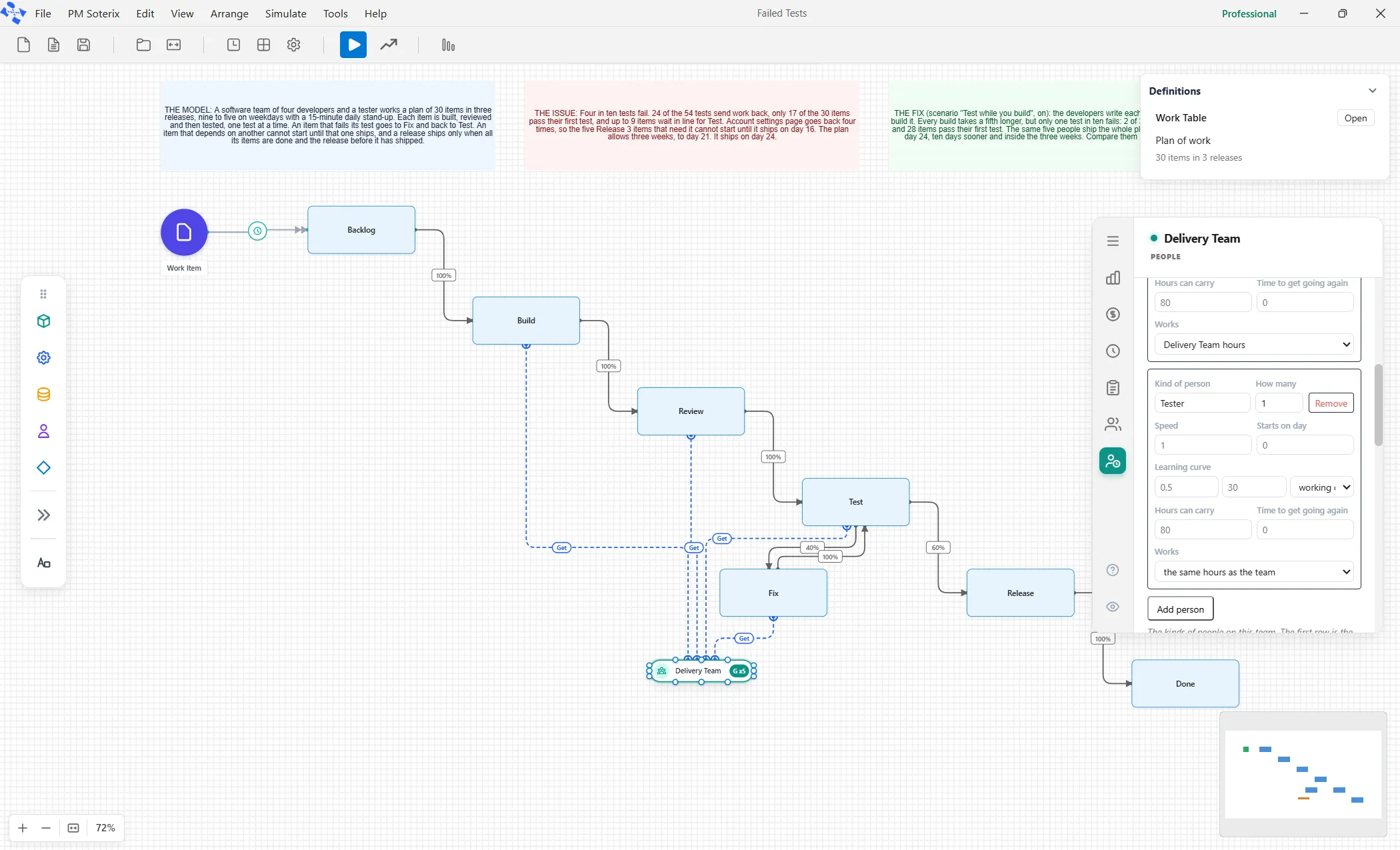
Each row has these boxes:
- How many: a whole number on row 1. On any other row, a whole number of people or a share of one person, a fraction between 0 and 1. A share works that share of the team’s hours.
- Speed: how fast this person works compared with normal. 1 is normal, 2 is twice as fast, 0.5 is half as fast. Empty is normal.
- Starts on day: the day of the run this person joins. Empty means from the start.
- Learning curve: Starts at is the share of full speed on their first day, so 0.5 is half speed. Full speed after is the days they take to reach full speed, which Counting reads as the person’s own working days or as calendar days.
- Hours can carry: the weighted workload this person can hold at once. Empty means no ceiling. It counts only while Workload below is on.
- Time to get going again: the minutes they take to pick the work back up after being pulled off it.
- Works: the hours this person works. Empty means the team’s own hours.
Add person adds a row, and Remove takes away a kind of person and the people behind it. A row that cannot be used as typed is refused, and the message says why. A share of a person needs hours to take a share of, so on a team with no shift it reads “A share of a person needs the team to have a shift; set the team’s shift first.” The other refusals are under The People table in Teams and people.
Before you add anyone, Speed, Starts on day, Learning curve and Time to get going again are boxes on the tab itself. Once the table has rows, row 1 carries them.
Workload
Section titled “Workload”Workload is for a team whose limit is hours of work in hand rather than a number of jobs. Its switch reads Count the hours people are carrying. Turn it on and two boxes open:
- Hours a person can carry: “How many hours of work one person can have open at once. Leave it empty for no limit.”
- Hours this item counts: the hours each item takes of a person’s load, a number or an attribute such as
a_hours, which the box holds to begin with.
These are the Max workload and Case weight of the Caseload tab under other words, and the switch turns the caseload on. Turning it off stops counting hours but leaves the caseload as it is.
Interruptions
Section titled “Interruptions”An Interruptions table below Workload holds the meetings, questions and incidents that pull people off their work. See Resource Downtime and Maintenance.
Mentoring share and coordination
Section titled “Mentoring share and coordination”Mentoring share is “How much of an experienced person’s time goes to helping people who are still learning.” It takes 0 to 1, and 0.2 is a fifth of their time. Left empty, nobody is held up.
The Coordination switch reads A bigger team talks more: “Whether to count the time a bigger team loses talking to itself.” Turn it on and a box, Time lost for each other person, opens: “The share of a day the team loses for every pair of people on it.” The empty box suggests 0.0003, at which a team of 10 loses 1.35% of its day and a team of 20 loses 5.7%. Both are on every resource.