

License and activation
The License window is where a computer gets its license, where you check what that license is, and where you hand it back. Open it from the Tools menu.
This article covers activation. For what the free trial includes and what the free Personal tier limits, see Free Trial and Personal Mode.
At a glance
Section titled “At a glance”The license label at the right of the title bar shows how the license stands, without opening anything.
| The label reads | What it means |
|---|---|
| Checking license | ProcessModel is still working out the state of the license. |
| Personal | The free Personal tier. See Free Trial and Personal Mode. |
| Trial · N days | The free trial, with the days left. |
| Professional, Student or Network | An active license. Network is a license your organization manages. The days left appear beside the name once they run low. |
| Professional · Reconnect within N days | The computer has been offline too long, and must reach the license service before the days run out. The tier you hold takes the place of Professional. |
| Professional · offline | The last check could not reach the license service, and the license carries on as it was. |
Click the label and an account card opens. A colored banner at the top gives the state, rows such as Account, Machine, Renews and License follow, and then come the buttons that fit the state: Sign in, Activate on this machine, Manage account, Buy a license, Reconnect now, Release this machine and Sign out. A license your organization manages has no buttons. A link at the foot of the card, Open Tools ▸ License, opens the License window described below. The sentence beside the greeting on the Welcome screen opens the same card.
Signing in
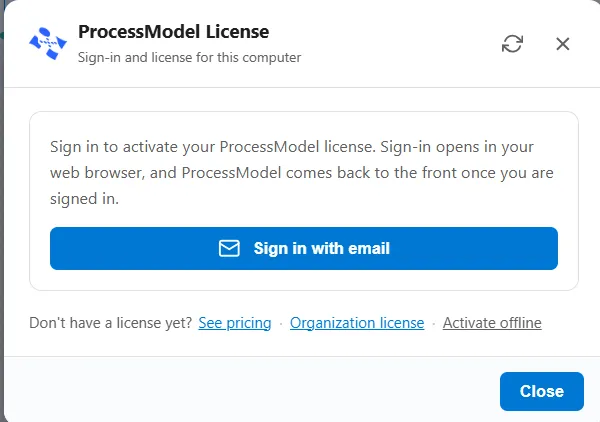
Section titled “Signing in”Signing in is how an ordinary license reaches a computer. It happens in your web browser rather than inside ProcessModel: choose Sign in with email and your browser opens on the sign-in page. Finish there and ProcessModel comes back to the front on its own, already signed in. There is no password to type into the app.
While it waits, the window says so and tells you it will update as soon as you are signed in. A quiet Have a sign-in code? Enter it link appears alongside, for the occasional case where the handoff from the browser does not come back by itself. It takes a short code and signs you in directly.
What the window shows once you are in
Section titled “What the window shows once you are in”With a license active on the computer, the window leads with the license tier, then:
- How many licenses your account holds and which one this is, when there is more than one.
- How many days remain.
- When the license was last verified.
- The account it belongs to, and the name of this computer.
The refresh control in the header re-checks all of this against your account, which is the thing to try first if the window looks out of date.
If you are signed in but the computer has no license on it, the window says No license on this computer and offers Activate on this computer, which claims one of your available licenses for this machine.
Moving a license between computers
Section titled “Moving a license between computers”A license is bound to one computer at a time, and you move it rather than duplicating it.
- Activate on this computer takes the license from wherever it was and brings it here. The computer it left drops back to Personal mode.
- Release hands the license back from this computer without signing you out, so it becomes free for another machine. Your subscription is unaffected.
- When your account holds two or more licenses, a switch control lets you choose which one applies here. Each is shown as active here, in use on another computer, or available.
Manage on web opens your account page in the browser for everything the app does not cover.
Signing out
Section titled “Signing out”Sign out signs your account out of this computer, and the computer drops back to Trial or Personal mode at once. It stays there until you sign in again. The license itself stays bound to the machine, because signing out does not release it.
Signing out and releasing are different actions. Sign out ends the session; release gives the license up. Use release when you want the license free for another machine straight away.
Activating without signing in
Section titled “Activating without signing in”Two of the links under the sign-in card cover the cases where a personal sign-in is not the right route.
Organization license
Section titled “Organization license”If your organization holds a license, your administrator gives you a key rather than an account. Choose Organization license, paste the key, and this computer joins the organization’s license over the internet, with no personal sign-in. The key is shared across the team and is not the same thing as a personal sign-in code.
A computer licensed this way reads as managed by your organization, and it carries no sign out, release, or account management, because the license is administered centrally rather than by you.
Activate offline
Section titled “Activate offline”For a computer that cannot reach the internet at all, Activate offline does the exchange by hand, in two steps.
- Get this computer’s code. ProcessModel generates a request code for this machine. Copy it, or save it to a file you can carry.
- Enter the response. On a computer that does have internet, open your ProcessModel account page, choose the license key option, and give it the request code. It returns a response code. Bring that back, paste it in or upload the file you saved, and ProcessModel verifies it on the spot. No internet is needed for that last step.
A computer activated this way reads as licensed offline. It offers Remove license to release the activation locally, and Sign in if it ever does get online and you would rather convert it to an ordinary account license. If the machine is one that will never connect, the window notes that plainly.
Messages you may see
Section titled “Messages you may see”The window explains itself when something has changed, rather than leaving you to guess:
| Message | What it means |
|---|---|
| Active on another computer | The license has moved. Activate here to bring it back. |
| License released from this computer | It was handed back, from here or from your account page. Activate again to use it here. |
| Reconnect needed | This computer has been offline too long to keep verifying the license. Connect and activate to restore it. |
| Your license has been revoked | Check your account page for the reason. |
| Your account was removed | The account no longer exists, so you have been signed out. Speak to whoever administers it. |
ProcessModel also warns ahead of the deadline when a license has gone a long stretch unverified, giving the date by which it needs to reconnect before falling back to Personal mode.