

Go Through All Activities
LegacyHow this worked in the previous version
When all activities must be completed, but can be completed in any order.
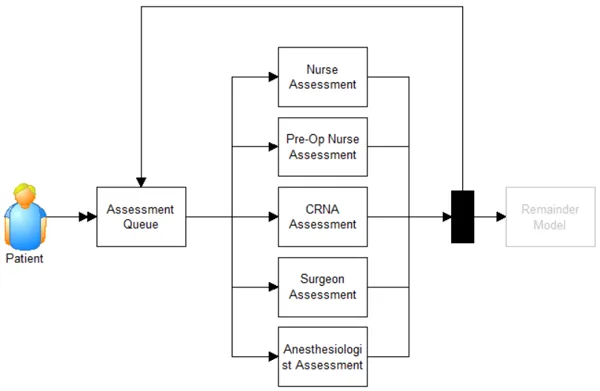
Where to Find the Model Object
Section titled “Where to Find the Model Object”The following model object can be found in the model objects directory:
- Routings - Go Through All Activities
Difficulty Level
Section titled “Difficulty Level”- Ease of Use: Easy
- Ease of Modification: Moderate
How to Use the Model Object
Section titled “How to Use the Model Object”-
Open Your Model: Open your model or create a new blank model.
-
Insert the Model Object into Your Model
-
Locate the model object Go Through All Activities and select the insert button.
-
Move the cursor to the point of insertion and left mouse-click. The upper left corner of the model object will be inserted at the location of the mouse-click.
-
Connect to Your Model
-
Change the arrivals via the arrival route to what you want in your model, or remove the **Patient **and the arrival route and connect your arrivals to Assessment Queue.
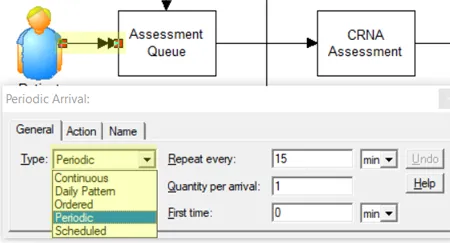
- **Connect **the percentage route exiting the black box to the rest of your model.
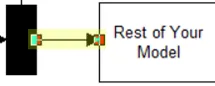
-
Update Objects
-
Add or delete Assessment activities based on what your scenario requires.
-
Change the name of all the Assessment activities based on what you need in your model.
-
Update the action logic in Assessment Queue to reflect the new names of the assessment activities and the quantity of assessment activities.
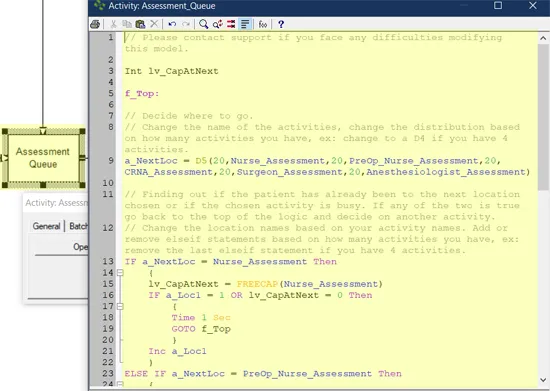
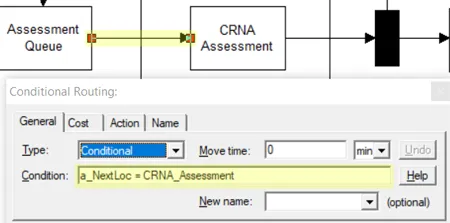
- Update the conditional routes from the Assessment Queue by changing the name that reflects the name of the destination activity.
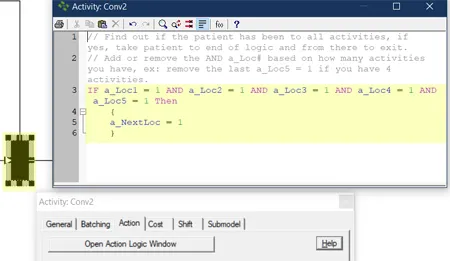
- **Update **the action logic in the black box based on how many Assessment activities you have in your model.
- Completion: The model object is now integrated into your model, you should now be able to save and then simulate the model.
Controls Usage
Section titled “Controls Usage”Attributes:
Section titled “Attributes:”- a_NextLoc: Do not change. Used to store which location to goto.
- a_Loc#: Do not change. Used to mark location visited.