

Resource
A resource is a pool of interchangeable units that activities and routes seize to do their work, then release: people like an operator or nurse, or equipment like a machine or vehicle. If an activity has no resource attached, it needs none.
General tab
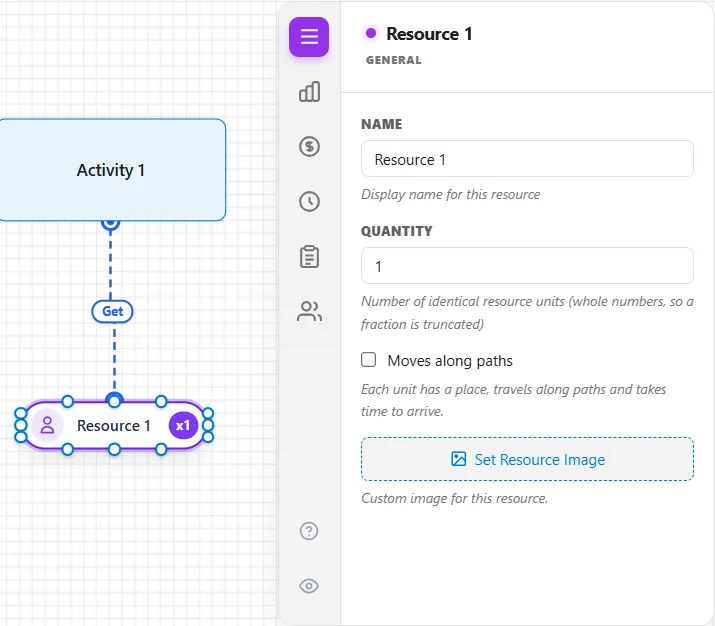
Section titled “General tab”- Name: the resource’s name (for example, Operator).
- Quantity: the number of identical units in the pool (at least 1). Each unit works independently, so a Quantity of 3 lets three entities be served at once, but only if the activity’s capacity is also 3 or more. A new activity has a capacity of 1, and connecting a resource does not raise it.
- Moves along paths: “Each unit has a place, travels along paths and takes time to arrive.” Leave it off and the resource works as it always has: it is wherever it is needed, at once. Tick it for a forklift, a picker or a technician whose travel matters (see A resource that moves along paths below).
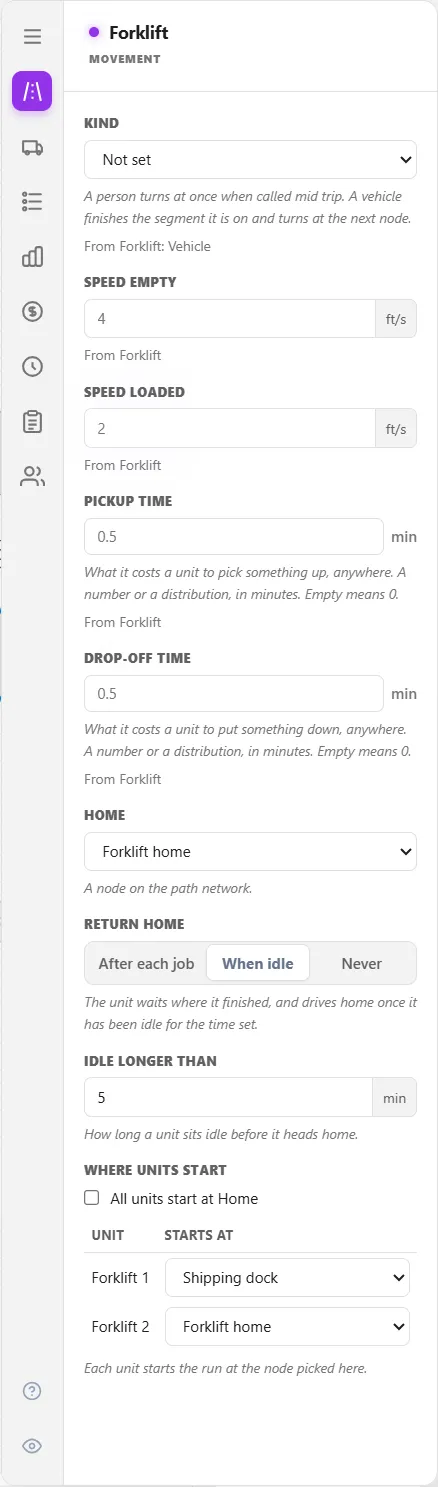
- Equipment Type: shown only while Moves along paths is ticked. Pick a standard kind, Person, Pushed cart, Pallet jack, Forklift, AGV or Truck, or a type of your own from Definitions. A standard kind is copied into the model the first time you choose it. “Fields left empty on the Movement and Carrying tabs follow the type.”
- Image: an optional custom picture for the resource on the canvas.
A resource has seven tabs in all. Besides General it has Availability, Cost, Shift, and Caseload tabs, a Group tab, where Open Resource Group Builder combines it with others in a resource group, and a People tab. Caseload is the one to reach for when a case should be handled by the same person every time rather than by whoever is free. Ticking Moves along paths adds three more, Movement, Carrying and Behavior, right after General, for ten in all. They exist only while the box is ticked: the eye icon cannot show them on a resource that does not move, and unticking the box hides them and keeps what they hold.
The People tab is only for people who join late, learn, or get pulled off their work. It is hidden until you switch it on with the eye icon at the foot of the tab column, and its ? button opens this article. It holds a table of the kinds of people on the team and an Interruptions table for meetings, questions and incidents (see Resource Downtime and Maintenance). Each box on the tab is described in The People tab.
Using a resource
Section titled “Using a resource”To put a resource to work, connect it to an activity with a resource connection, or seize it in action logic. To read which resource an entity is holding, use Entity.HeldResourceName() (see OwnedResource Function).
A resource that moves along paths
Section titled “A resource that moves along paths”With Moves along paths ticked, every unit of the resource has a place on the floor at every moment of the run. It starts somewhere, drives along the paths you draw to each job, and may go home when it has nothing to do. A part waits while the unit comes to it, so a slow or distant forklift shows up as waiting and lost throughput instead of hiding inside the processing time. The processing time itself is never lengthened by travel.
Movement tab
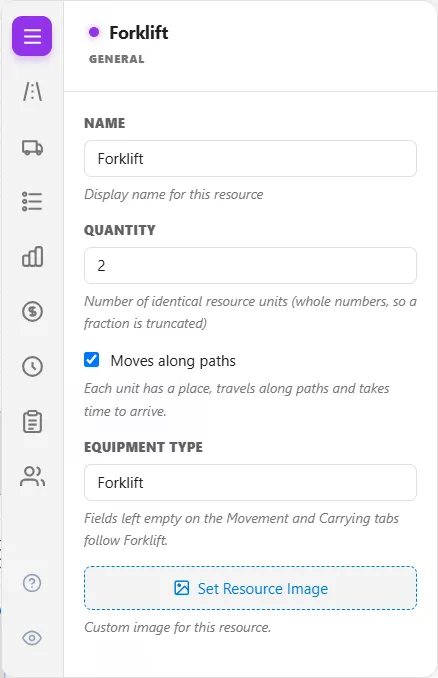
Section titled “Movement tab”- Kind: Person or Vehicle. “A person turns at once when called mid trip. A vehicle finishes the segment it is on and turns at the next node.” Not set follows the equipment type.
- Speed empty (“Speed with nothing aboard.”) and Speed loaded (“Speed with anything aboard, however little.”), in feet or metres per second, as the model’s distance unit is set. A box left empty follows the equipment type and says so in gray, for example “From Forklift”. A typed value offers Reset to Forklift. Speed loaded is needed only where a ride reads it (see Speed loaded and the routes’ times below).
- Pickup time and Drop-off time: what it costs a unit to pick something up or put it down, anywhere, in minutes. A number or a distribution, such as
0.5orT(0.3, 0.5, 1). Empty means 0. - Home: the path node where the pool belongs, or None. Every moving resource needs one.
- Return home: After each job (“The unit drives home after every drop-off and waits there.”), When idle (“The unit waits where it finished, and drives home once it has been idle for the time set.”) or Never (“The unit stays where it finished until the next call.”). A unit driving home is not busy, and a call that comes while it is on its way is answered from where it is.
- Idle longer than: under When idle, how many minutes a unit sits idle before it heads home. Empty means 1.
- Where units start: All units start at Home is ticked by default. Untick it for a table of the units, each with a Starts at node. A unit starts its next shift from wherever it stopped.
Speed loaded and the routes’ times
Section titled “Speed loaded and the routes’ times”A part a unit carries from one step to the next rides in its route’s Move Time (see Delivering with a moving resource). Only a carried route whose Move Time is blank or 0 takes its path distance at Speed loaded, and a picker always drives loaded at Speed loaded. So a resource whose carried routes all have a Move Time needs no Speed loaded at all.
While the box is empty, it shows in gray the speed those routes give: their total distance over their total time, with a line under it such as “From its routes: 240 ft in 10 min”. In that example two routes, 90 ft in 3 min and 150 ft in 7 min, give 0.4 ft/s. The figure counts only the routes with a plain number for a Move Time and a path distance, and it is shown only: it is never stored, and no ride takes it.
- A carried route with no Move Time is named in the line, for example “From its routes: 90 ft in 3 min. Act2 → Act3 has no Move Time, so it needs a speed here”. With an equipment type the line says the route takes the type’s speed instead, for example “so it takes Forklift’s 6 ft/s”.
- Where the routes’ Move Times are worked out during the run (a distribution, an attribute, a variable or an array), the box reads “Worked out during the run”, over the line “From its routes: their Move Times are worked out during the run”.
- A typed Speed loaded comes first, then the routes’ figure, then the equipment type’s speed. A typed speed that no ride needs is kept, and the line says so: “Not used: every route Fred carries parts on has its own Move Time”.
Carrying tab
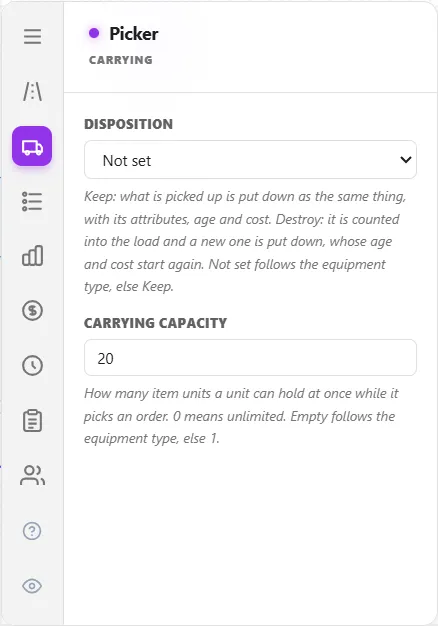
Section titled “Carrying tab”- Disposition: “Keep: what is picked up is put down as the same thing, with its attributes, age and cost. Destroy: it is counted into the load and a new one is put down, whose age and cost start again. Not set follows the equipment type, else Keep.” Keep is the right choice whenever the model follows the part afterwards. Under Destroy the part is consumed where the carry ends, which is usually the step with the Free, and never at a step the unit carries it through on the way.
- Carrying Capacity: “How many item units a unit can hold at once while it picks an order. 0 means unlimited. Empty follows the equipment type, else 1.” It matters only to order picking: a unit answering calls from the flow carries one part, or one batch, per trip.
Behavior tab
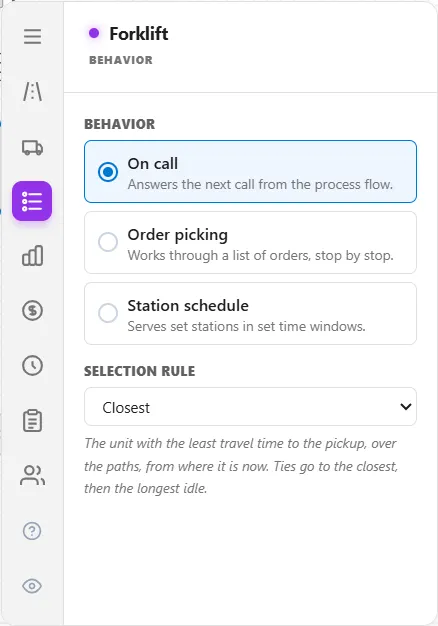
Section titled “Behavior tab”- Behavior: On call (“Answers the next call from the process flow.”), Order picking (“Works through a list of orders, stop by stop.”) or Station schedule (“Serves set stations in set time windows.”). On call is the default. The other two are described in Order Picking and Station Schedules.
- Selection rule: which unit goes when more than one could answer a call. Closest: “The unit with the least travel time to the pickup, over the paths, from where it is now.” This is the default. Longest idle: “The unit that has been idle longest.” Least used: “The unit with the least busy time so far in the run, counting work, setup and travel.” Preferred order: “The first free unit in the order of units below.” First free: “The lowest numbered free unit.” “Ties go to the closest, then the longest idle.”
- Order of units: under Preferred order, the units in the order they are tried. Use the arrows to change it.
When a unit comes free and several calls are waiting, it takes the highest priority first and, among equal priorities, the call that has waited longest, as every resource does. A call that matters much more than a busy unit’s job can take that unit: see Resource Priority.
Equipment types
Section titled “Equipment types”The six standard kinds start with these speeds, in feet per second, empty and loaded: Person 4 and 3.5, Pushed cart 3.5 and 3, Pallet jack 4 and 3, Forklift 8 and 6, AGV 5 and 4, Truck 14.7 and 11.7. A Person and a Pushed cart turn at once, the others at the next node. Pickup and drop-off start at 0. Once a kind is copied into the model you can change it in Definitions, Equipment Types, and every resource that has not typed its own value follows (see Equipment Types).
Checks
Section titled “Checks”The model checker reports these in the Issues list, and the Simulate button stops on an error:
- “[Resource]: Home is not set. Every unit needs a place to start.”
- “[Resource] moves along paths, so it needs a kind: Person or Vehicle.”
- “[Resource] moves along paths, so it needs a speed empty above zero.”
- “[Resource] picks orders, so it needs a speed loaded above zero.”
- “[Resource] carries parts on the route from [step] to [step], which has no Move Time, so it needs a speed loaded above zero, or a Move Time on that route.” With several such routes it names each one.
- “[Resource]: give Return home a wait above zero, or choose After each job.”
- “[Resource]: unit [n] starts at a node that is no longer on the chart.”
- “[Resource]: Carrying Capacity must be a whole number. Use 0 for unlimited.”
- A warning, “[Resource] drives faster loaded than empty. Check the two speeds.” While Speed loaded is empty and the routes give its figure, the warning compares that figure instead: “The routes [resource] carries parts on give a speed loaded of 0.4 ft/s, faster than its speed empty of 0.3 ft/s. Check the Move Times.”
- A warning when a start place or the preferred order names a unit the pool does not have.
- “[Group] runs on a separate FEL, and [resource] moves along paths. A model cannot have both yet: untick Run on Separate FEL on the group, or untick Moves along paths on the resource.”
If a run still asks a unit to carry a part on a route with no Move Time and the resource has no speed loaded, the run stops with a sentence that names the unit, the route and the resource: “At [clock] ‘[unit]’ was asked to carry ‘[part]’ on the route from ‘[step]’ to ‘[step]’. The route has no Move Time, and ‘[resource]’ has no speed loaded.”
LegacyHow this worked in the previous version
See Basics 9 - Representing People and Equipment - Resources video tutorial.
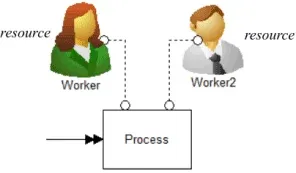
Resources are the agents used to perform activities and move entities such as service personnel, operators or equipment. More than one unit of a particular resource may be defined if they are used interchangeably and have the same operating characteristics. Resources may be shared between several activities. If no resource is assigned to an activity, it is assumed that no resource is required.
General
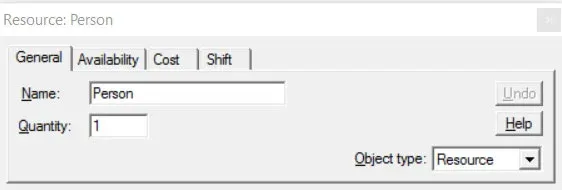
Section titled “General”Name The name of the resource (e.g. Worker).
Quantity The number of units of this resource type (1 - 9999). Scenario parameters may also be used. The quantity value is read only once at the beginning of the simulation so using values which change during a simulation (such as variables) cannot be used.
If scenario parameters are used in a resource quantity field, no indicator lights will be displayed during simulation. The only way to have indicator lights show during simulation is to use a numeric value in the resource’s quantity field. The maximum number of indicator lights during simulation for any resource is 12.
Object Type Allows the type of object to be changed from Resource to something else.