

Order Picking and Station Schedules
A resource that moves along paths gets its work in one of three ways, chosen under Behavior on its Behavior tab:
- On call: “Answers the next call from the process flow.” The default, and the one every resource connection uses.
- Order picking: “Works through a list of orders, stop by stop.” A picker walks an order’s stops and drops the order off.
- Station schedule: “Serves set stations in set time windows.” A technician covers some stations in the morning and others in the afternoon.
One resource runs one behavior. The Behavior tab, like the Movement and Carrying tabs, appears only once Moves along paths is ticked on the General tab (see Resource), and the stops and stations must be on a drawn path (see Drawing Paths).
Order picking
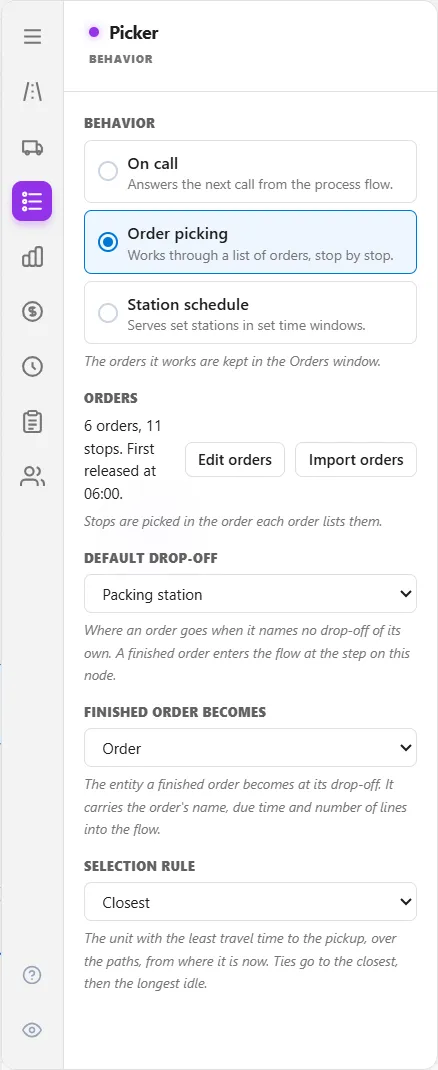
Section titled “Order picking”Choose Order picking and the Behavior tab shows three more fields:
- Orders: a one-line summary of the orders, with Edit orders and Import orders. “Stops are picked in the order each order lists them.”
- Default drop-off: a path node. “Where an order goes when it names no drop-off of its own. A finished order enters the flow at the step on this node.”
- Finished order becomes: an entity. “The entity a finished order becomes at its drop-off. It carries the order’s name, due time and number of lines into the flow.”
The Orders window
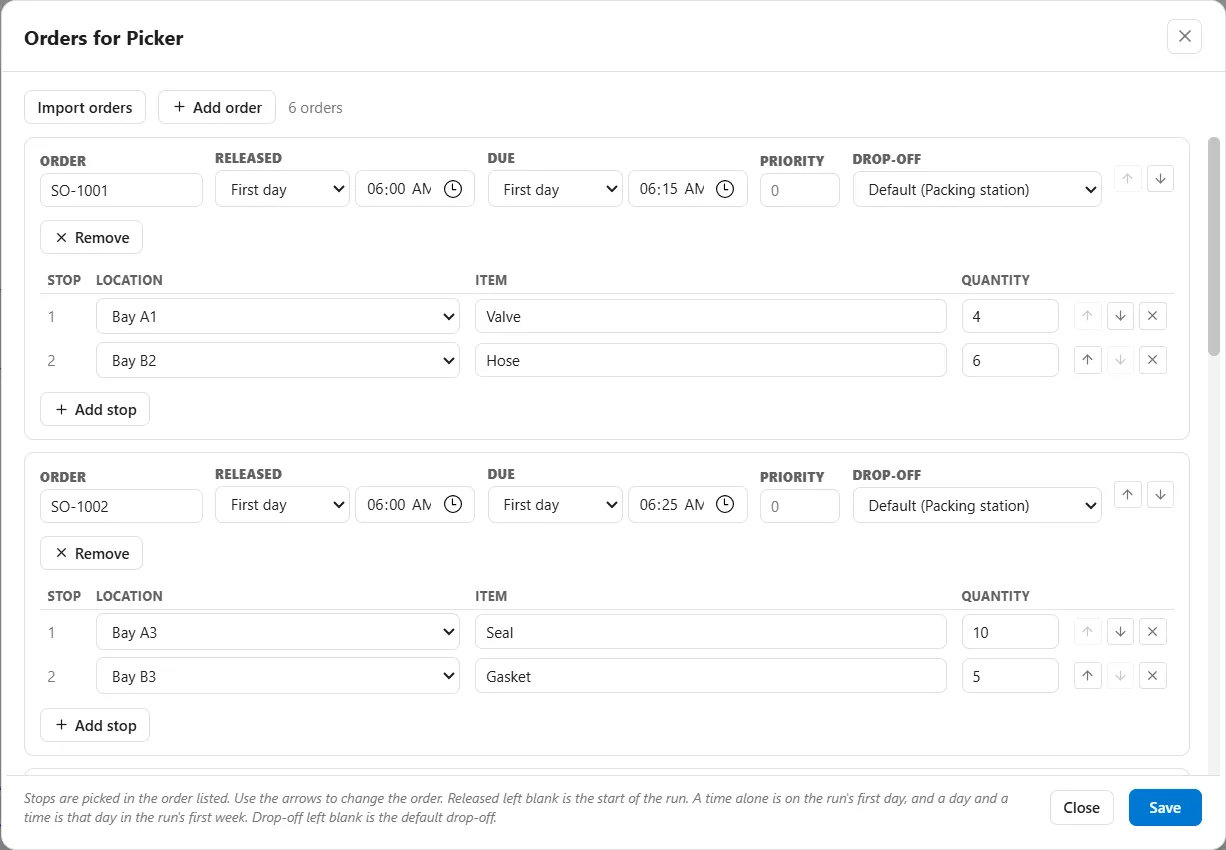
Section titled “The Orders window”Edit orders opens the window Orders for [resource]. Each order is a card:
- Order: its name, which must be unique.
- Released: when the order can be started, a day and a time. Left blank, it is released at the start of the run. A time alone is on the run’s first day, and a day and a time is that day in the run’s first week.
- Due: when it should be done, the same way. Left blank, the order has no due time and is never late.
- Priority: a higher number is picked first.
- Drop-off: a path node, or Default for the resource’s default drop-off.
- The stops, one row each: Location (a path node), Item and Quantity. Add stop adds a row, the arrows change the order, and the X removes a stop.
Add order adds a card. The window works on a copy: Save keeps your changes, and Close with unsaved changes asks “Save changes to the orders of [resource]?” with Save, Discard and Keep editing.
Importing orders
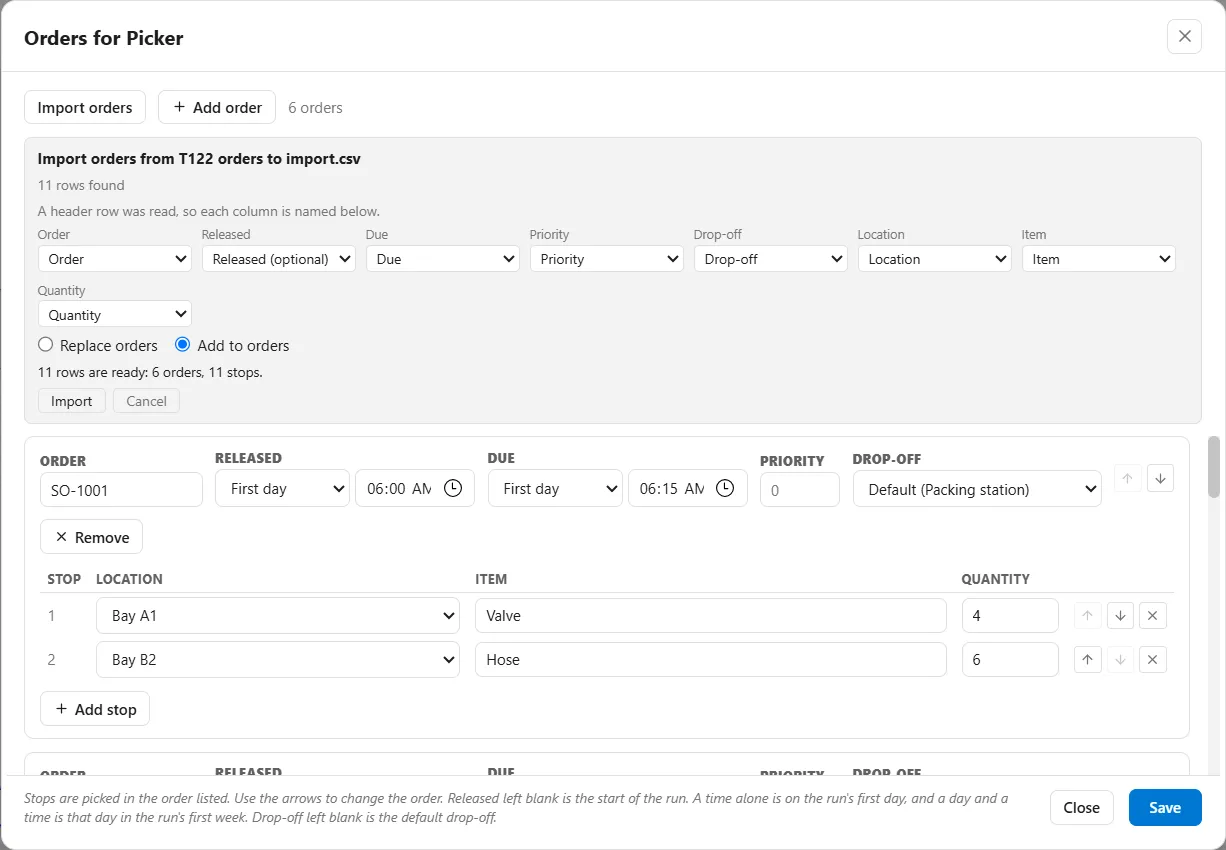
Section titled “Importing orders”Import orders, on the Behavior tab or in the window, reads a spreadsheet or a CSV file with one row per stop. Rows with the same Order are grouped into one order, in the order the file lists them. The columns are Order, Released (optional), Due, Priority, Drop-off, Location, Item and Quantity. A header row is matched to them by name, and you can change any column’s choice. A Location or Drop-off must be the name of a path node.
The panel names the file, says how many rows it found and whether a header row was read. Choose Replace orders or Add to orders, read the line that says how many rows are ready and which could not be read, and press Import. Nothing reaches the resource until you press Save in the window.
How an order is picked
Section titled “How an order is picked”- A free unit takes the next released order: the highest Priority first, then the earliest Due, then the one released first.
- It walks or drives to each stop in the order written. At each stop it pays its Pickup time once, however many items it takes there.
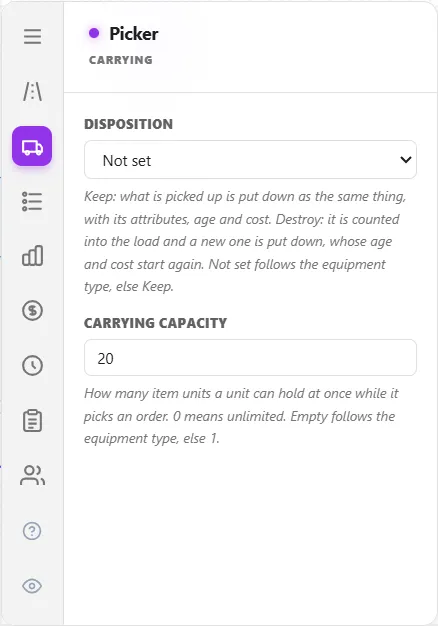
- Each item counts against the unit’s Carrying Capacity on the Carrying tab, a count of items where 0 means unlimited and empty means 1 (or the equipment type’s value). When the next line will not fit, the unit drops off what it has, comes back, and carries on. A line bigger than the whole capacity is carried in several trips.
- At the drop-off it pays its Drop-off time, and the finished order becomes one entity of the Finished order becomes type. That entity enters the one step on the drop-off node, carrying the attributes
a_OrderName,a_OrderDue(in run minutes) anda_OrderLines, so later steps can use them. - The unit takes its next order from where it stands.
Picking takes no stock: a stop is a place, an item name and a count, and nothing is taken from any inventory.
A resource that picks orders takes no calls from the flow, so it cannot also be connected to a step or named in a GET. The Output Report’s Resources tab lists every order in an Order picking section, with how late each one was (see Report Tabs).
Station schedule
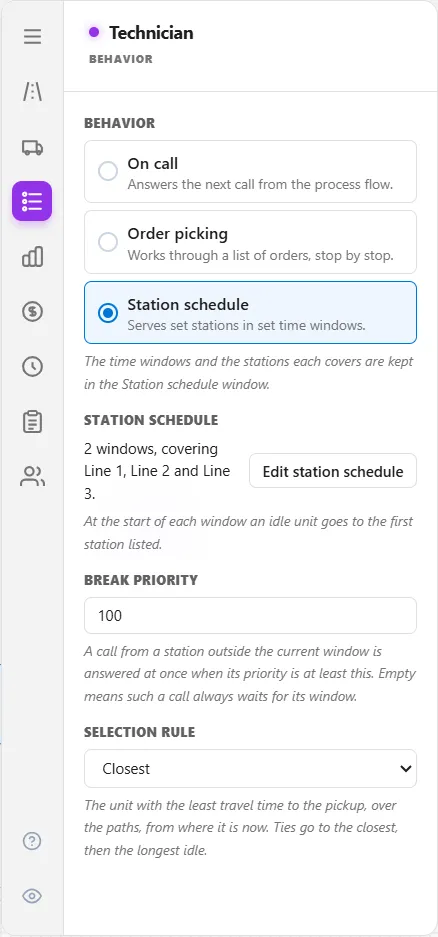
Section titled “Station schedule”Choose Station schedule and the Behavior tab shows:
- Station schedule: a one-line summary of the windows, with Edit station schedule. “At the start of each window an idle unit goes to the first station listed.”
- Break priority: “A call from a station outside the current window is answered at once when its priority is at least this. Empty means such a call always waits for its window.”
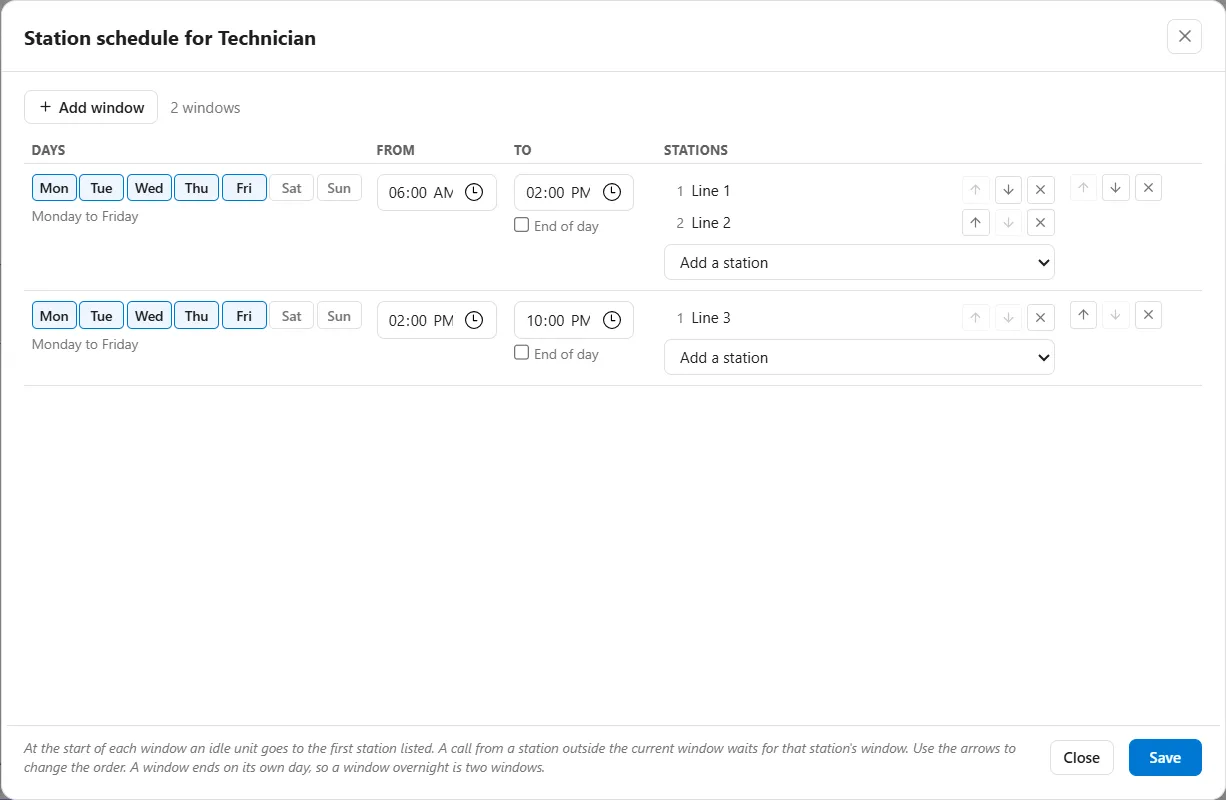
Edit station schedule opens Station schedule for [resource], a table of time windows. Add window adds a row with:
- Days: the days the window applies, picked with the Mon to Sun buttons. The words under them say which days are chosen, like “Monday to Friday”, as the shift editor does.
- From and To: the window’s times. Tick End of day under To for a window that runs to midnight. A window ends on its own day, so a window overnight is two windows: one in the evening, and one the next morning. A window whose To is at or before its From says so.
- Stations: the steps the units cover in this window, in order, picked with Add a station. Only activities and queues linked to a path node are offered. The first station is where idle units go when the window opens.
As in the Orders window, Save keeps your changes and Close asks before unsaved changes are lost.
How a schedule runs:
- When a window opens, idle units drive to its first station and wait there. That drive counts as returning, not as busy.
- During a window, units answer calls only from the stations it lists. Two windows that overlap on the same day cover all the stations of both.
- A call from a station outside the current window waits for that station’s window, unless its priority reaches the Break priority.
- Outside every window, calls from the stations are treated as if the resource were off shift, by its Off-Shift Rule on the Shift tab.
Checks
Section titled “Checks”The model checker names what is missing before the run:
- “[Resource] picks orders, so choose what a finished order becomes.”
- “[Order] has nowhere to go. Give it a drop-off, or give [resource] a default one.”
- “[Order]: stop [n] has no location. Choose a node for it.”
- “[Order]: stop [n] is at a node that is no longer on the chart.”
- “Two orders are called [name].”
- A drop-off must be a node with exactly one step on it, for the finished order to enter.
- “[Resource] picks orders, so it cannot also be connected to [step].”
- “The schedule of [resource] covers [step], which has no path node.”
Related
Section titled “Related”- Resource: the Movement, Carrying and Behavior tabs.
- Drawing Paths.
- Resource Downtime and Maintenance: what a moving unit does at a shift end or a break.