

Queue
A Queue is a waiting area where entities sit between steps with nothing being done to them. Use one whenever you need a named buffer with a set size and a chosen release order: a line at a counter, a stack of work waiting for the next station, or parts waiting to be assembled.
An activity already carries its own small input and output queues, but those hold only a capacity number and release first in, first out. Reach for a Queue node when you want to choose the order entities leave in, charge for the time they wait, or send a reorder signal when the queue runs low.
Capacity
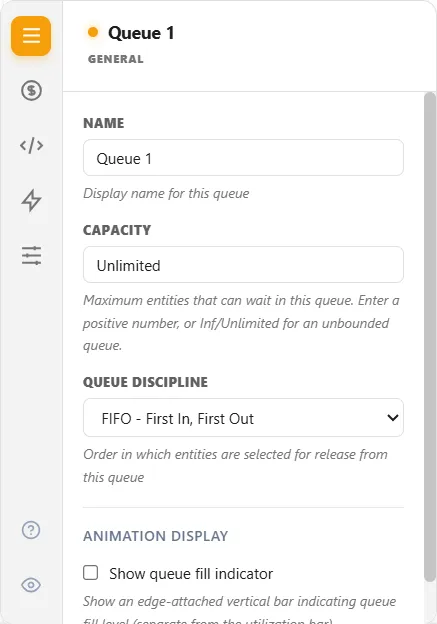
Section titled “Capacity”Capacity is the most entities that can wait in the queue at once. A new Queue reads Unlimited. Type a positive number to limit it, or Inf or Unlimited to remove the limit again (0 is refused). Set a number when the real waiting area has a fixed size and you want entities to back up upstream once it is full.
Release order
Section titled “Release order”The Queue Discipline decides which waiting entity leaves next:
| Discipline | Who leaves next |
|---|---|
| FIFO - First In, First Out | The one that has waited longest (the default) |
| LIFO - Last In, First Out | The one that arrived most recently |
| By Attribute | The highest or lowest value of an attribute you choose |
| Earliest Due Date | The one whose due-date attribute is soonest |
| Oldest in System | The entity that has been in the whole model longest |
| Random (SIRO) | A waiting entity picked at random |
| Weighted Random | Random, but weighted by an attribute value |
For By Attribute you also pick the attribute and whether the highest or lowest value goes first, so a priority queue is simply By Attribute on a priority attribute. Weighted Random takes an attribute and a table of weights.
Charging for the wait
Section titled “Charging for the wait”On the Cost tab you set a flat Cost Per Unit, charged to each entity as it leaves the queue. It is booked in the non-value-added cost bucket, so it shows as Avg NVA Cost on the Flow tab and in Location Costs on the Cost tab. Impact Analysis counts minutes, not money, so the charge does not appear there. To charge for the length of the wait instead, set a Waiting Cost per hour on the entity.
Action logic
Section titled “Action logic”The Logic tab holds action logic for the queue. Unlike an activity, a queue has a single moment to run at: as an entity enters the waiting queue. Because there is only one, write the statements straight into the tab with no section header.
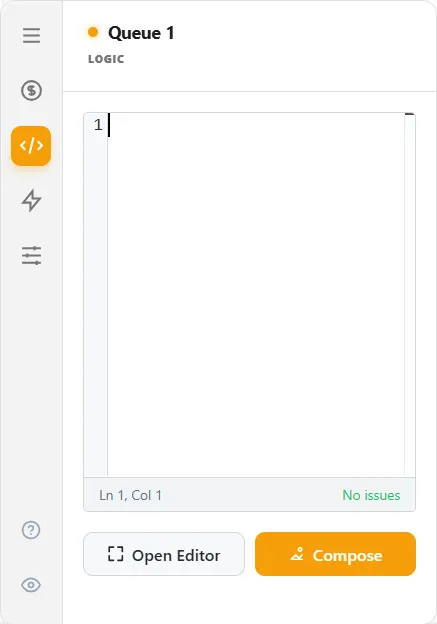
Use it to count arrivals into the buffer, stamp an entity with the time it started waiting, or set an attribute the release order will sort on. Time-based statements such as TIME and WAIT UNTIL are allowed here, so logic can hold an entity in the queue.
Write it inline, choose Open Editor for the full-screen Action Logic Editor with its checking, or choose Compose for the card-based Action Logic Builder.
Reorder triggers
Section titled “Reorder triggers”The Triggers tab watches how many entities of a chosen type are at this queue, and orders more through an Ordered Arrival when the count falls below a level you set. It is the same tab, with the same behaviour, as the one on an activity.
Starting a run with entities already waiting
Section titled “Starting a run with entities already waiting”The Queue node has no “start with entities already in it” field. To begin a run with a stocked buffer, send an arrival straight into the queue so it fills at the start of the run, or place the entities with action logic.
Spotting queue problems
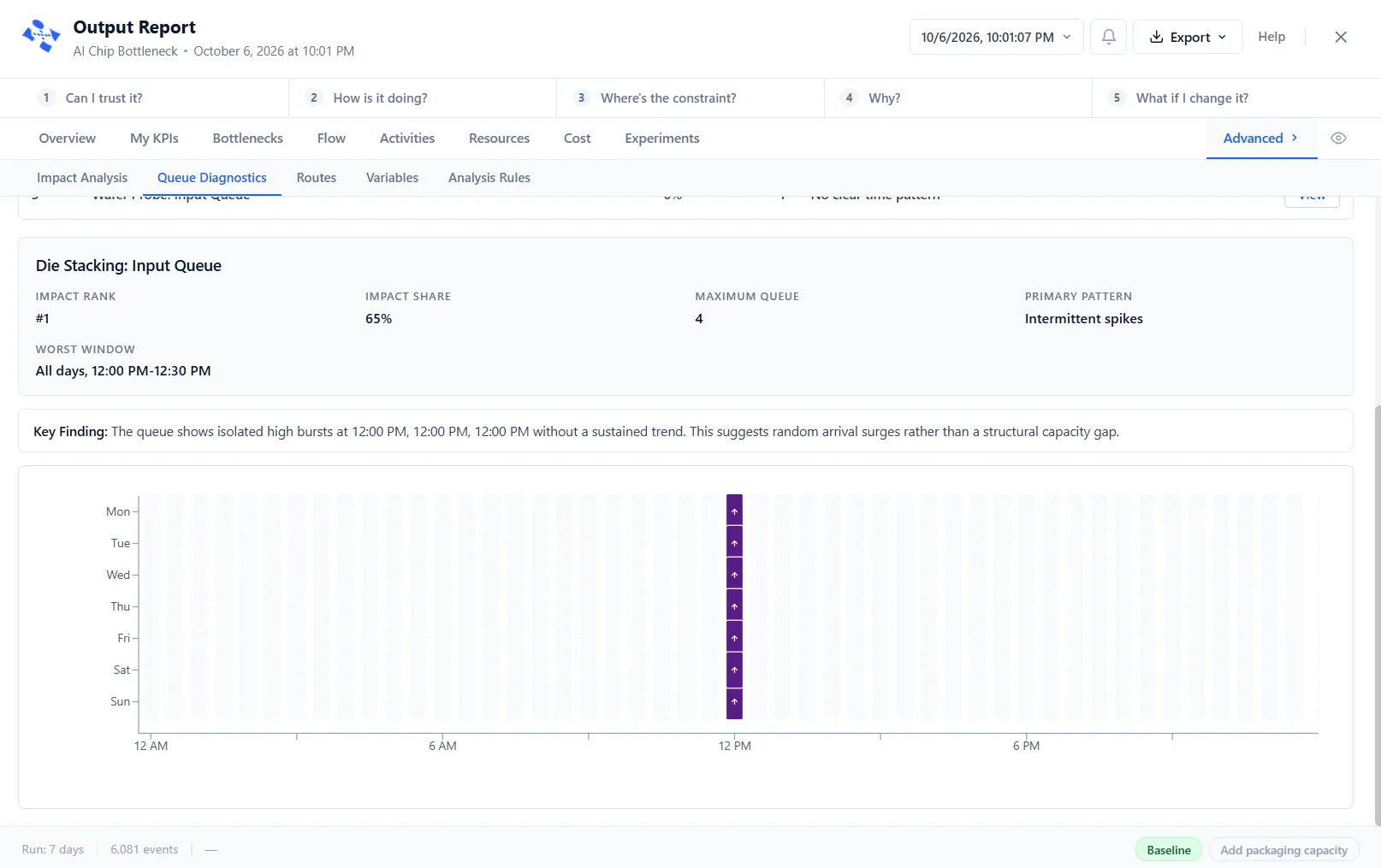
Section titled “Spotting queue problems”Bucket collection is already on for every queue, through Queue bucket collection under Advanced in Simulation Options, and ProcessModel tracks how full each queue is over time. The Queue node’s own Bucket Collection on its Advanced tab is an override: Use master setting (the default), On, or Off. After a run, the Output Report’s Queue Diagnostics view shows a heatmap of the busy periods across the week, so you can see when and where entities pile up.
Tracking a queue in logic
Section titled “Tracking a queue in logic”Activity("X").Contents reads how many entities are waiting in a queue at any moment, so logic can branch or report on its length. Put the queue’s own name in the quotes: an activity query reaches a queue just as it reaches an activity.
Seeing what is inside during a run
Section titled “Seeing what is inside during a run”While a run is going, click the count badge on a queue (rest the pointer on it and it reads “Click to see entities”) to open a window of the entities waiting in it. Its title ends “entities currently here”, a line under it counts them (“Showing 4 entities”, for example), and it lists each entity’s ID, Type and Entry time, with up to three of the attributes it carries. The list refreshes while you watch, and Esc, the X or a click outside closes it.
Queue fill indicator
Section titled “Queue fill indicator”On the General tab, under Animation Display, tick Show queue fill indicator to put a thin vertical bar on the edge of the queue that fills as the queue does. Threshold (% of capacity) is the warning level, 80 to begin with: the bar is green, turns yellow from half the threshold, red from three-quarters of it, and red and pulsing above it. Scale measures the fill against % of capacity or % of historical max, the largest fill seen so far in the run.
LegacyHow this worked in the previous version
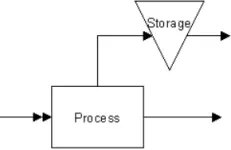
Storages are waiting areas, stock places, etc. where entities can wait for further processing. Storages are useful when controlling the order in which entities are allowed to move on through the model. Since an activity provides the option to have a built-in input and output queue, a storage is for visual purposes or to model special queuing conditions such as multiple activities sharing a common input queue.
General
Section titled “General”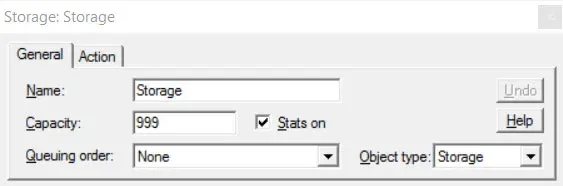
**Name **The name of the storage (e.g. StockRoom ).
**Capacity **The maximum number of entities that can occupy this storage (1 - 999,999). Scenario Parameters may also be used in this field.
Queuing order The order in which entities are queued to leave the storage: none, first-in first-out, last-in first-out.
- **None **- Entities that have completed their Action Logic are free to process any routing logic independent from other entities that have finished their Action Logic. Will process FIFO if no other routing requirements are enforced (i.e. Conditional Routes, Get with a priority, etc.).
- First In, First Out (FIFO) - The first entity completing its Action Logic must be routed first.
- Last In, First Out (LIFO) - The last entity completing its Action Logic must be routed first.
Object Type Allows the type of object to be changed from Storage to something else.
Action
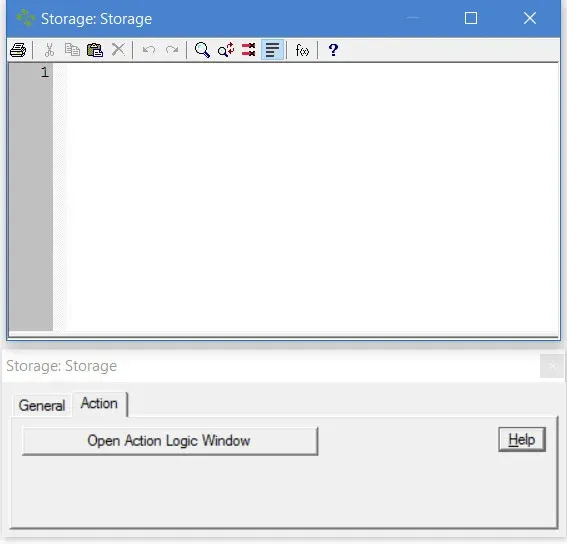
Section titled “Action”**Action **Develop customized behavior for entities at an storage. Logic can be developed to report statistics, control processing, collect information and a host of other items. Variables, entity attributes, systems information and if-then statements allow expansive capabilities to be accessed from the action tab. For additional information see Action Logic.
Starting a run with entities in a storage
Section titled “Starting a run with entities in a storage”Having an initial quantity or inventory of entities at a storage area or queue when the simulation begins.
Suggested Technique
Section titled “Suggested Technique”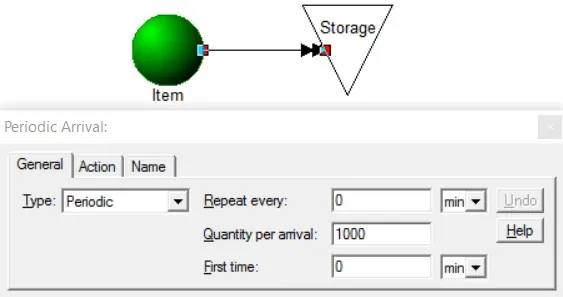
- Connect the desired entity to the activity or storage and select Periodic as the arrival type.
- In the Periodic arrival’s properties dialog, enter zero (0) in the Repeat every field and the First time field. Enter the quantity to arrive in the Quantity per arrival field.
Example: At the beginning of a process, a pre-inspection storage is initialized with 1000 units of inventory.
TO DO: Create the Periodic arrival connection and enter the Quantity per arrival. Enter zero (0) in the Repeat every and First time fields.
Pulling the highest priority first
Section titled “Pulling the highest priority first”Pull entities out of a queue based on a priority by using a real or contrived resource as the enabler to move down the routing. This could be based on dollar value, how much time they have spent in the system or even the time of day.
Suggested Technique
Section titled “Suggested Technique”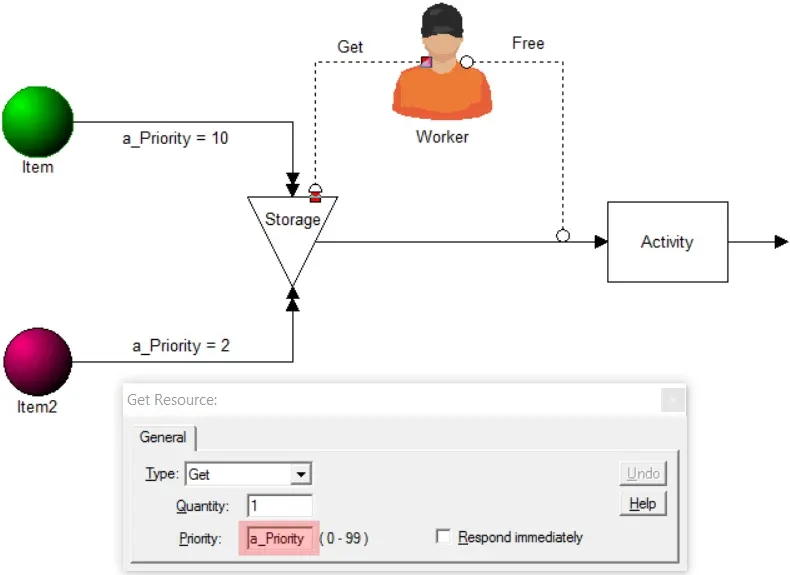
- Place a priority on entities before they arrive at the queue.
- Pull the highest priority items from the queue by using a resource to capture by priority.
- Free the resource so that it can capture the next entity
Example: Two types of orders are placed in a storage container. High priority items represent orders for greater than $1,000 and should be processes first.
TO DO: Create a attribute named a_Priority (this may be any name). Assign the priority to the entity on the arrival route before it arrives in the storage. From the storage, GET a resource as the enabler and use the priority of the entity as the priority to GET the resource.
To learn more about Resource Priorities, see Resource Assignments.
Pulling last in, first out
Section titled “Pulling last in, first out”The last entity to enter the storage is the first to exit or leave. Thus entities entering 1, 2, 3 exit in the order 3, 2, 1. Useful when it is important to model entities that are processed last in, first out.
Suggested Technique
Section titled “Suggested Technique”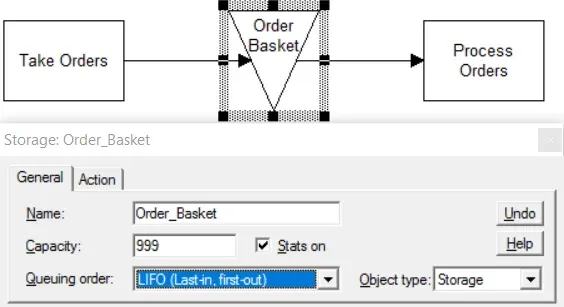
- Select the storage where you want to use the LIFO method.
- Click on the Queuing order list box on the General tab of the properties sheet and select LIFO as shown below.
Example: Orders arriving in a basket (the storage) are processed last in, first out. The last order to be placed is pulled from the top of the stack to be processed.
TO DO: Select the storage and on the General tab of the properties sheet, select LIFO from the Queuing order list box.