

AI Analysis
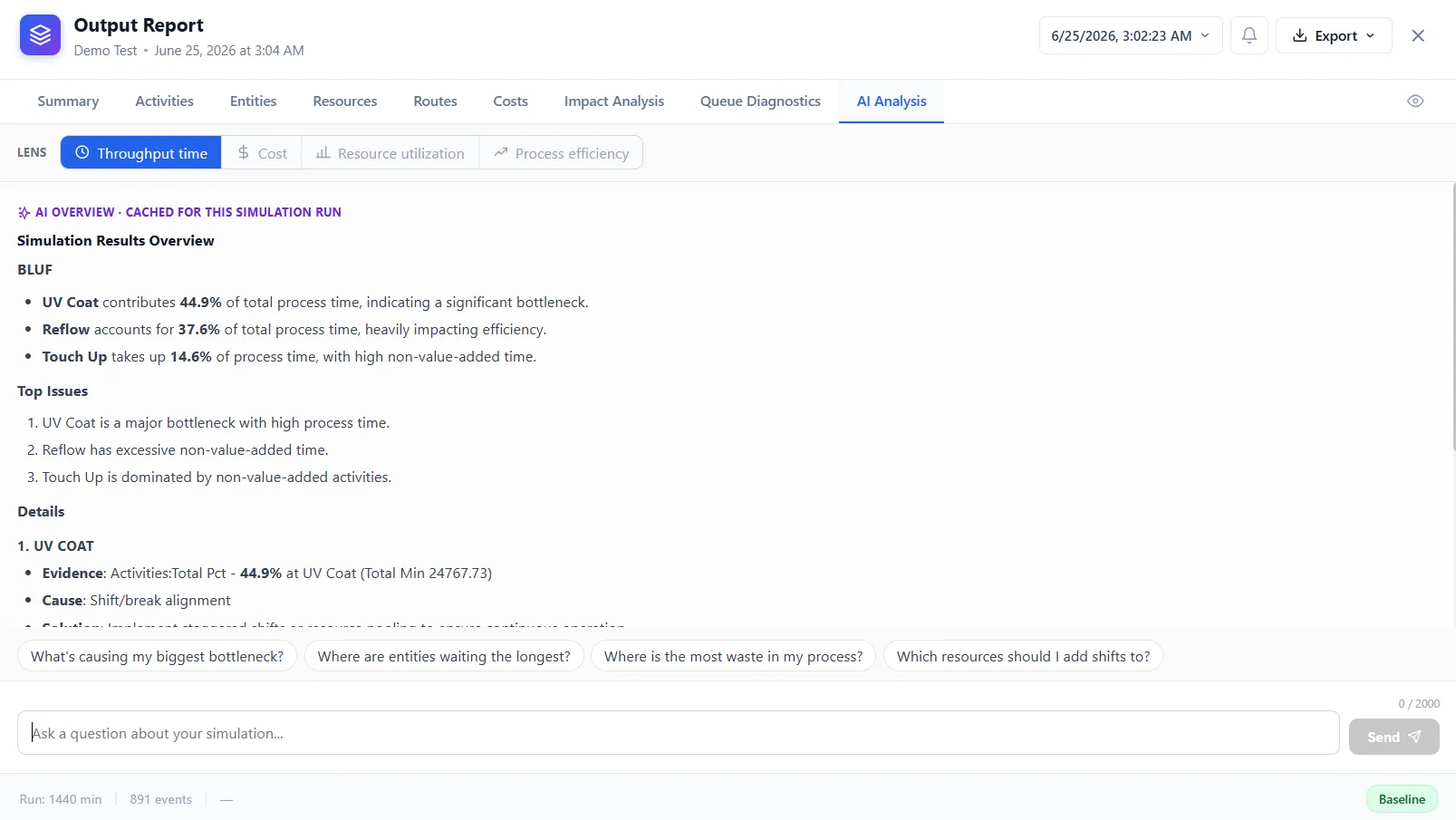
AI Analysis reads your simulation results and explains them in plain language: where the bottlenecks are, what is causing them, and what to try. It is a tab in the Output Report, alongside Impact Analysis.
AI Analysis uses the AI provider you set up once in Configure AI.
What it gives you
Section titled “What it gives you”The first time you open the AI Analysis tab after a run, it writes a short overview of your results: the few findings that matter most, the top issues it found, and for each one a line of evidence from your run with a suggested fix. Every point is grounded in your actual activity, resource, and entity names, not generic advice.
Below the overview you can ask questions and it answers in place from the same run data, for example “What is causing my biggest bottleneck?”, “Are my resources over or under used?”, or “How can I reduce throughput time?”. Suggested questions appear as chips you can click to get started.
AI Analysis suggests changes for you to make; it does not change the model itself.
What you need
Section titled “What you need”- A completed simulation run to analyze. With no results, the tab asks you to run the simulation first.
- Professional ProcessModel with an AI provider set up. The AI features are turned off in the free Personal mode; if no provider is configured, the tab gives you a button to add one.
LegacyHow this worked in the previous version
**Analyze AI **is a powerful new feature integrated directly into Output Report that serves as an expert data analyst for your simulation results. Instead of manually interpreting complex charts and raw data tables, Analyze AI utilizes advanced Large Language Models (LLMs) to review your simulation reports and provide deep, textual insights and recommendations.
This feature is designed to help you quickly identify bottlenecks, understand resource constraints, and discover actionable opportunities for improvement .
How to Use Analyze AI
Section titled “How to Use Analyze AI”Access the Tool
Section titled “Access the Tool”After running a simulation, open Output Report. You will find a new tab labeled Analyze AI at the end of the report tabs . The ribbon bar also includes a new “AI Analysis” section.
Select Your Focus
Section titled “Select Your Focus”Before running the analysis, tell the AI what is most important to you by selecting a specific metric from the Select Focus dropdown menu. The available options are:
-
Throughput Time (default)
-
Quantity Processed
-
Cost
-
Process Efficiency
-
Resource Utilization
Choose an Engine Type
Section titled “Choose an Engine Type”You can customize the analysis based on your need for speed versus depth by selecting an Engine Type.
-
Fastest: Provides a quick overview of the results (expect a response in about a minute).
-
Faster: Offers a balance between speed and detail (expect a response in about 2 minutes).
Run the Analysis
Section titled “Run the Analysis”Click the Analyze button to begin. The AI will process your selection and display the progress with a status message, such as “Analyzing model data using AI…” .
Note: You can navigate to other tabs within Output Report while the analysis is running in the background. A prompt will notify you when the analysis is complete .
Review the Results
Section titled “Review the Results”Once the analysis is finished, the results are displayed directly in the Analyze AI tab. The report typically begins with a BLUF (Bottom Line Up Front) section, followed by numbered insights and recommendations, such as:
-
Specific suggestions to reduce excessive waiting times in queues.
-
Recommendations for optimizing specific resources to decrease throughput time.
-
Identification of areas where process improvements can yield the highest return.
If you close Output Report after an analysis is complete, you will be prompted to save the AI-generated report so you can review it later without re-running the analysis .