

ProcessModel 7 Self Teach GuideChapter 7
Chapter 7. Give Your Technicians Real Working Hours
By the end of this chapter you can
Give your people real shifts, with breaks.
Before you start
Until now, the two Technicians were on all day and all night, without a break. Real people work a shift, and they take a lunch break, often at the worst possible moment for the line. A model that ignores the hours people really work will promise a shop that cannot exist.
This chapter teaches three ideas:
- A shift schedule sets when a resource works. Outside its hours the resource is off shift and takes no new work. Every resource starts Always Available, around the clock.
- A break is time inside a shift when the resource stops. ProcessModel keeps breaks inside work hours.
- A resource group lets a step use whichever of several resources is free and on shift. Two Technicians on two different shifts must be two resources, because one resource has one schedule for all its units. The group joins them back up.
Here is what changes in the shop:
| Part | Chapter 6 | Chapter 7 |
|---|---|---|
| Technician | Two, on all day and all night | Early Technician: one person, 7 in the morning to 3 in the afternoon, a break at 11 |
| Late Technician | None | One person, noon to 8:30 at night, a break at 1:30 |
| Who does the work | The Technician | Early Technician and Late Technician as one group: whichever is on shift and free |
| Everything else | As Chapter 6 left it | Unchanged |
You need your Phone Repair Shop from Chapter 6 (or the practice model below) and about forty minutes.
Step 1. Open your shop
- On the Welcome screen, under Recent Models, click Phone Repair Shop.
What you should see: the shop as Chapter 6 left it, with the Repair Queue, and the Technician badge reading x2.
Step 2. Add a second Technician for the afternoon
- Drag a Resource from the palette and drop it right above the Technician, so no line has to move.
- Name it Late Technician. Quantity reads 1: one person.
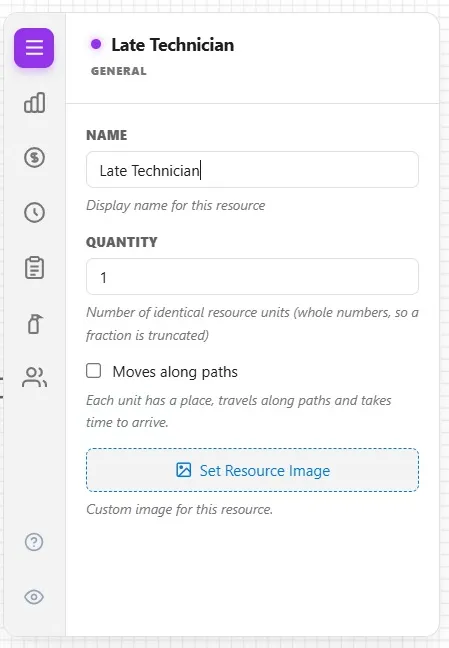
You do not draw a line from Late Technician to any step. In Step 5 it joins the Technician in a group, and the group does the work.
Step 3. Build the late shift
- Click the Shift tab. Shift Schedule reads Always Available.
- Click New Schedule. The Shift Schedule Builder opens, with the cursor in Schedule Name. Type Late Shift.
The shop runs one Monday, so Monday, already selected in the day list, is the day to set.
- Click Add Work. A work segment appears. Click its End Time and type 8:30 PM, then click its Start Time and type 12 PM. The blue bar on the timeline runs from noon to 8:30, half an hour after the last customers arrive.
- Click Add Break. A half-hour break lands in the middle of the shift. Click its Start Time and type 1:30 PM, then its End Time and type 2 PM: a half-hour break after the noon rush.
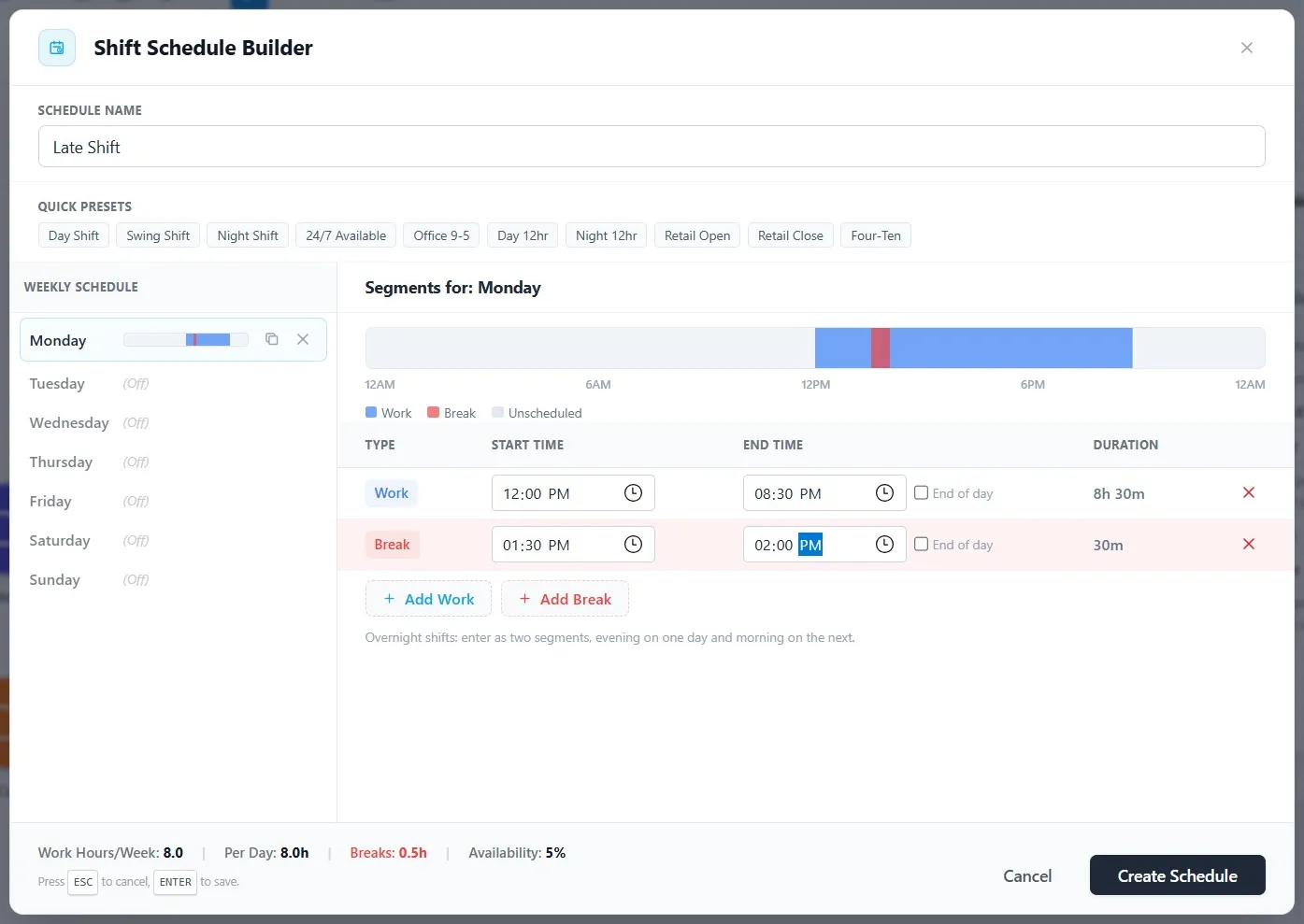
What you should see: a blue work bar with a red break inside it, and a foot that adds up the hours: 8 hours of work, half an hour of break.
- Click Create Schedule.
Create Schedule saves the schedule to the model; it does not yet give it to Late Technician. So:
- Open the Shift Schedule list and choose Late Shift. Schedules you make are at the end of the list, after Always Available and the built-in presets.
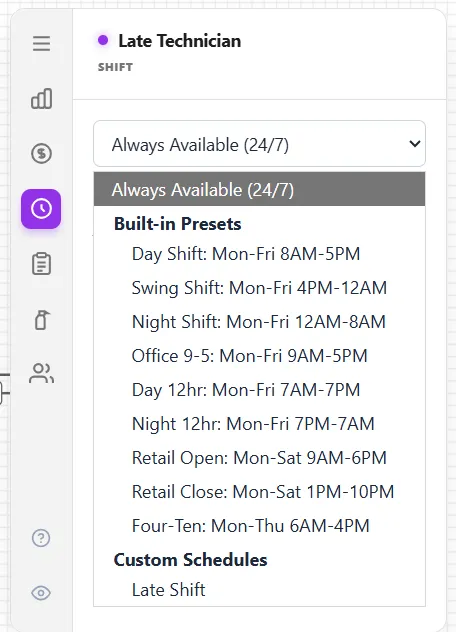
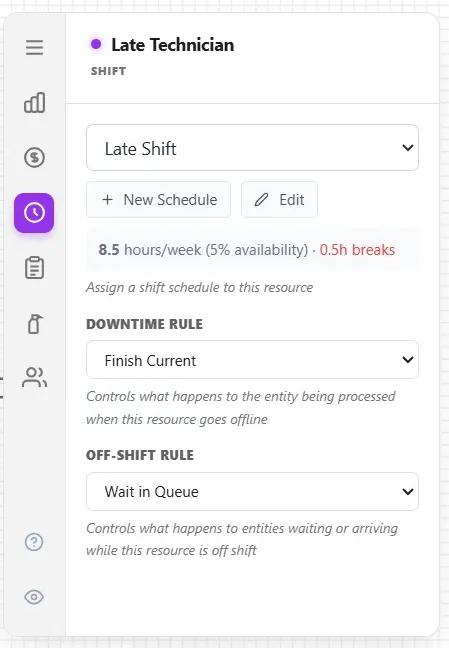
What you should see: Shift Schedule reads Late Shift, with a summary of its hours and breaks under it.
Step 4. Turn the Technician into the Early Technician
- Click the Technician and open its General tab.
- Name it Early Technician, and set Quantity to 1: one person on each shift now.
- Click the Shift tab, then New Schedule. Type Early Shift.
- Click Add Work. Click End Time and type 3 PM, then Start Time and type 7 AM.
- Click Add Break. This time leave it where it lands: in the middle of the shift, 11:00 to 11:30, an early lunch before the noon rush.
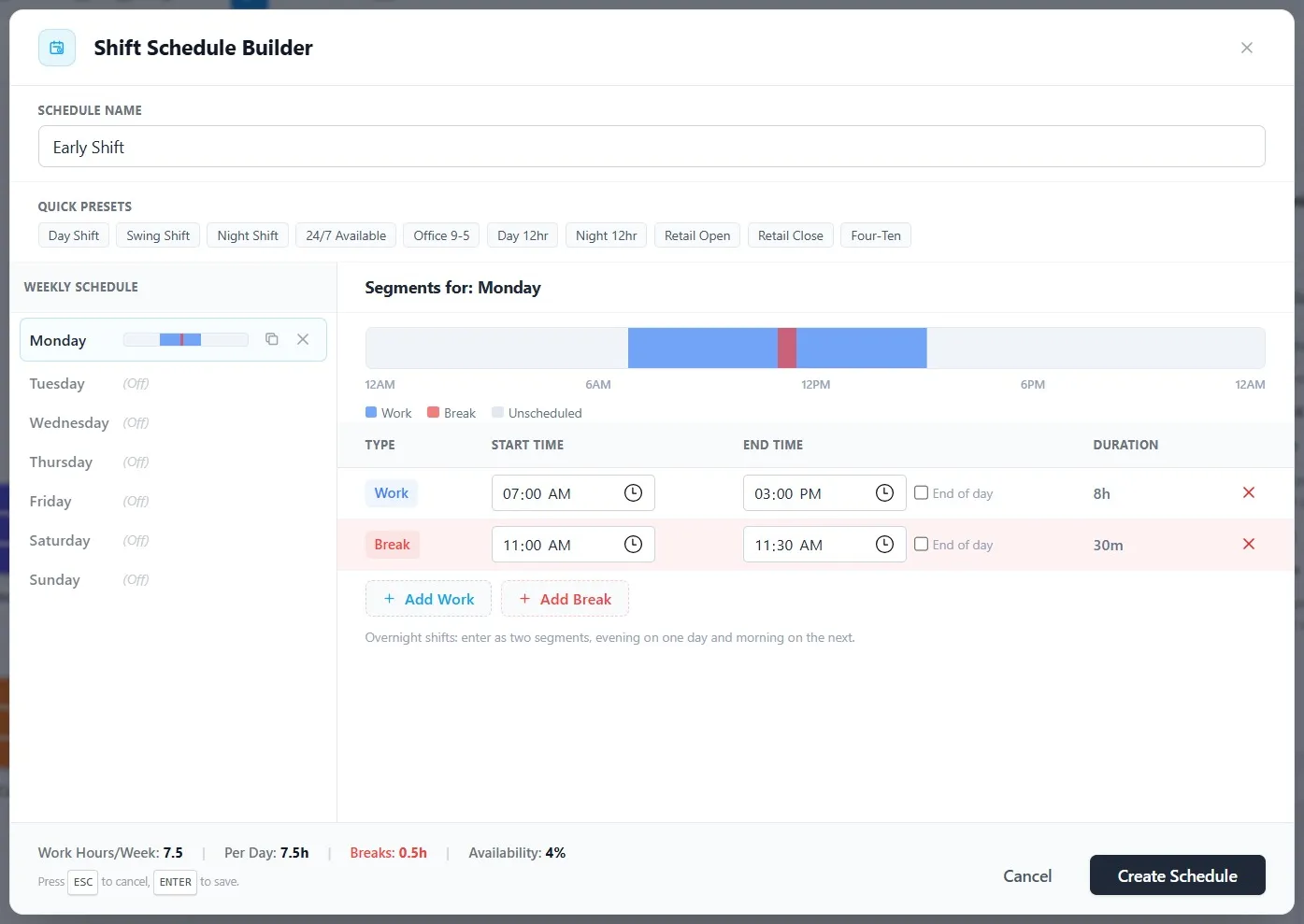
- Click Create Schedule, then open the Shift Schedule list and choose Early Shift.
Step 5. Make the two Technicians one group
Quick Fix and Repair are joined to Early Technician; Late Technician has no lines. A group lets both steps use either one.
- With Early Technician selected, click the Group tab, then Open Resource Group Builder.
- Early Technician is already in the Main Requirement, as its owner. Click Add Resource and choose Late Technician.
- Read the Downtime Rule at the top: Finish Current. When a shift ends or a break starts, a Technician busy with a customer finishes that customer first, then goes. The list holds three more rules: Preempt & Wait stops at the shift boundary and resumes the same entity when the resource returns on shift; Preempt & Pass hands the work to an alternate resource if one is connected; and Clear Queue First keeps working until everything already waiting has been processed. The Resource Shift help explains each.
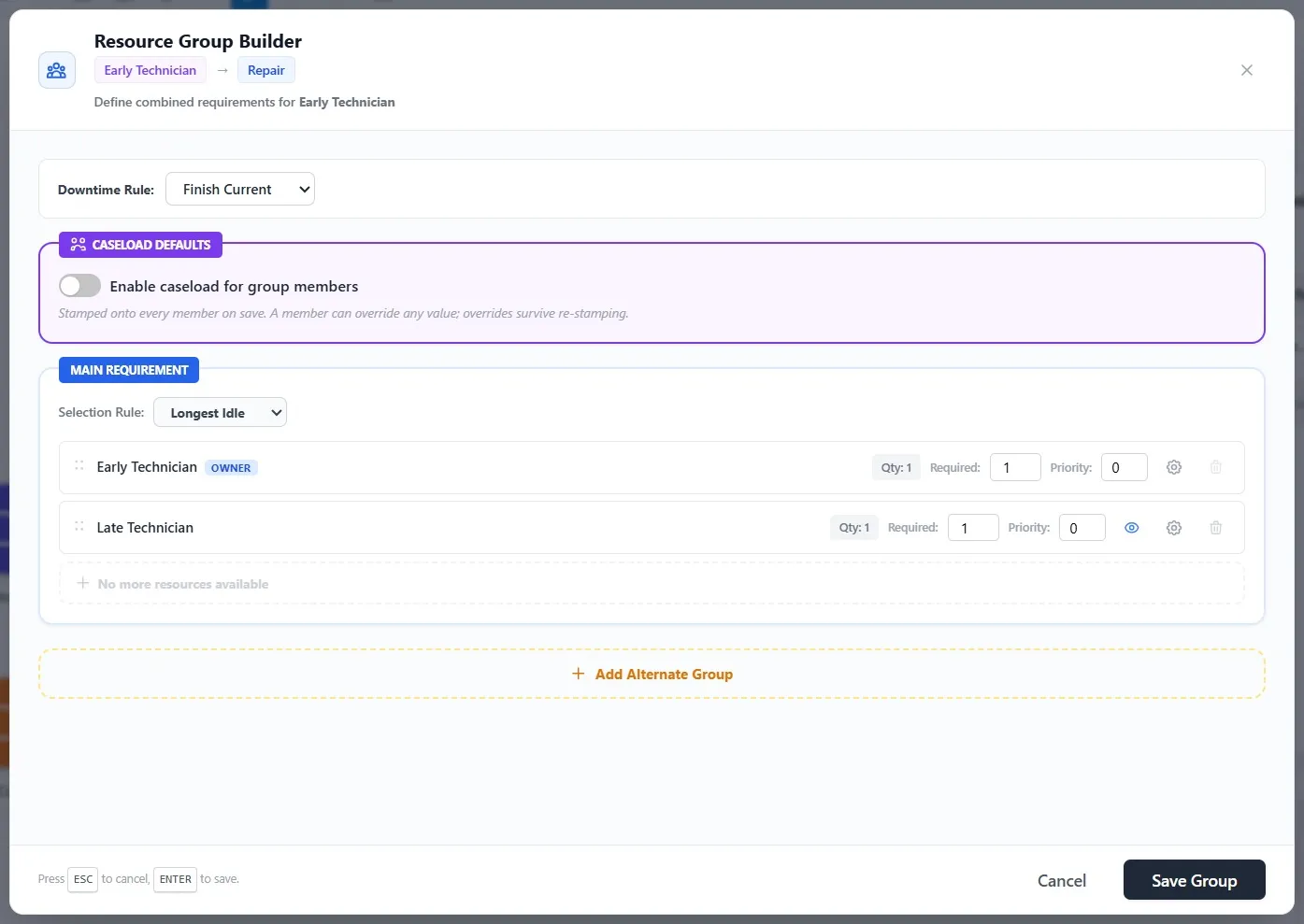
- Click Save Group.
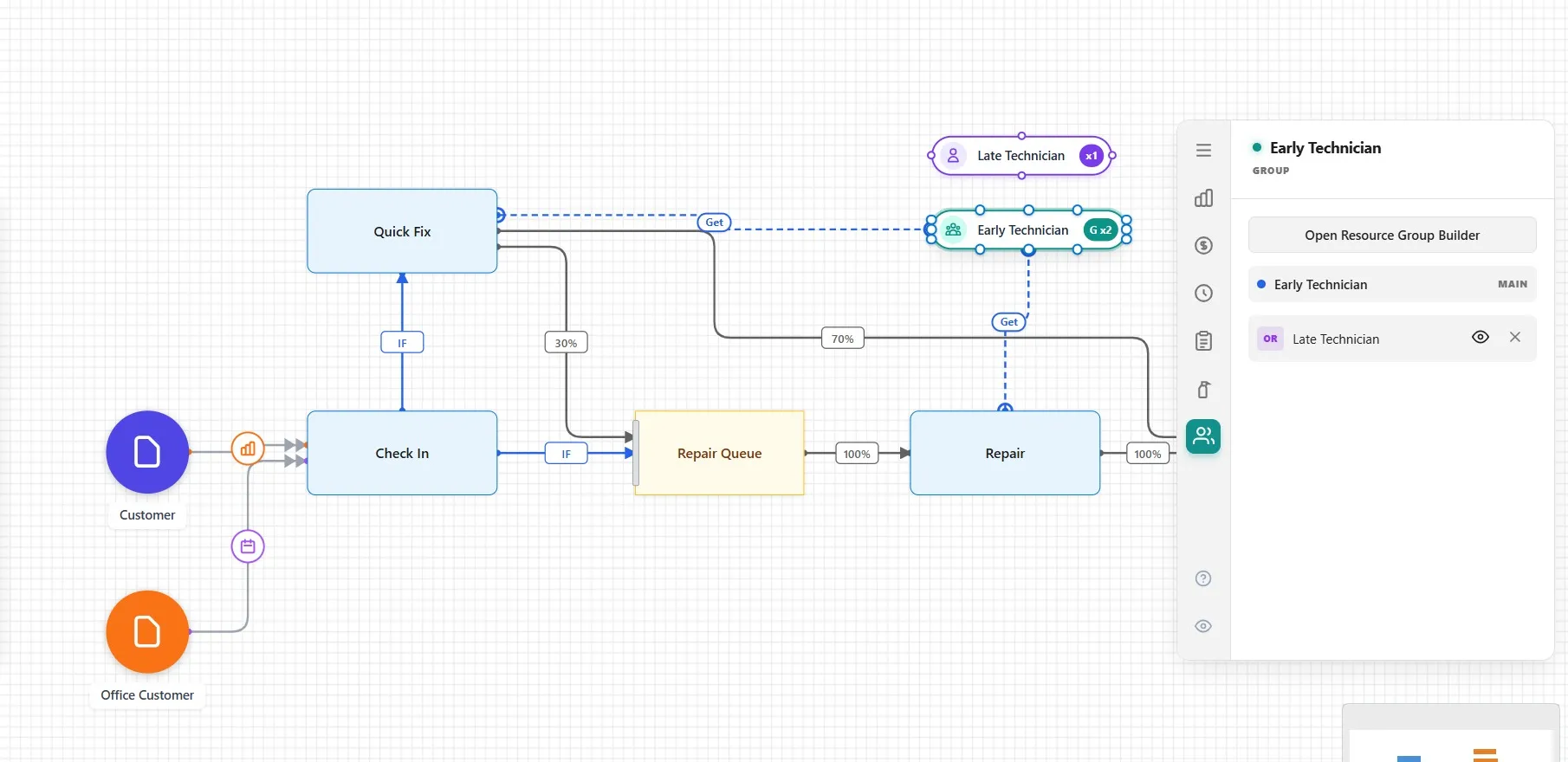
What you should see: the badge on Early Technician reads G x2, a group of two. Quick Fix and Repair ask for Early Technician; as a group, whichever Technician is on shift and free answers.
Step 6. Watch the shifts change
- Click Run Simulation. Rest the pointer on Early Technician as the day goes; its popup tells you its state.
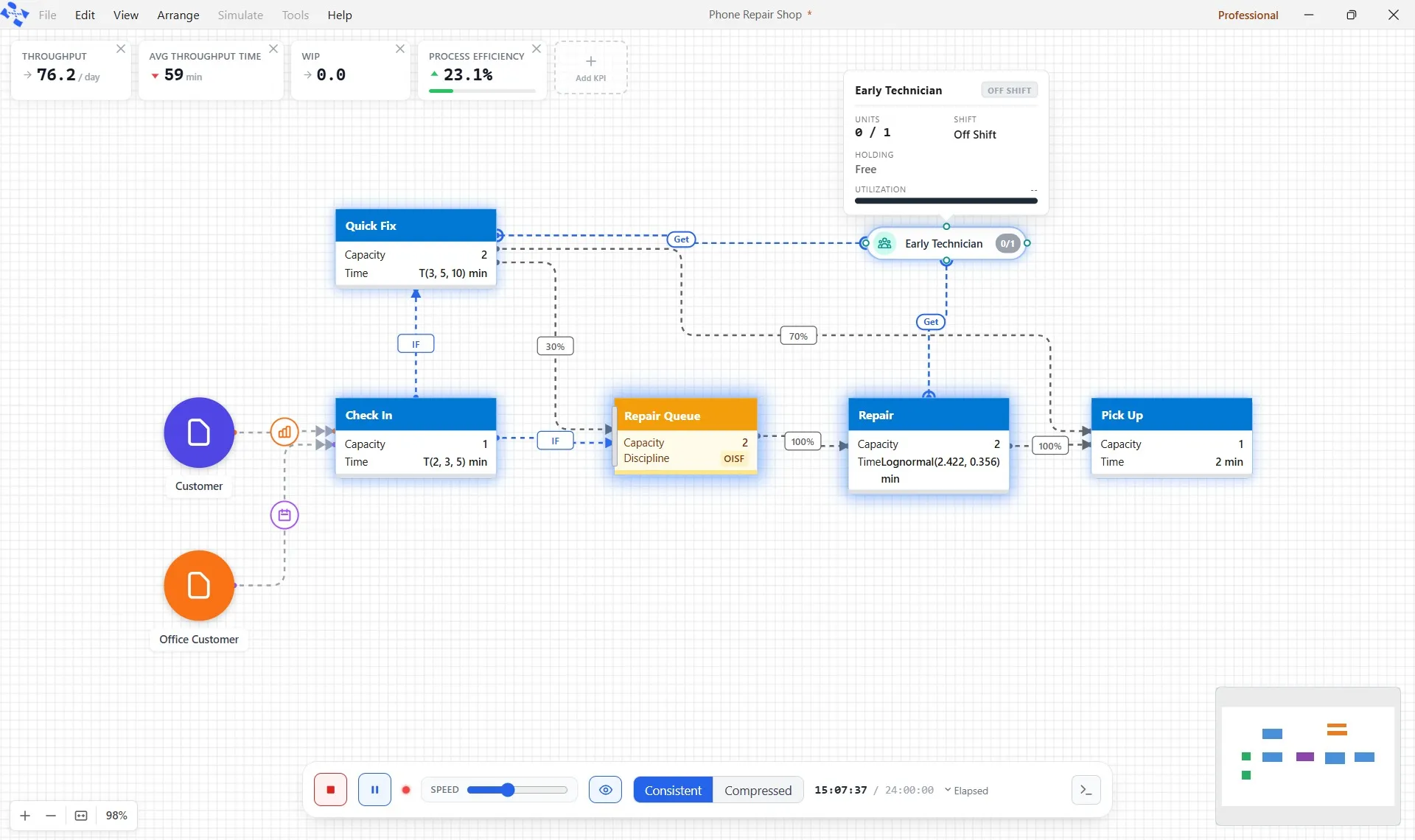
During the run, each Technician’s badge has a color: orange in use, green idle, blue on break, gray off shift.
- Before 7, Early Technician’s popup reads Off Shift. At 7 its shift starts and the first customer comes.
- Until noon, Early Technician is the only one on. At 10 the office sends twelve, the Repair Queue fills, and Check In’s line grows long.
- At 11, Early Technician’s break is due, but it is busy with a customer. Under Finish Current it finishes that customer first, then takes its break, for the full half hour. Nobody else is on, so the line at Check In stays long.
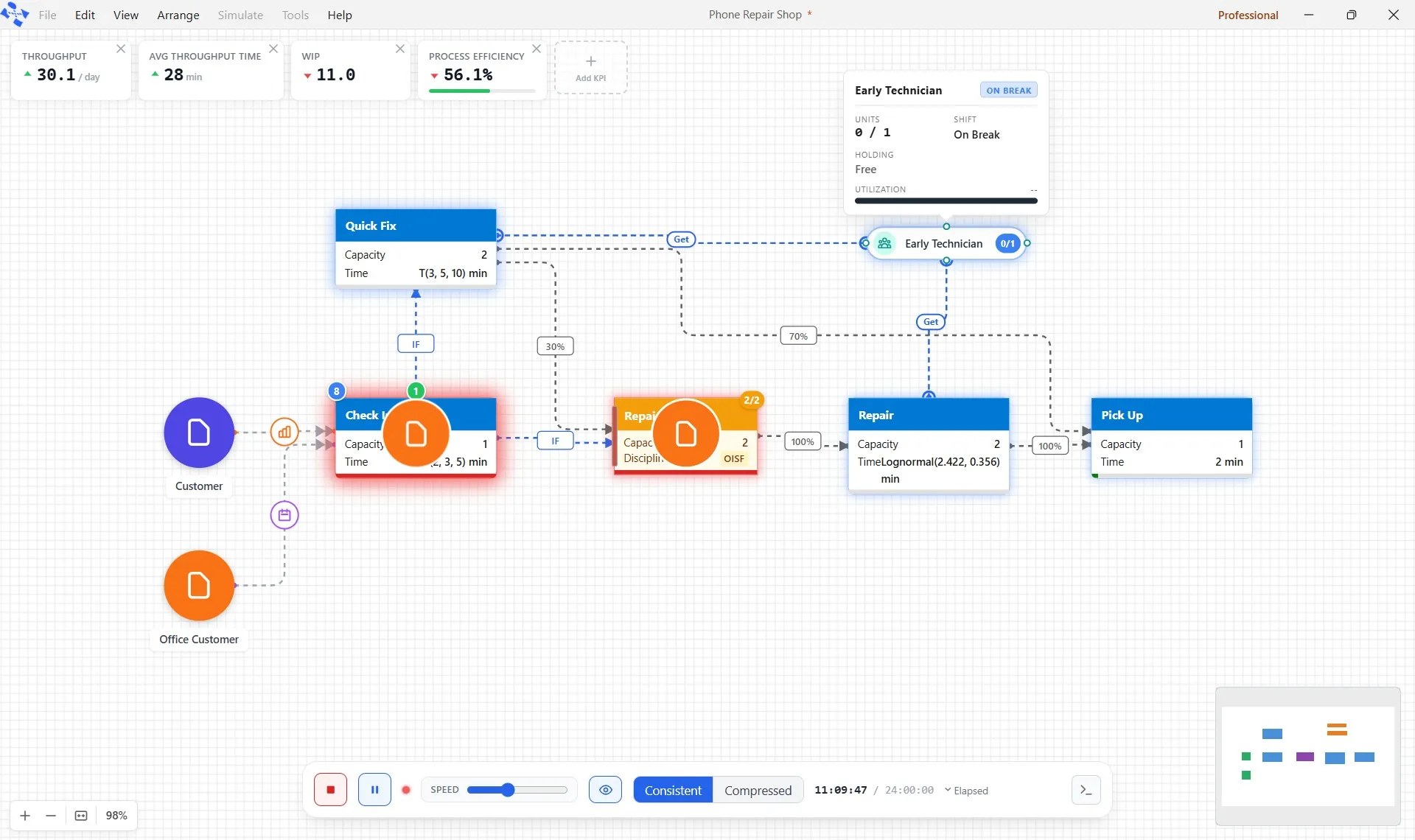
- At noon, Late Technician starts, and the two work through the lunchtime rush. At 1:30 Late Technician’s break waits for the customer in hand too, then runs its full half hour, while Early Technician covers the shop.
- At 3, Early Technician’s shift ends: its badge turns gray and its popup reads Off Shift. Late Technician carries the shop alone through the evening, and goes off shift at 8:30.
Step 7. Read the cards
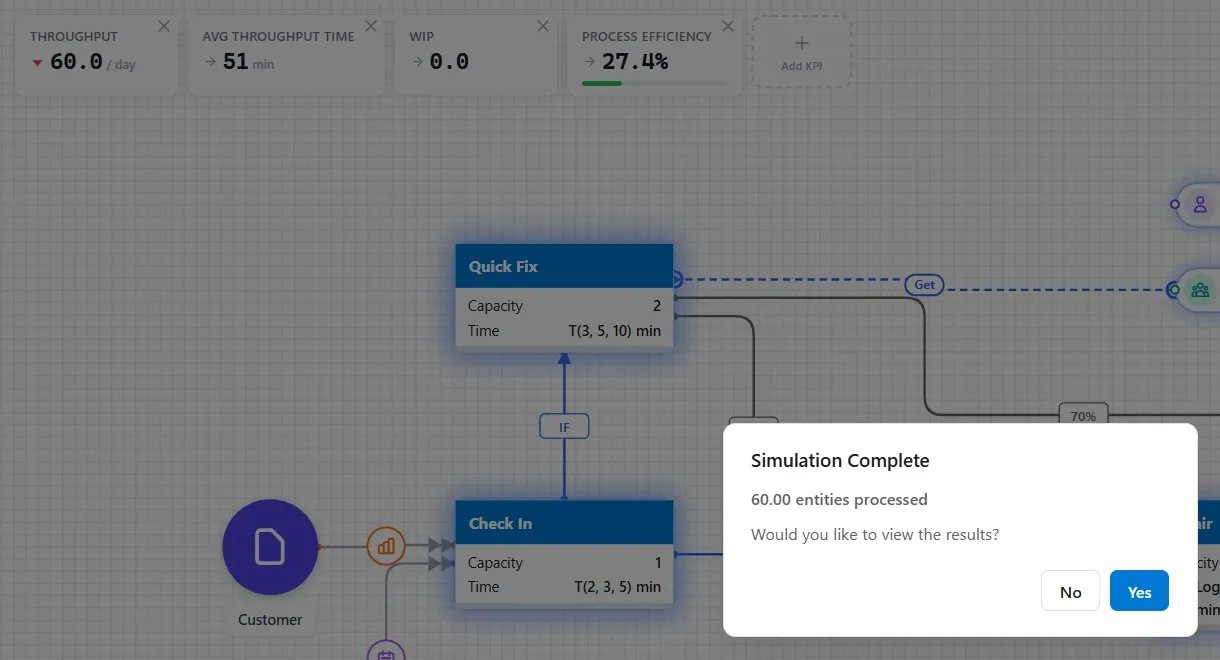
- 60 went through, as in Chapter 6.
- Avg Throughput Time, 51 minutes, up from 24. With one Technician until noon, and a lunch break while the line is long, customers wait much longer.
- WIP, 0: at midnight the shop is empty.
- Process Efficiency, 27.4%, down from 59.8%: most of each customer’s time is now spent waiting.
The shop did not get worse. Your model got honest. Chapter 6’s shop had two people on around the clock, which no real shop has; this one has the hours a real shop would staff. Its numbers are the ones to plan with. As always, one run is one possible Monday. Click No.
Step 8. Save it
- Click File, then Save. The star leaves the title bar. Chapter 8 starts from this shop.
Your practice model
- Start fromChapter 6. Give Each Line a Size and an OrderThe shop as Chapter 6 left it. Use your own saved Phone Repair Shop instead if you built it.
- Compare withChapter 7. Give Your Technicians Real Working HoursThe shop as this chapter leaves it. Open it when you are done, and check your settings against it.
Both are in File ▸ Demo Models, in the Self Teach Guide group. A demo model opens as a new model, so the original never changes.
Check yourself
Try it yourself
Can a better break time help? Move the early lunch away from the office group.
- Click Early Technician, open the Shift tab, and edit Early Shift (the Edit button beside its name). Move the break to 2:00 PM to 2:30 PM, after both rushes, and save the schedule.
- Run the day and read the Avg Throughput Time card before you answer Simulation Complete. It may show two figures, one for each kind of customer.
Mark it done
When you can explain why Avg Throughput Time rose with real shifts, and what Finish Current does, turn on Done.
You watched this chapter's video.Not watched yet: the video is marked when it plays to the end.
Kept in this browser only, and shown on the course page.