

ProcessModel 7 Self Teach GuideChapter 13
Chapter 13. Let the Software Find the Best Setup
By the end of this chapter you can
Let PM Optimizer find the best setup within your limits.
Before you start
In Chapter 12 you tried two fixes by hand, and the bigger parts box helped most. But the real question is wider: how many Technicians, and how big a box, keep the wait at Check In under 30 minutes, with as few Technicians as possible? There are many combinations, and trying each one by hand is slow. PM Optimizer tries them for you.
Four words carry this chapter. Learn them once and every optimization makes sense:
- An experiment is one search: what to change, what to measure, and how.
- A factor is a setting the optimizer may change, with the values to try. Here: the number of early Technicians (1, 2 or 3) and the size of the parts box (10 or 20).
- A response is what you measure, with its goal: lower is better or higher is better. Here: the wait at Check In, and the Technicians used. A response can also carry a limit: any combination over it cannot win.
- The design is how the combinations are explored. Full Factorial tries every one.
Three Technician counts times two box sizes is 6 combinations. With ten Mondays each, as Chapter 10 taught, that is 60 runs.
You need your Phone Repair Shop from Chapter 12 (or the practice model below) and about twenty minutes. The PM Optimizer help covers every setting.
Step 1. Open your shop and start an experiment
- On the Welcome screen, under Recent Models, click Phone Repair Shop.
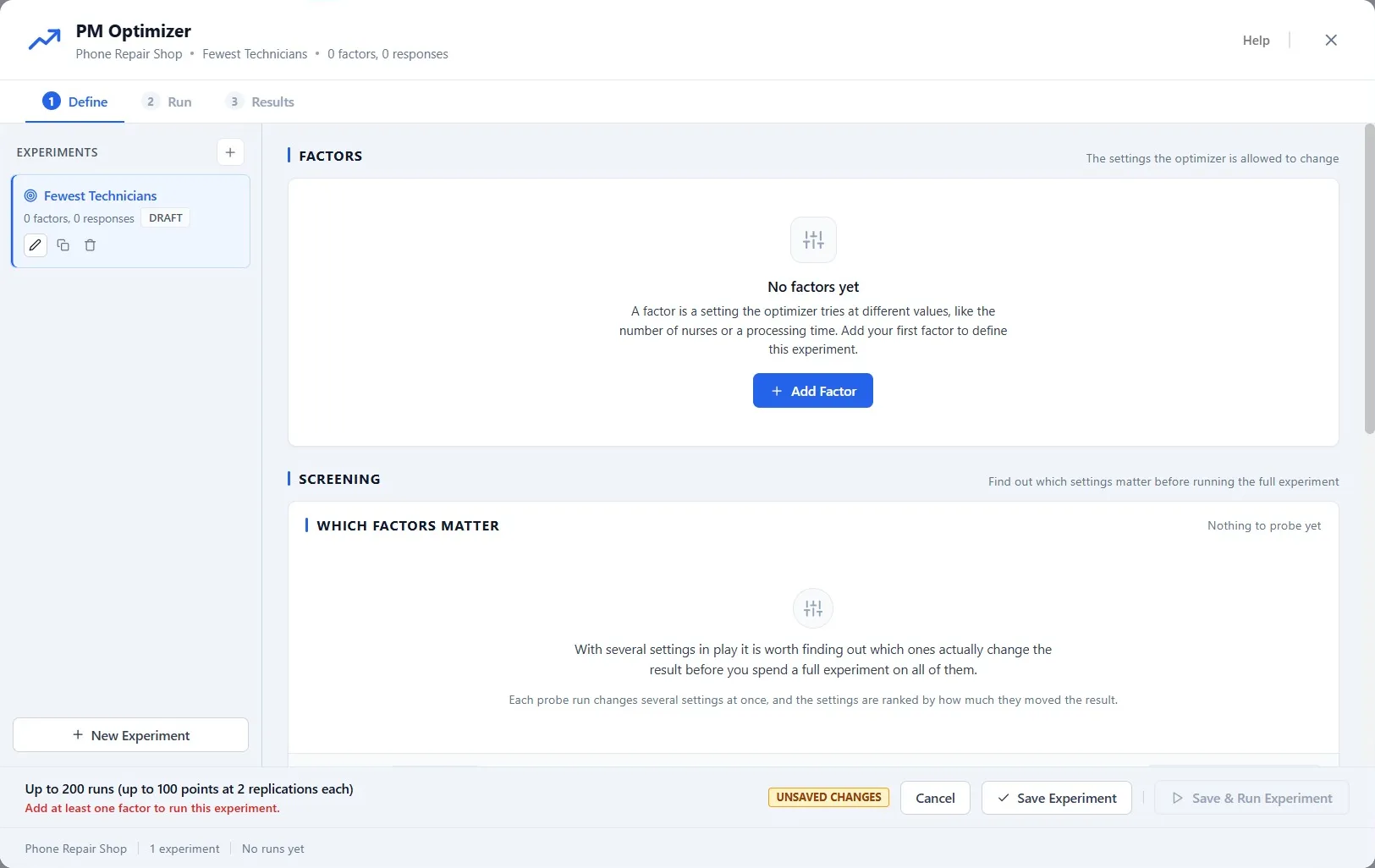
- On the toolbar, click PM Optimizer. It works in three steps, shown across its top: Define, Run and Results.
- Click New Experiment, click the pencil beside it, and name it Fewest Technicians.
Step 2. Add the first factor: the early Technicians
- Click Add Factor. Under Resources, pick Early Technician, and click Quantity. It shows Today: 1.
- Choose Use a range: Minimum 1, Maximum 3, Step 1.
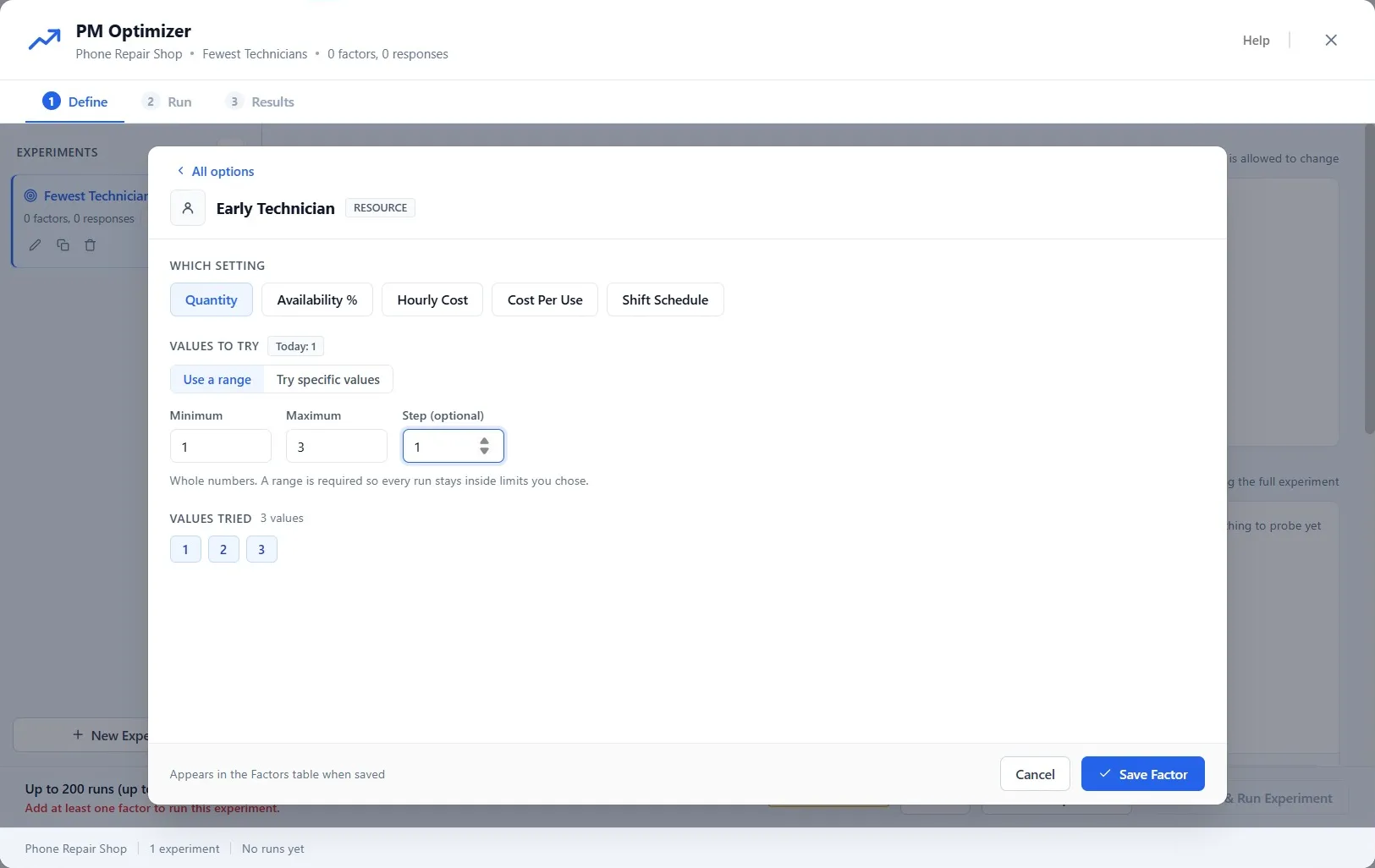
What you should see: under Values tried, the three values the optimizer will use: 1, 2 and 3.
- Click Save Factor.
Step 3. Add the second factor: the box size
- Click Add Factor again. Scroll down to Inventory and pick Parts Shelf: Part.
- Click Reorder Qty, the size of the parts box. Today it is 10.
- Try a Minimum of 10, a Maximum of 20 and a Step of 10: the box will be 10 or 20.
- Click Save Factor.
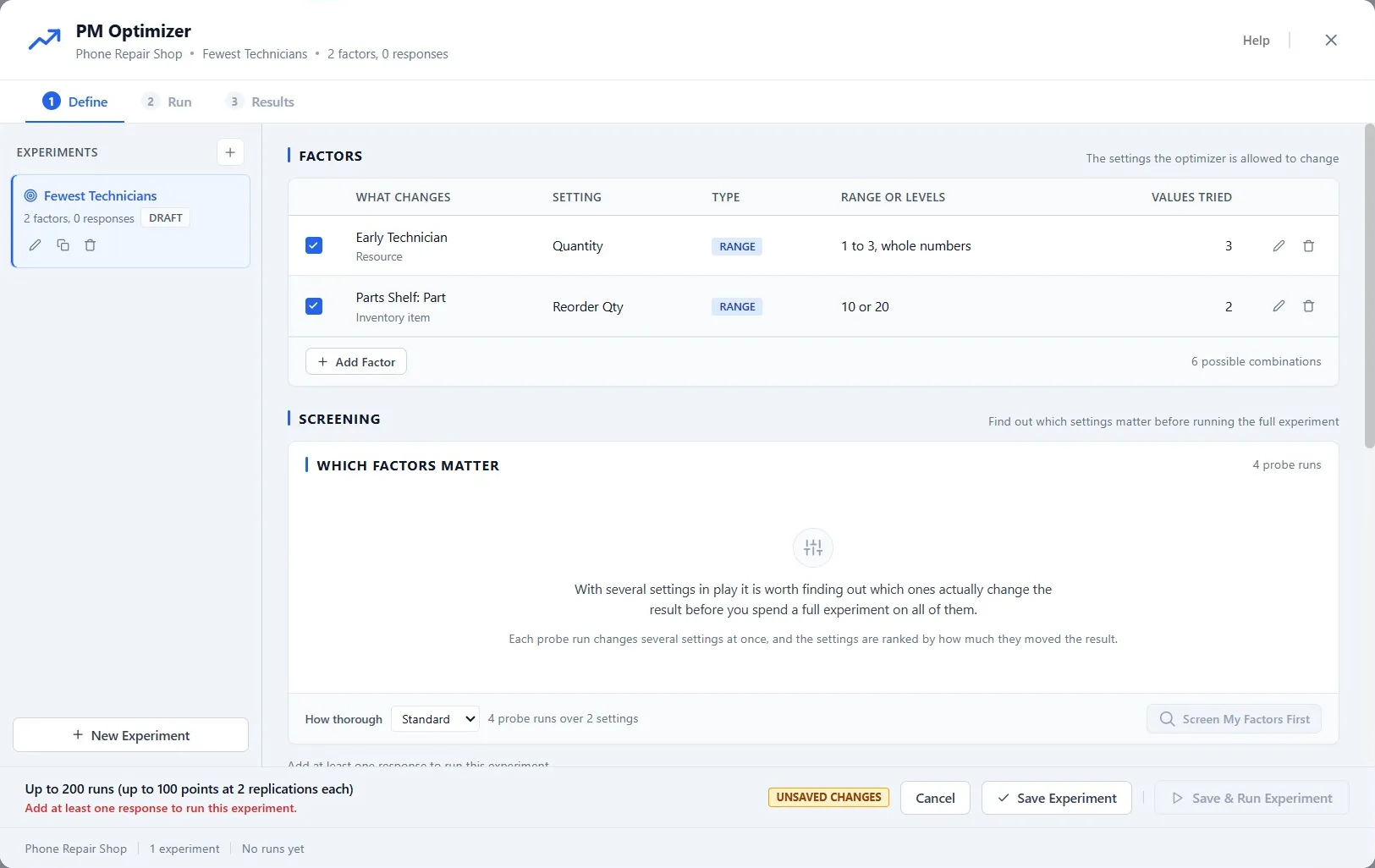
What you should see: both factors in the table, and under them, 6 possible combinations.
Step 4. Say what to measure, and the limit
- Scroll down and click Add Response. Pick Waiting time, and the step, Check In. Three more responses come with it: Total run cost, Average time in system and Resources used.
- Untick the two you do not need, Total run cost and Average time in system.
- Keep Resources used: it counts the Technicians, and Lower is better. That is your second goal: fewer Technicians.
- For Check In: Waiting time, lower is better too. Tick Limit and type 30: any combination where customers wait more than 30 minutes cannot win.
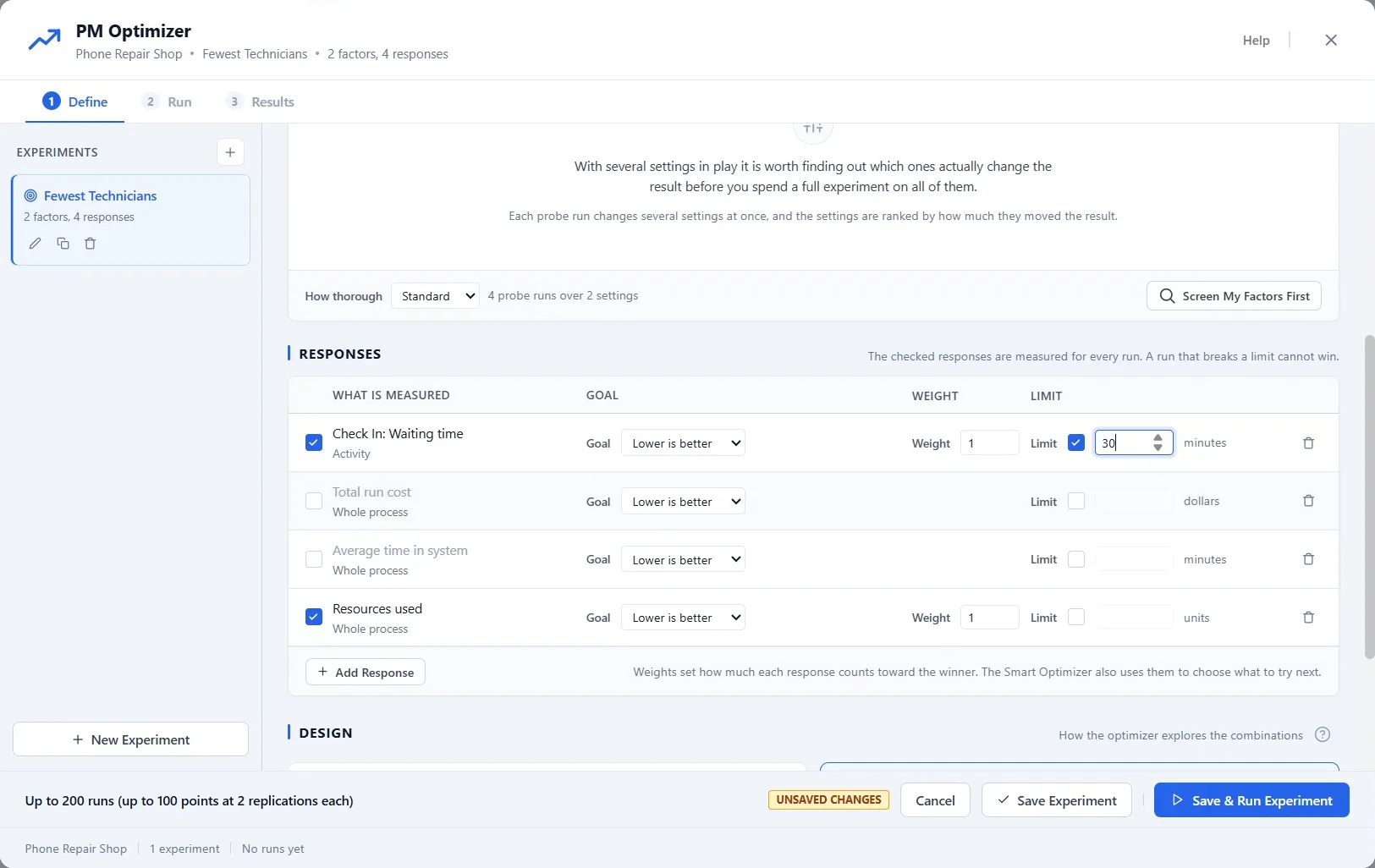
Think about what you just set up, because it is the heart of optimization: two goals that pull against each other. More Technicians shorten the wait; fewer Technicians cost less. The optimizer weighs them, with the Weight each response carries (1 each here), and the limit rules out any setup the shop could not accept.
Step 5. Choose the design and run it
- Scroll down to Design and click Full Factorial: it tries every combination.
- Set Replications to 10: ten Mondays for each combination, as in Chapter 10.
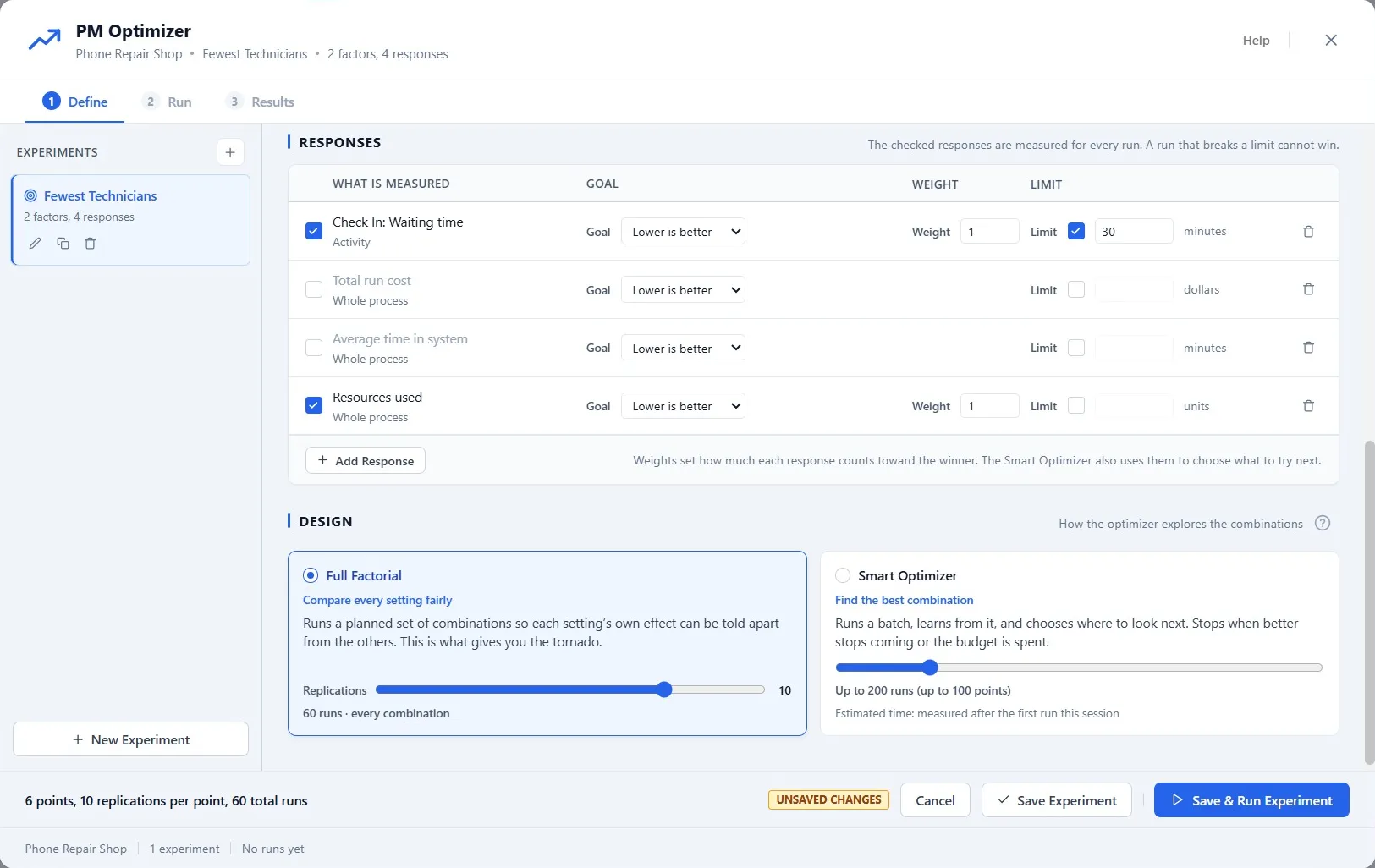
What you should see: the foot reads 6 points, 10 replications per point, 60 total runs.
- Click Save & Run Experiment. It runs all 60, and the results open by themselves on the Results step.
Step 6. Read the answer, and why it won
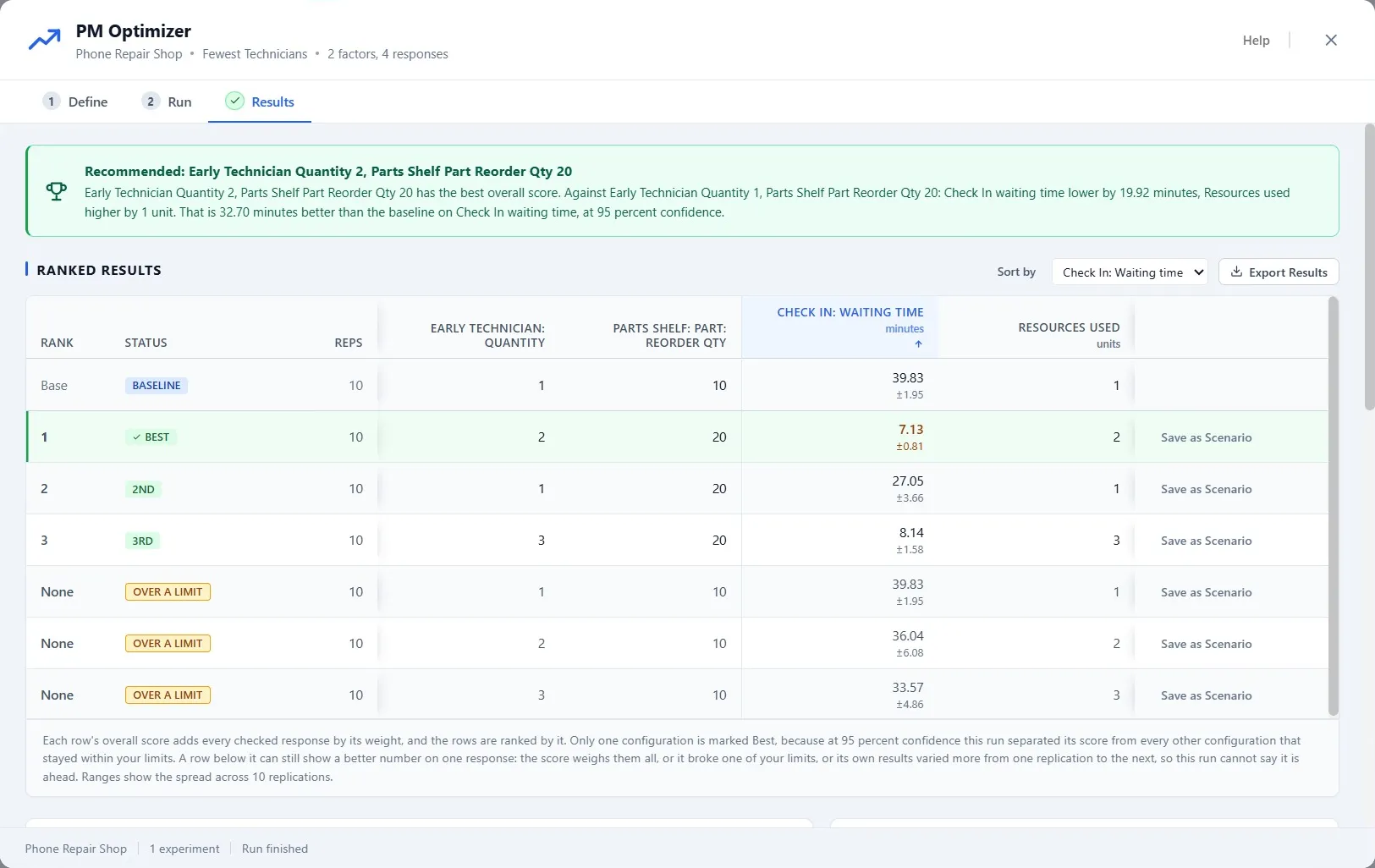
The answer is at the top. Recommended: Early Technician Quantity 2, and a Reorder Qty of 20. Under it, the table ranks every combination. Read it as the optimizer did:
- Baseline, today’s shop (1 Technician, box of 10): customers wait about 40 minutes.
- With a box of 10, nothing gets under 30, however many Technicians: the three rows at the bottom are Over a limit. The parts are the problem, as Chapter 11 found, so no number of people fixes it.
- With a box of 20: one Technician waits about 27 minutes, under the limit; two wait about 7; three wait about 8, no better than two.
So why two, and not one? One Technician with a box of 20 meets the limit with the fewest people. But both goals count, and the recommendation says what one more Technician buys: about 20 minutes less waiting. With the weights you set, that is worth one more person. Three would add a person and save nothing.
This is the value of letting the software search: it tried every combination, threw out the ones over your limit, and weighed your two goals the way you told it to. If you weighted fewer Technicians more heavily, the answer could change, and that would be a decision about what your shop values, not about the model.
Step 7. Keep the answer as a scenario
- On the best row, click Save as Scenario. It joins the shop as a scenario, turned on for your next simulation, just like those you built by hand in Chapter 12.
- Close PM Optimizer.
- Click File, then Save. The experiment and its new scenario are saved with the model.
Your practice model
- Start fromChapter 12. Try Two Fixes Side by SideThe shop as Chapter 12 left it. Use your own saved Phone Repair Shop instead if you built it.
- Compare withChapter 13. Let the Software Find the Best SetupThe shop as this chapter leaves it. Open it when you are done, and check your settings against it.
Both are in File ▸ Demo Models, in the Self Teach Guide group. A demo model opens as a new model, so the original never changes.
Check yourself
Try it yourself
Change what the shop values, and see whether the answer changes.
- Open PM Optimizer, select Fewest Technicians, and on the Define step raise the Weight of Resources used from 1 to 3, so each Technician counts three times as much.
- Click Save & Run Experiment and read the recommendation.
Mark it done
When you can explain why the optimizer recommended two Technicians and a box of 20, turn on Done.
You watched this chapter's video.Not watched yet: the video is marked when it plays to the end.
Kept in this browser only, and shown on the course page.