

ProcessModel 7 Self Teach GuideChapter 5
Chapter 5. Send Each Job Down the Right Path
By the end of this chapter you can
Send each job down the right path, by percentage or by condition.
Before you start
Until now every customer took the same path: Check In, Repair, Pick Up. In a real shop, not every phone needs the full repair. Many are fixed in a few minutes at the bench; only the stubborn ones go on to a full repair. And some customers are different from the start: an office’s phones under warranty go straight to Repair.
Deciding where each job goes next is called routing, and ProcessModel gives you two ways to do it. This chapter teaches both, and when to use which:
- By percentage: a share of the jobs goes each way, by chance. Use it when you know how often something happens, but not for which job. “About 70% are fixed quickly.”
- By condition: a rule looks at each job and sends it the right way. Use it when you can tell from the job itself. “Office phones go straight to Repair.”
Here is what changes in the shop:
| Part | Chapter 4 | Chapter 5 |
|---|---|---|
| Quick Fix | None | A new step after Check In: 3 to 10 minutes, mostly 5, done by a Technician, two at a time |
| Walk-ins after Check In | All go to Repair | All try Quick Fix first: 70% are fixed and go to Pick Up, 30% go on to Repair |
| The office group | Six Customers at 10 on Monday | Their own kind of customer, Office Customer, sent by a condition straight to Repair |
| Steps, staff and run | As Chapter 4 left them | Unchanged; the two Technicians now share Quick Fix and Repair |
The 70 and 30, the Quick Fix time and the name Office Customer are made up for this course.
You need your Phone Repair Shop from Chapter 4 (or the practice model below) and about forty minutes. This is the longest chapter so far; take it one step at a time.
Step 1. Open your shop
- On the Welcome screen, under Recent Models, click Phone Repair Shop.
What you should see: the shop as Chapter 4 left it, with its two arrival lines.
Step 2. Add the Quick Fix step
- Drag an Activity from the palette and drop it right above Check In, level with the Technician, so the lines you draw next run straight.
- Name it Quick Fix.
- Click in Processing Time and type T(3, 5, 10): a triangular time from 3 to 10 minutes, mostly 5. You built the same kind by hand in Chapter 3; typing it directly is quicker once you know the form, T(least, most likely, most). M is already chosen.
- Click in Capacity and type 2, so both Technicians can do quick fixes at once. Click the canvas to keep it.
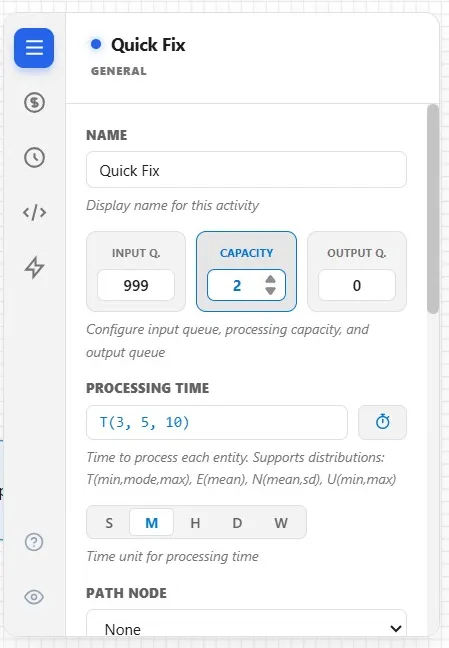
- Draw a line from the Technician to Quick Fix, and click it. It is Get / Free, as the line to Repair is: Quick Fix takes a Technician for each job and lets them go after. The same two Technicians now do both jobs.
Step 3. Split Quick Fix’s routes by percentage
- Draw a line from Quick Fix to Pick Up. It reads 100%: so far, every job leaving Quick Fix goes to Pick Up.
- Draw a second line, from Quick Fix to Repair. Now both read 50%.
Why 50 each? Because Percent routes leaving one step always total 100%. Every job that leaves Quick Fix must go somewhere, so the shares must add up to all of them. When you add a route, ProcessModel shares the total between them.
- Click the new line, to Repair, and scroll down the panel to Sibling Routes: every route that leaves Quick Fix, with its share.
- In Pick Up’s box, type 70.
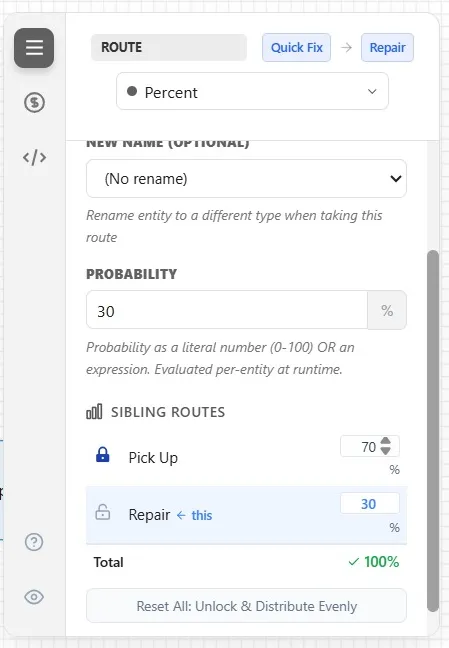
What you should see: Repair becomes 30 by itself, and the total stays at 100%. You set one share; ProcessModel balances the other.
- Click the canvas.
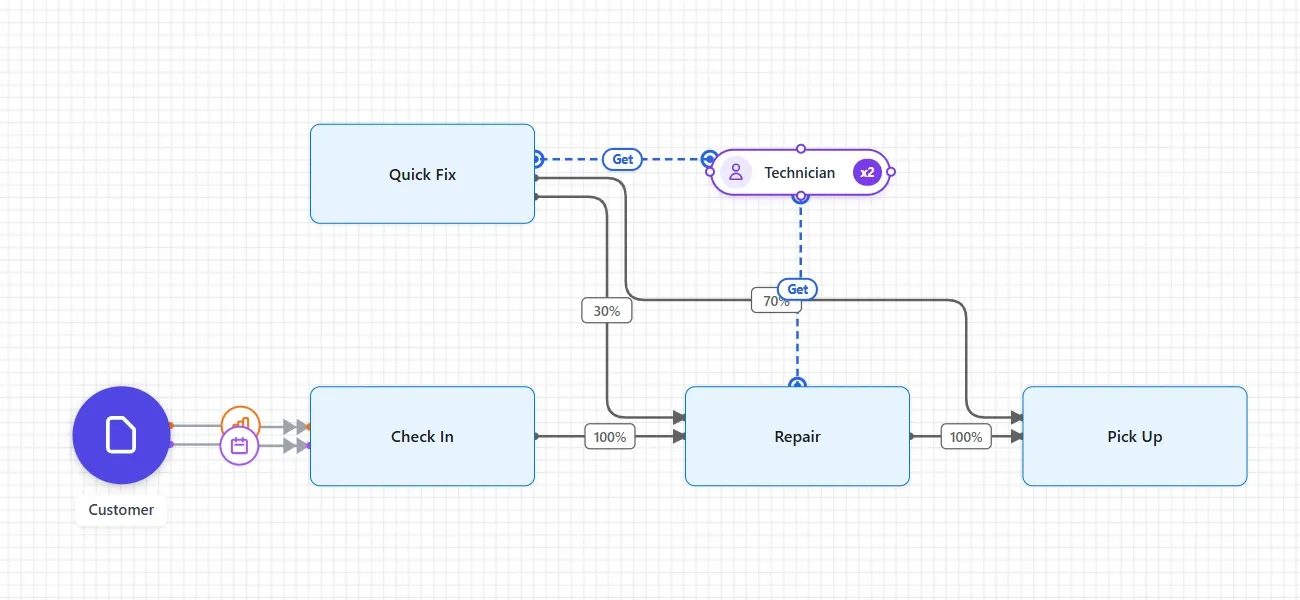
Each job leaving Quick Fix now takes its chance: 7 in 10 are fixed and go to Pick Up, 3 in 10 need the full repair.
Step 4. Make the office group its own kind of customer
To treat the office’s phones differently, the model must be able to tell them apart. So far they are Customers, like everyone else. Give them their own entity.
- Drag an Entity onto the canvas, below Customer, and name it Office Customer.
- Give it its own color, so it stands out in the run: click Color and choose Orange from the palette in the panel. Office Customer turns orange.
- Click the office group’s arrival line, the lower one from Customer. It reads Scheduled: 1 entry, 6 entities, at 10 on Monday.
- Drag the end of that line off Customer and drop it on one of Office Customer’s connection points, the small handles on its edge.
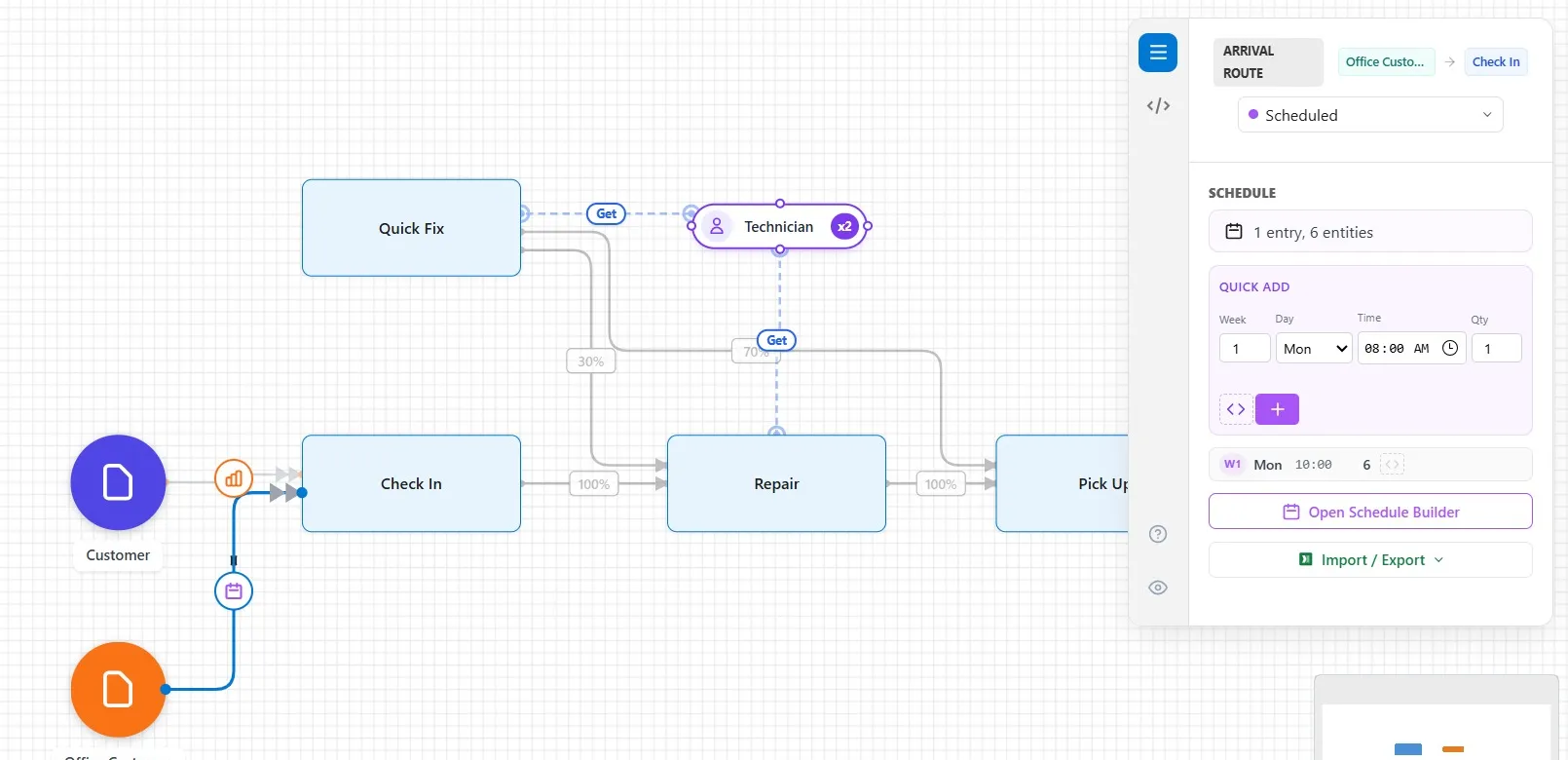
What you should see: the line now starts at Office Customer, and it is still Scheduled: the same six at 10, now arriving as Office Customers. Drop the end on a connection point, not on the middle of the shape, so the line moves rather than a new one being drawn.
Step 5. Route by condition at Check In
Now the rule: office phones are under warranty, so they skip Quick Fix and go straight to Repair. Everyone else tries Quick Fix first. The decision is made at Check In, and it depends on who the customer is, not on chance: a condition.
One rule shapes the order of what you do next: a step routes either by chance or by condition, never both. The routes leaving one step are all Percent or all Conditional. That is why the chance lives at Quick Fix and the condition at Check In. It is also why you change Check In’s existing route to Conditional before drawing its new one: a new route takes the type of the routes already there.
- Click the line from Check In to Repair, open its Type list, and choose Conditional.
- In Priority, type 1. Conditional routes are checked in priority order, 1 first, and the first one that matches wins.
- Scroll down and click Add Condition. A new row appears.
- In its first list, choose Entity Name: the rule looks at each customer’s kind.
- The middle list is already =, equals. In the last list, choose Office Customer.
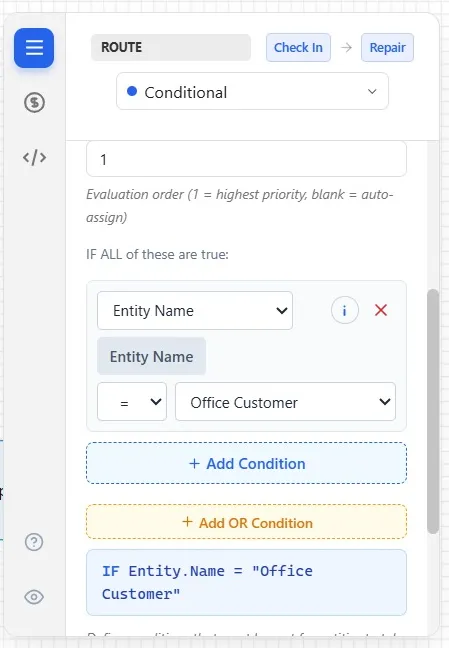
What you should see: the panel sums the rule up as IF Entity.Name = “Office Customer”.
- Now draw a line from Check In to Quick Fix, and click it.
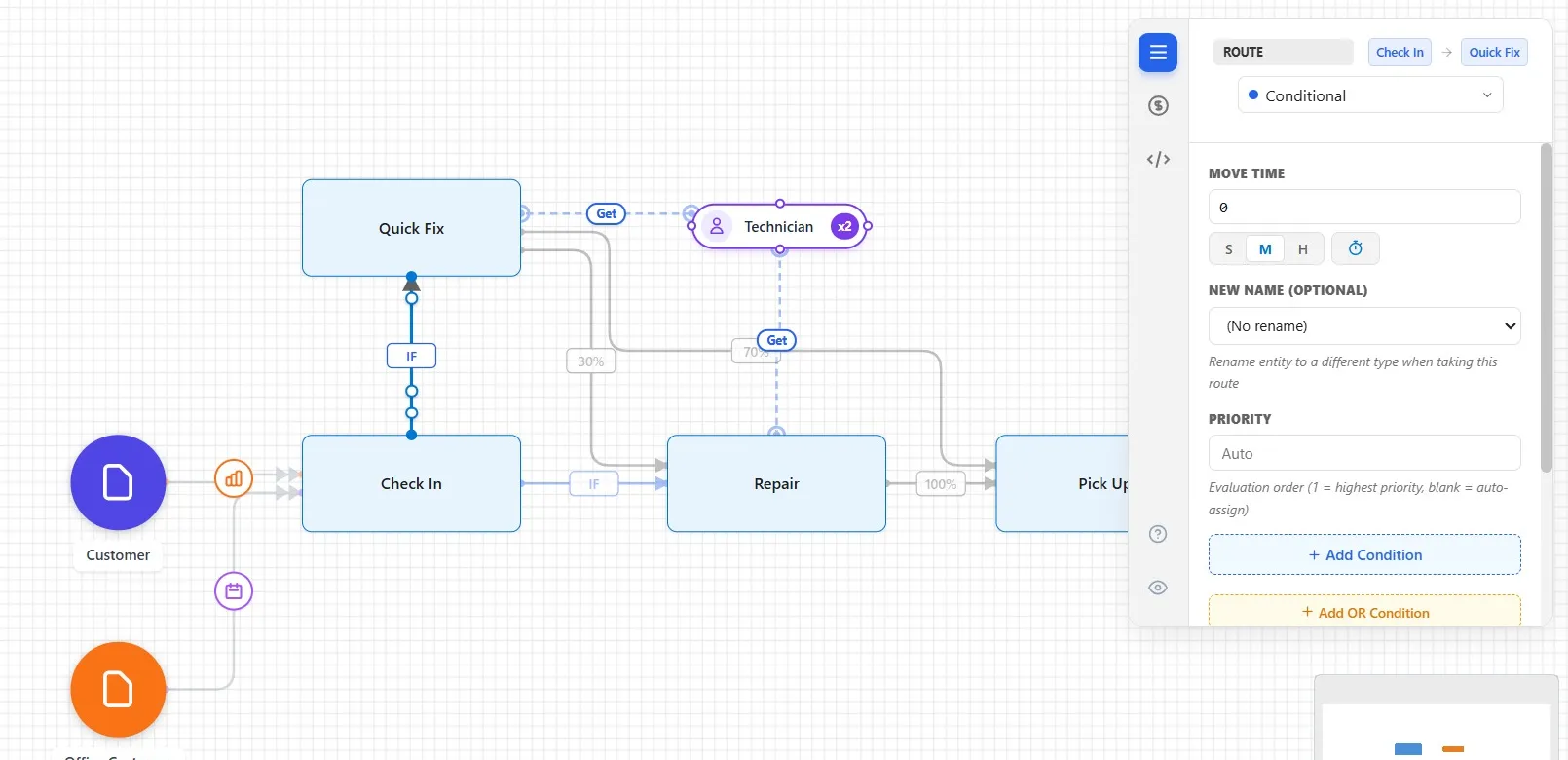
What you should see: it is born Conditional, with Priority Auto and no condition. Leave it that way. A Conditional route with no condition is the catch-all: a customer who matches no other condition takes it. So office customers match the rule and go to Repair, and everyone else, all the walk-ins, goes to Quick Fix. Both of Check In’s lines are now marked IF.
Step 6. Run the day and watch the paths
- Click Run Simulation.
From 7, walk-ins arrive. Each one checks in, then goes up to Quick Fix. Most leave from there for Pick Up, and about 3 in 10 go on to Repair. At 10, the six office customers arrive together, in orange. Watch them skip Quick Fix and go straight to Repair, while the walk-ins keep going to Quick Fix.
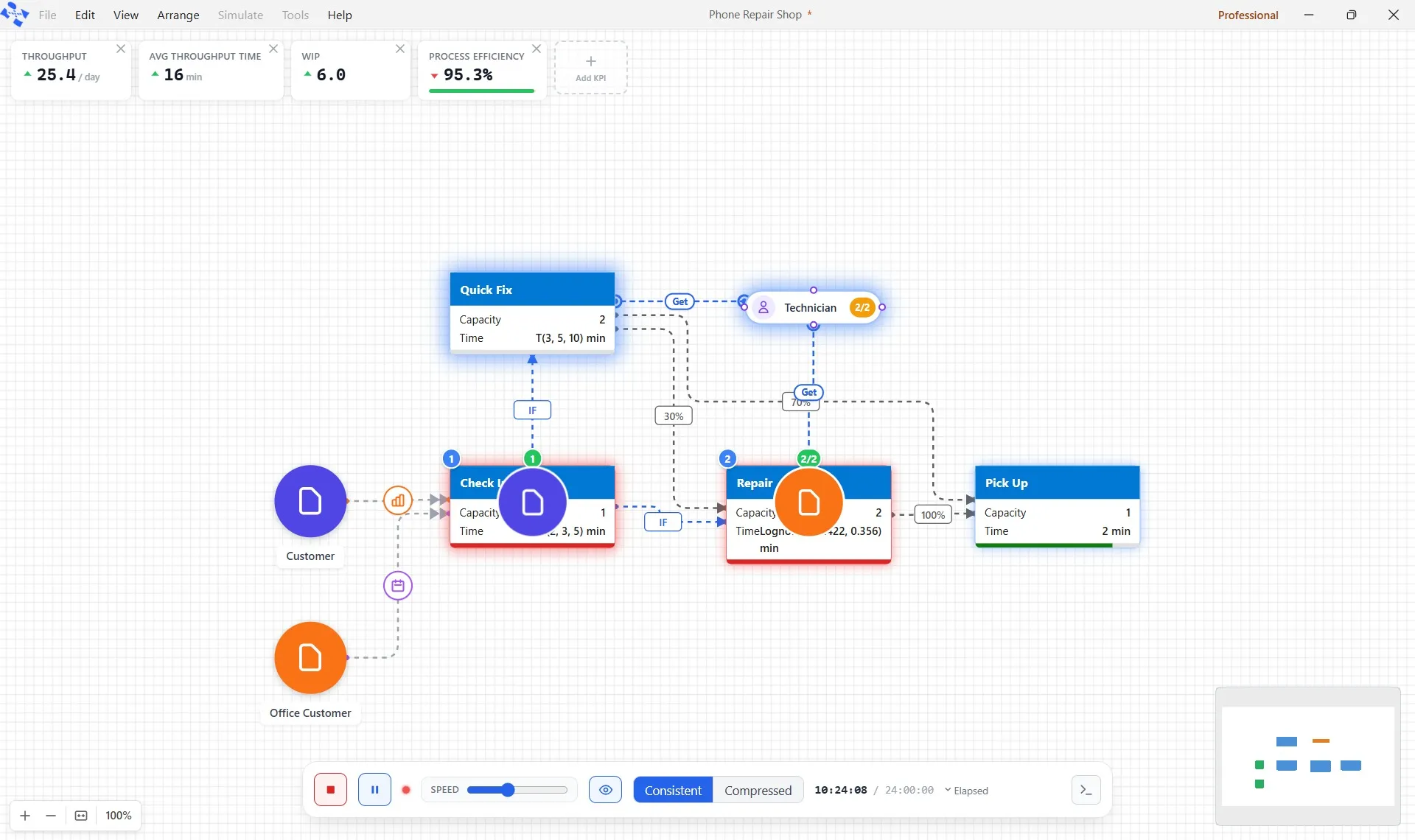
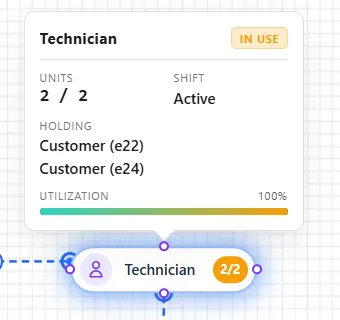
At noon, rest the pointer on the Technician: its popup shows how many of the two are in use, and at the busiest moments it is both. They are busier now, because they do both jobs. Yet no long line builds: most walk-ins are done within minutes at Quick Fix.
Step 7. Read the cards
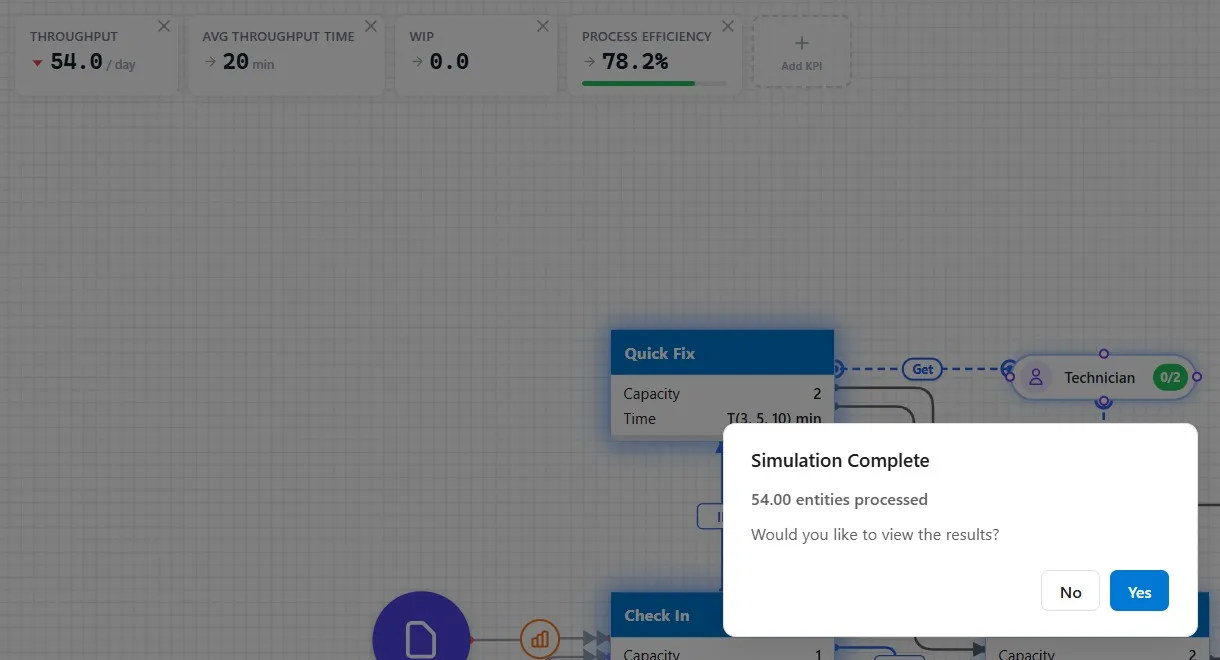
- 54 went through, as in Chapter 4: the same customers came.
- Avg Throughput Time, 20 minutes, down from 24 in Chapter 4: most phones now leave after a short fix instead of a full repair.
- WIP, 0: at midnight the shop is empty.
- Process Efficiency, 78.2%, up from 69%.
The same customers, the same two Technicians, and a better day, because each job takes the path it needs. That is the power of routing. One run, one possible Monday, as always; Chapter 10 runs many. Click No.
Step 8. Save it
- Click File, then Save. The star leaves the title bar. Chapter 6 starts from this shop.
Your practice model
- Start fromChapter 4. Make Customers Come When They Really DoThe shop as Chapter 4 left it. Use your own saved Phone Repair Shop instead if you built it.
- Compare withChapter 5. Send Each Job Down the Right PathThe shop as this chapter leaves it. Open it when you are done, and check your settings against it.
Both are in File ▸ Demo Models, in the Self Teach Guide group. A demo model opens as a new model, so the original never changes.
Check yourself
Try it yourself
How much is the quick fix worth? Suppose only half the phones could be fixed quickly.
- Click the route from Quick Fix to Pick Up, scroll to Sibling Routes, and type 50 for Pick Up. Repair becomes 50.
- Run the day and read the cards before you answer Simulation Complete.
Mark it done
When you can say when you would route by percentage and when by condition, turn on Done.
You watched this chapter's video.Not watched yet: the video is marked when it plays to the end.
Kept in this browser only, and shown on the course page.