You may already keep an AI app open on the same computer as your modeling work. It can explain a distribution or draft a plan, but it cannot see your model, so every idea has to be carried across by hand.
PM AI Bridge puts the two in one place. Your own AI app can work with the model you have open: read it, change it, run it and read what came back. You stay in charge the whole time.
The AI is yours
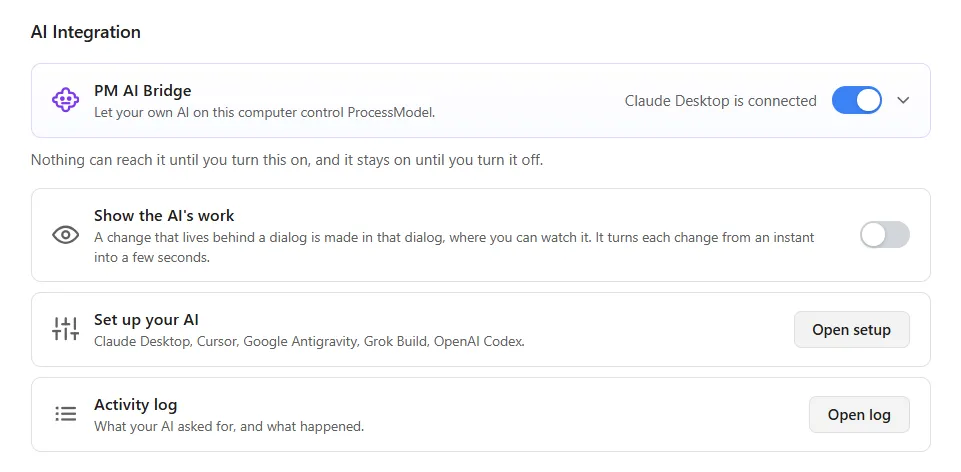
PM AI Bridge is a switch in Settings, on a card that reads “Let your own AI on this computer control ProcessModel.” The AI app is the one you already use, with your own account. ProcessModel does not provide an AI, operate one or sell one. The five apps the Set up window names, Claude Desktop, Cursor, Google Antigravity, Grok Build and OpenAI Codex, are each made by another company, and an AI you only use in a web browser cannot reach ProcessModel. PM AI Bridge is part of Professional, and it is off on the Personal license.
Set up once
Turning the switch on opens a window first, with three plain points: what your AI reads is sent to its provider, how that data is used depends on your plan, and your AI subscription is your own. Choose “I understand” and a Set up window follows, with four steps: have an AI app on this computer, paste one line into your AI’s own window, restart your AI, and paste a second line that asks it to check it can reach ProcessModel.
What your AI can do
Once it is connected, you ask for what you want in your AI’s own window. Through PM AI Bridge it can:
- read your model and check it for problems;
- change anything in it that you can change;
- run the model as the Simulate button does and read the results from the Output Report;
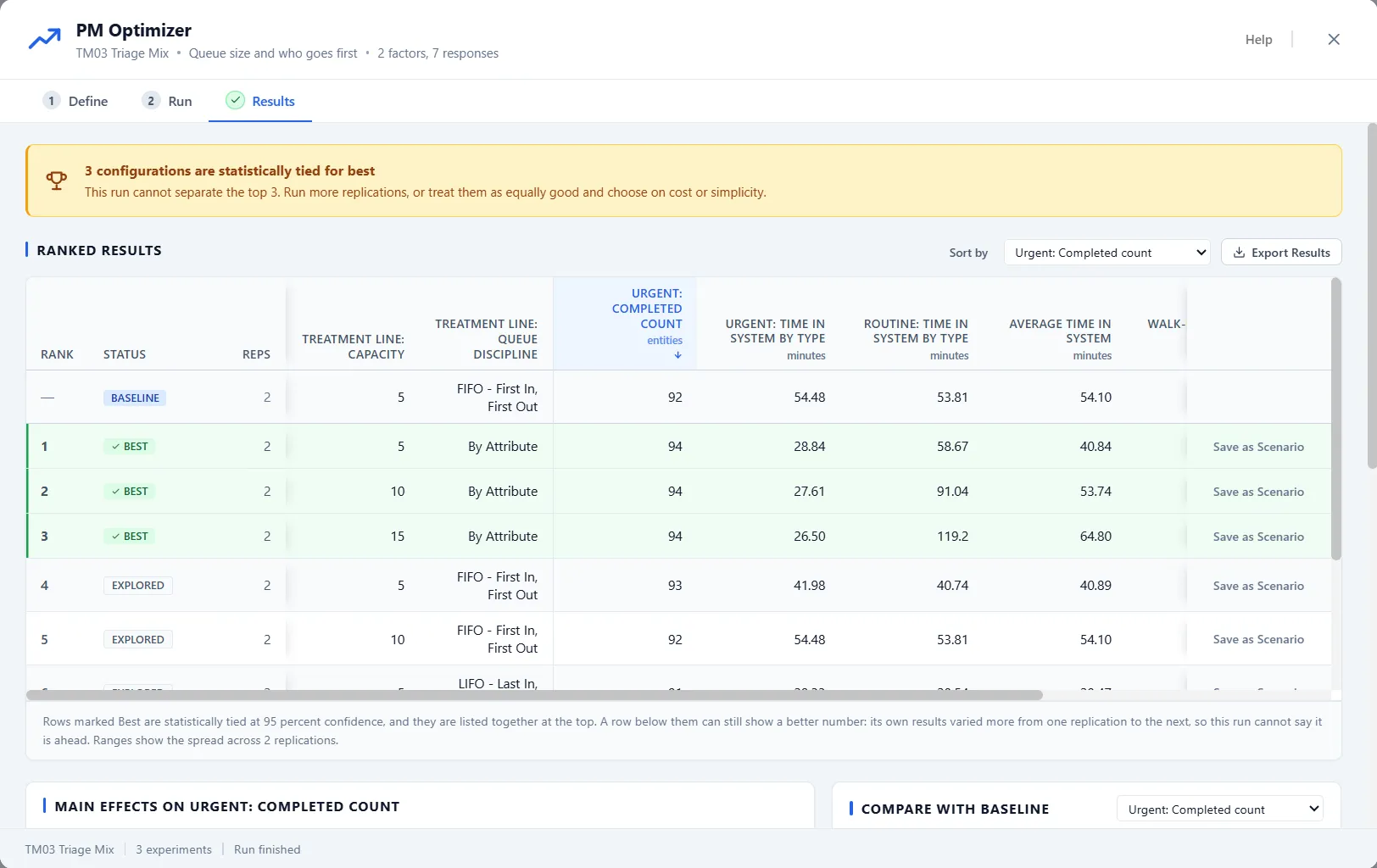
- open PM Optimizer and run or screen a study in it;
- read the Emergency Department report, start a typical Emergency Department, and open the demo models.
It works through ProcessModel itself, so what it gets back is what ProcessModel answers. A request ProcessModel would refuse from you is refused from your AI too, with ProcessModel’s own sentence, so your AI can tell you why and ask for something else. It cannot create an account or change your license, or press Undo or Redo.
The control stays with you
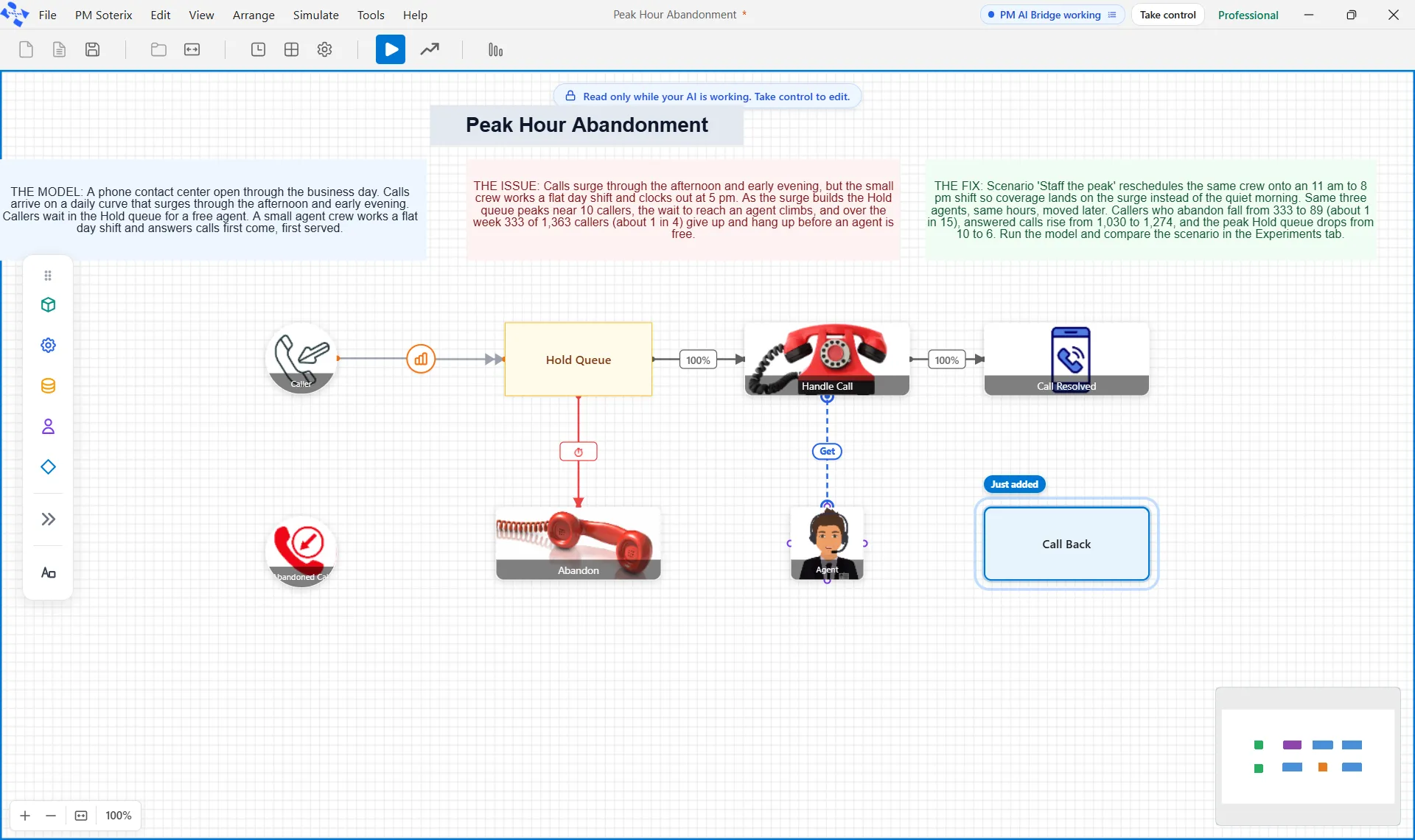
While your AI changes the model, the title bar reads PM AI Bridge working, and the canvas is read only: a blue edge runs around it, and a label at the top says “Read only while your AI is working. Take control to edit.” The shape your AI just added or changed wears a ring and a tag such as Just added.
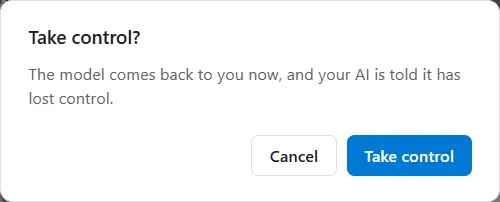
Take control sits beside that label. It asks first, then hands the model back at once: a run your AI started stops, and its next request is refused. What it already did stays as one step in Undo, so one press takes back everything it changed on the canvas in one stretch. Changes made in dialogs, such as a scenario or Simulation options, are not taken back by Undo.
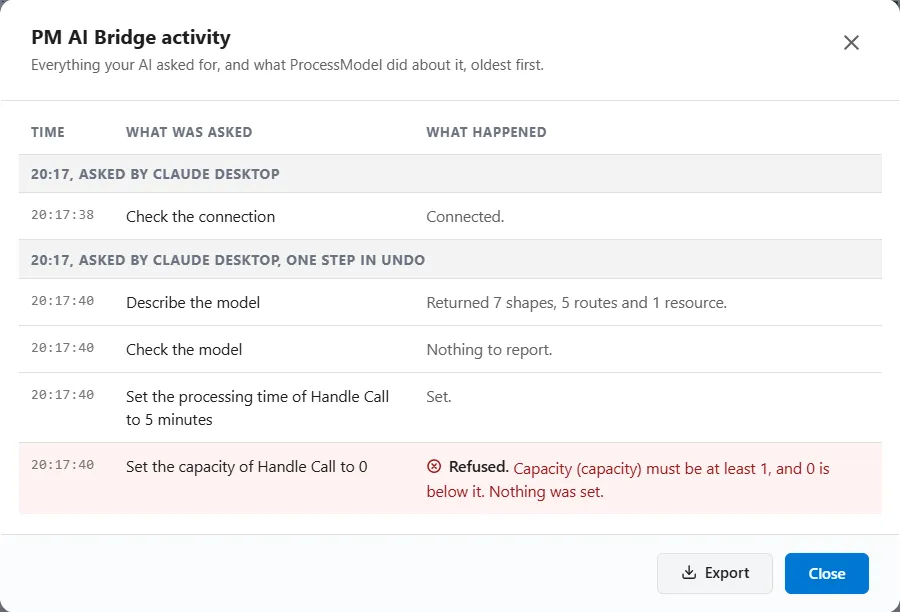
The log records everything your AI asked for and what ProcessModel did about it, with refusals in red, and you can export it as a text file. Turn on Show the AI’s work and a change that lives in a dialog is made inside that dialog for a couple of seconds while you look on.
The simulation settles the argument
An AI can tell you that a second nurse would clear the waiting room. It cannot know. The model can.
Your AI proposes, and the simulation measures. Ask it to change the staffing in a scenario, run the model with several replications and read the Output Report, and the idea comes back as a measured result, with a trust banner and confidence intervals, not as a confident paragraph. Ask it to screen the settings in PM Optimizer first and you can watch the study run, ranked at the end with the leaders marked when they cannot be told apart. Your AI can be wrong, which is why the model runs, and why you can see its work and stop it.
A word about your data
Your model, your settings and your results go to whoever provides your AI, because your AI is what reads them. Check the data settings of your plan, and your organization’s rules, before you work with confidential models.
Where to read more
The PM AI Bridge help walks through every screen, from the Set up window to the activity log, and PM Optimizer covers the search your AI can run for you. What’s new in ProcessModel 7 puts it all in context.