Every simulation tool faces the same tension. Stay general and you can model anything, but everyone has to translate their world into your vocabulary first. Go vertical and you speak one industry fluently while everybody else goes elsewhere.
ProcessModel stays general underneath and changes its face on top. One tool, one engine, one set of results you can trust. What changes is the set of parts on offer and, for one industry, the words on every field you touch.
Turn it on from the View menu
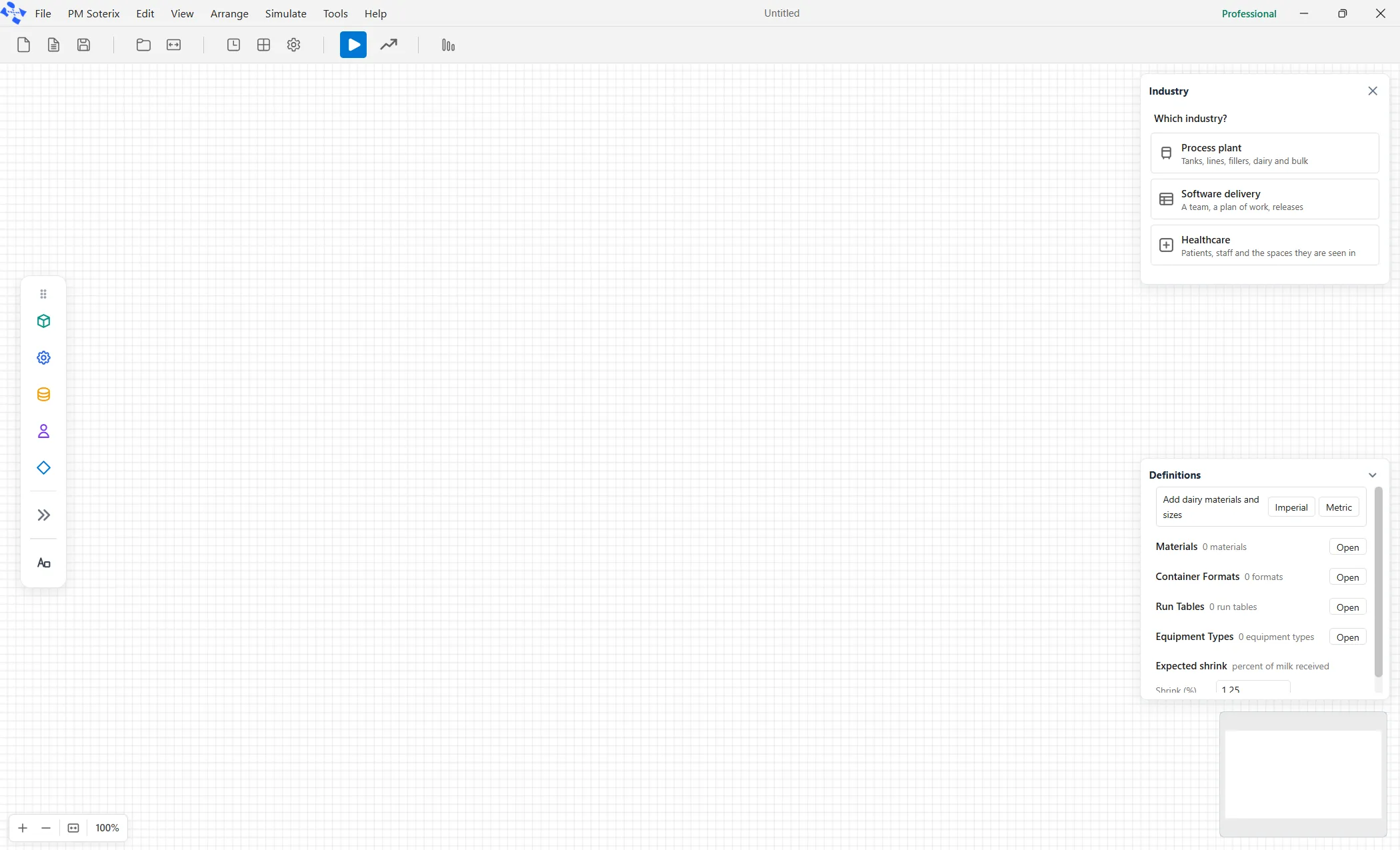
Open the View menu and click Show Industry Palettes. A panel docks on the right of the canvas with four tabs across the top: Fluids, Bulk, Dairy and Software. It is a toggle and it remembers, so it comes back where you left it.
Three faces that hand you the right parts
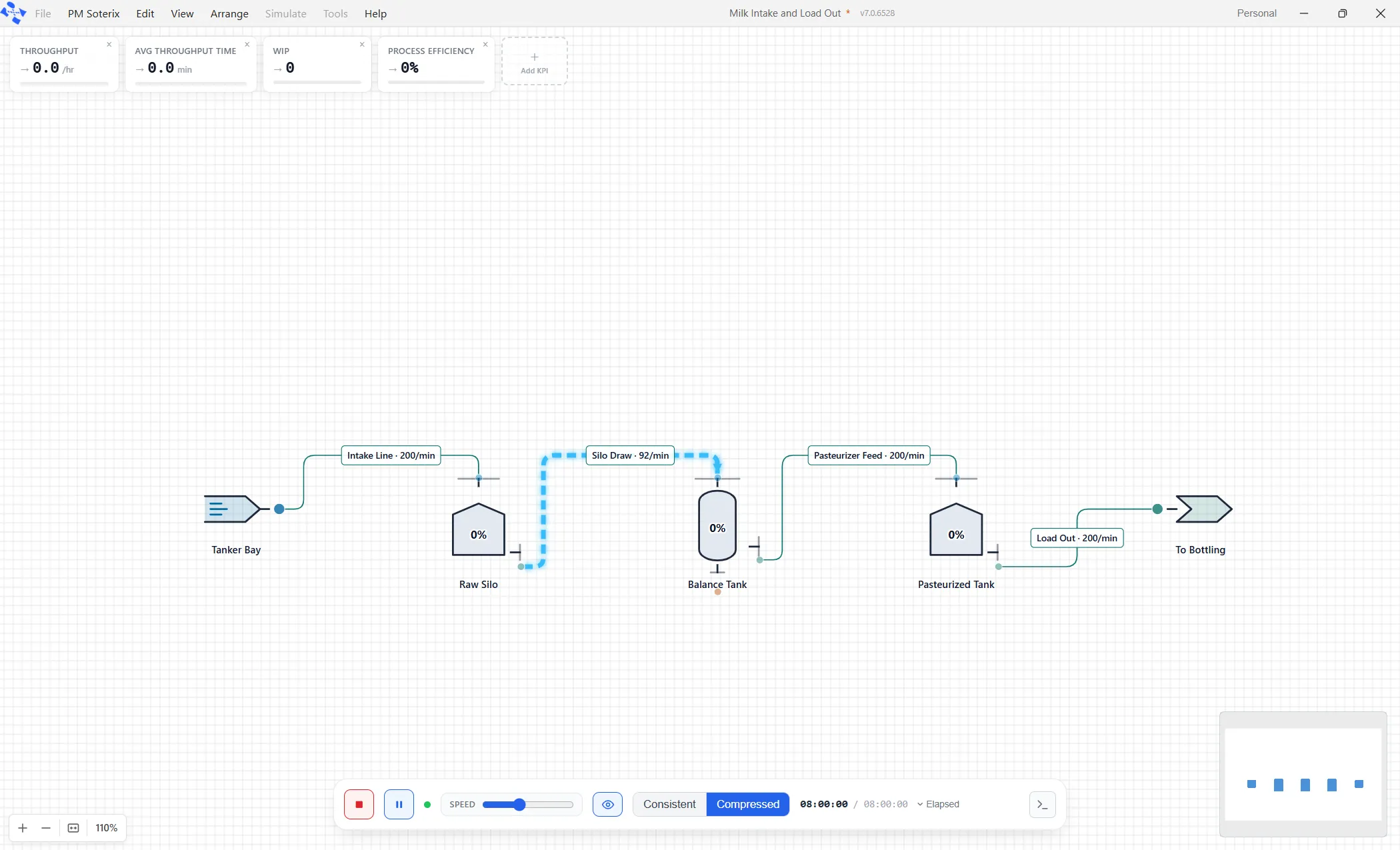
Pick Fluids, Bulk or Dairy and the panel fills with the elements that industry actually uses, arriving already sized and named for the job rather than as blank shapes you have to configure from scratch. A dairy modeler gets vessels, transfer lines, a filler, a manifold and a unit operation. A bulk operation gets the hoppers, discharges and dumpers that move solids by weight.
These faces change what is on offer and nothing else. Your fields keep their usual names, the report keeps its usual tabs, and the run settings are the ones you already know. That is deliberate. Somebody who models a milk plant on Monday and a warehouse on Tuesday should not have to relearn the product in between.
One face goes further
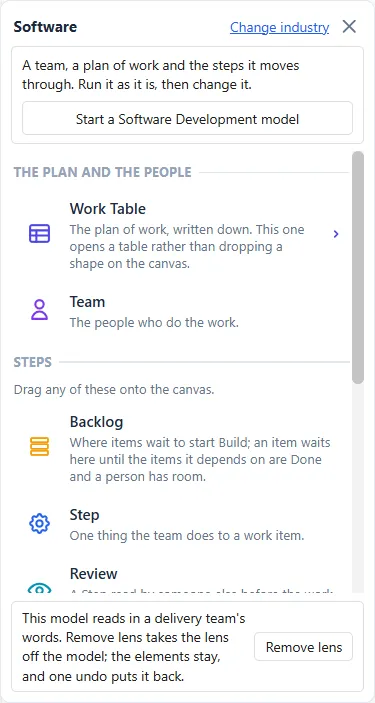
The Software face does everything the other three do and then keeps going. It is a lens, and turning it on puts the entire model into a delivery team’s language.
Ten tiles replace the generic parts list: Work Table, Team, Backlog, Step, Review, Test, Pipeline, Release, Freeze and Done. Nine of them drop an element on the canvas. Work Table opens the plan of work, the written list of what has to be built, because that is where a delivery model really starts.
The fields learn your words
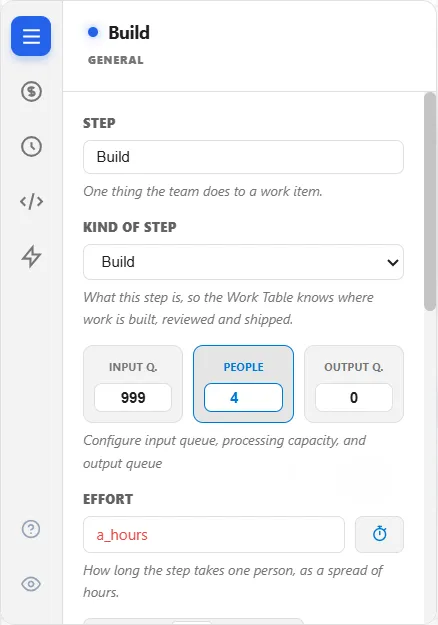
With the lens on, every field you edit wears a label your team would recognize. An entity is a work item. An activity name is a step. Processing time is effort. A queue is a backlog. A resource is a team, its quantity is people, and a shift schedule is working hours. Scope that gets dropped is called exactly that.
The report changes with it. Instead of the general tabs, you get five that read like a delivery review: Forecast, Flow, Team, Quality and Cost. Even the run settings follow, where replications are simply called runs.
Here is the important part. Not one of those renames changes what is computed. The arithmetic underneath is the same simulation engine that runs a hospital or an assembly line, with the same statistics and the same confidence intervals behind every number. A lens changes what you read, never what the model does. You can put it on an existing model or take it off again, and the results do not move.
Why this matters when you present
Most modeling projects die in the room, not on the screen. You build something sound, then you show it to the people who own the process and spend the first ten minutes explaining that an entity is a patient, that a resource is a nurse, that utilization means what they call busy.
An industry palette removes that ten minutes. When the delivery lead sees backlog, team and release instead of queue, resource and exit, they stop translating and start arguing about the process itself, which is the argument you wanted.
Where to read more
The help center covers the whole thing in industry palettes and the lens, including exactly which fields change and how to add or remove a lens on a model you have already built. From there, fluid and bulk modeling and software development modeling each open up their own corner of the product, and what’s new in ProcessModel 7 puts them in context.