

PM Optimizer
Find which settings fix the problem
PM Optimizer runs the study for you. It varies the settings you choose, measures the results you care about, picks one winner and says why it beat the next setup. Screen first to find the few settings that matter.
The 14-day free trial includes the full app, PM Optimizer too. ProcessModel runs on Windows and macOS.

Why PM Optimizer
You choose what changes
Pick the settings to vary, such as capacity, processing time, shifts, resource quantity, queue rules and arrivals, and a range or a list of values to try for each.
You choose what to measure
Measure the results you care about, such as throughput, time in system, cost, waiting time at a step or how busy a resource is. Each counts toward one overall score at the weight you give it.
One winner, and why
Results come as ranked configurations, with your model as it is today leading the table and one winner named, with why it beat the next. With more than one goal, a trade-off view shows where one goal costs another.
How it works
From a question to ranked results
Pick the settings it may change
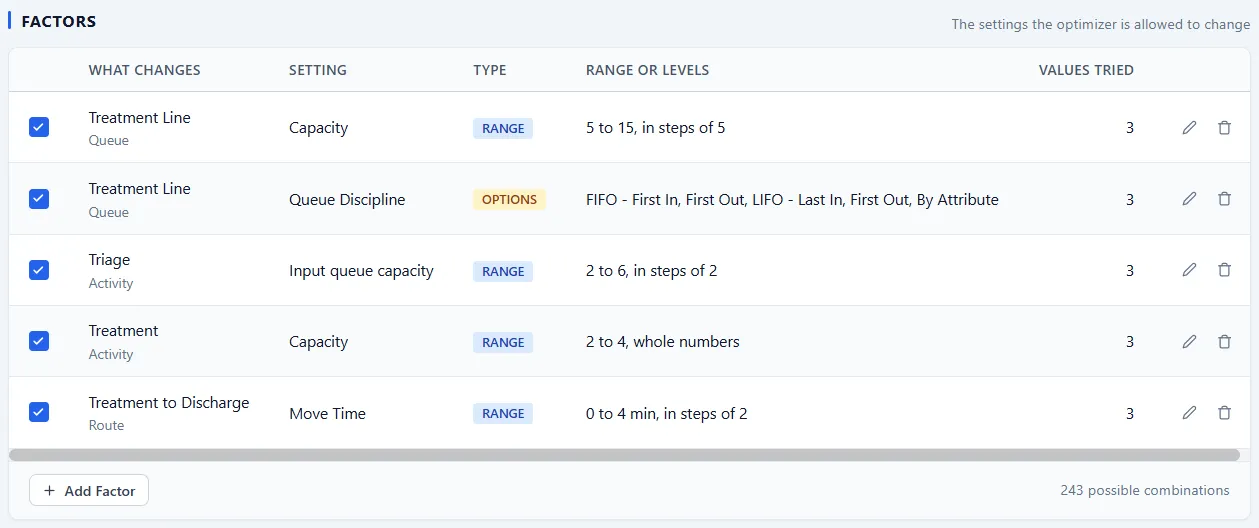
Add a factor for each setting you want to try, such as a capacity, a processing time, a shift, a resource quantity or a queue rule, with a range or a list of values. The count of possible combinations shows how big the study is before you run anything.
Choose what to measure
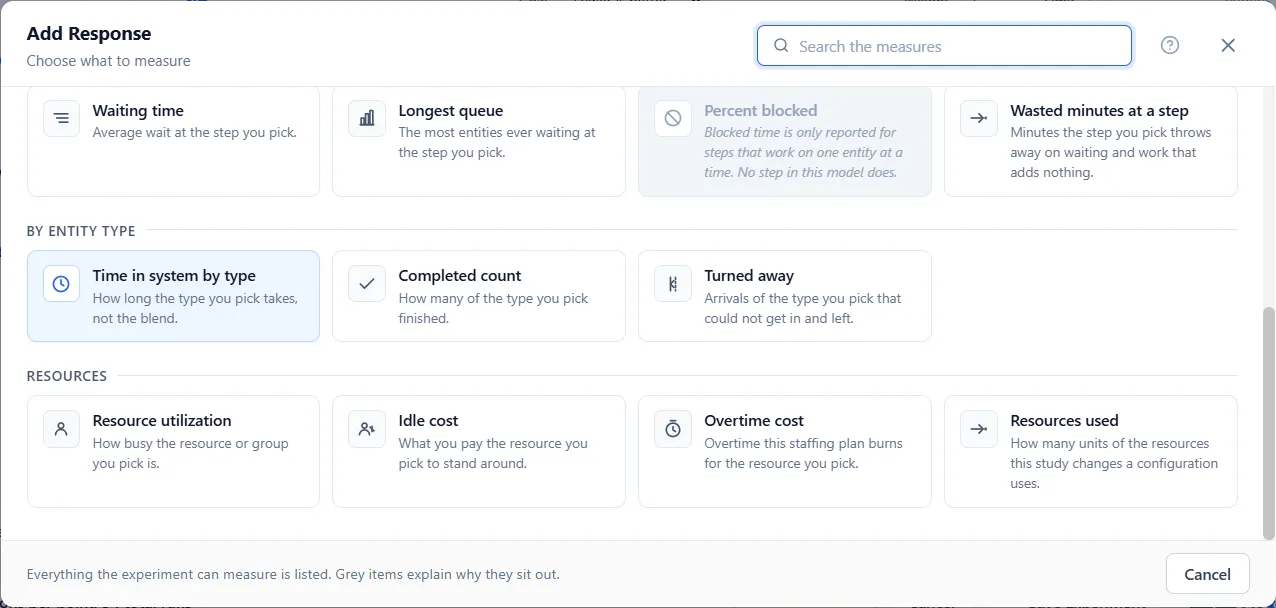
Add a response for each result you care about, such as throughput, average time in system, cost per entity, waiting time at a step or how busy a resource is, and give each a weight. The catalog lists everything your model can report, and a gray item says why it sits out.
Screen for the few settings that matter
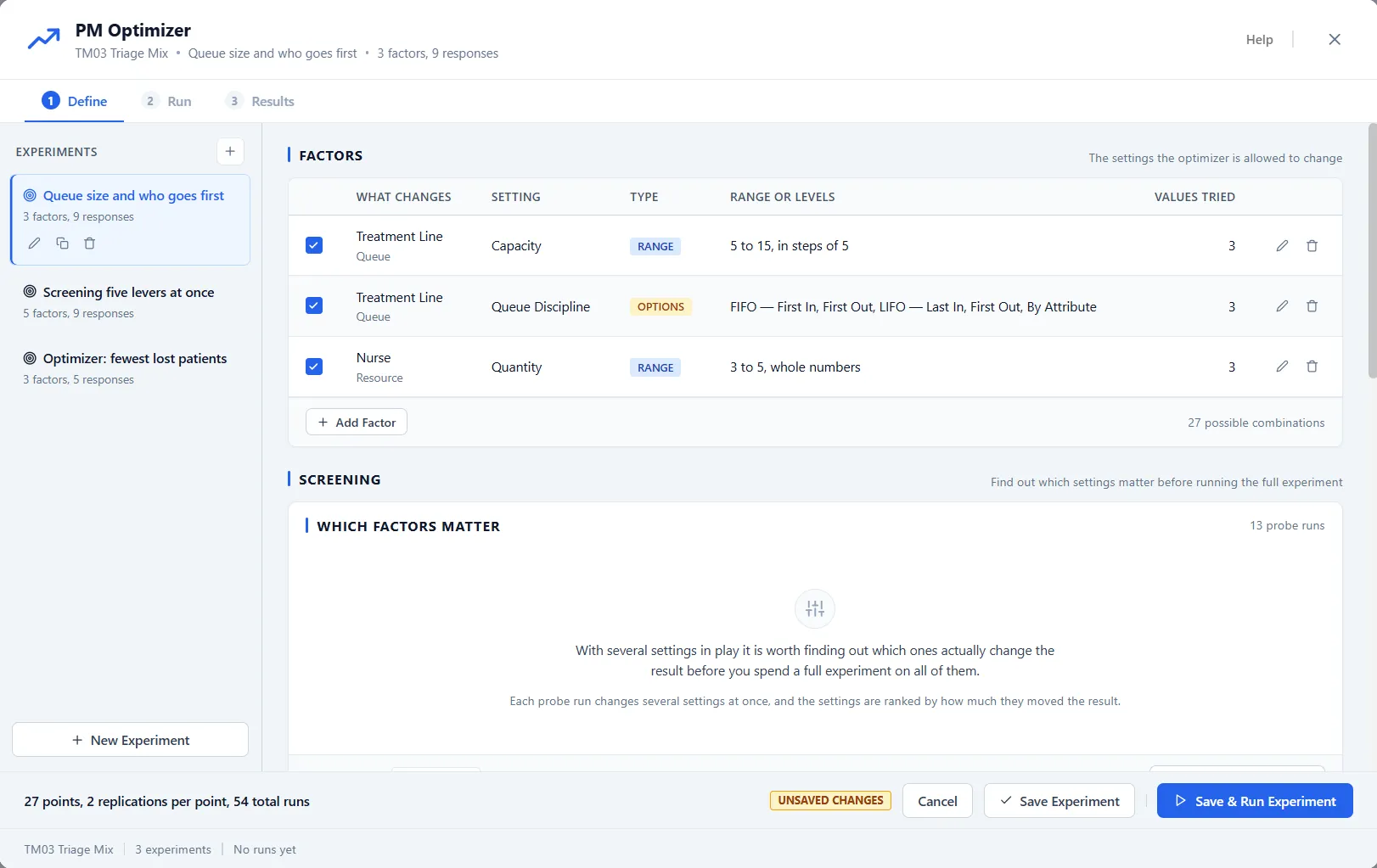
With several settings in play, screening runs a small set of cheap probe runs, each moving several settings at once, and ranks the settings by how much each moved the overall score. One click keeps the ones that matter and unticks the rest. Nothing is deleted.
Choose how it explores
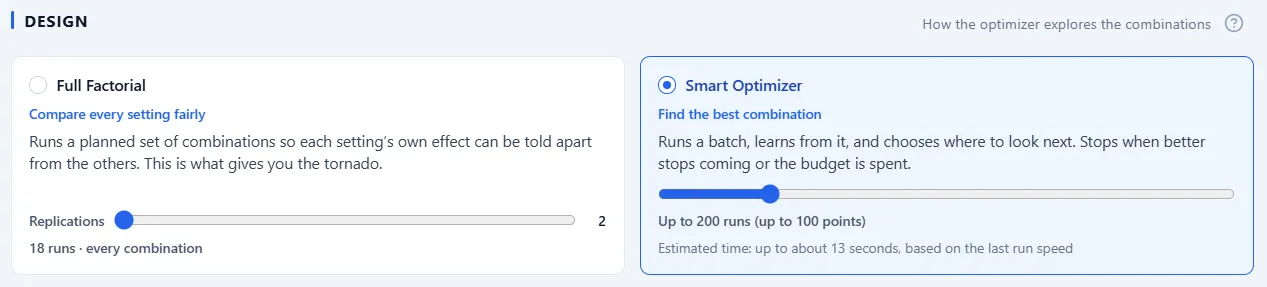
The Smart Optimizer runs a batch, learns from it and chooses where to look next. Full Factorial runs a planned set of combinations so each setting's own effect can be told apart. The footer shows the runs and about how long they take before you start.
Read the ranked results and keep one
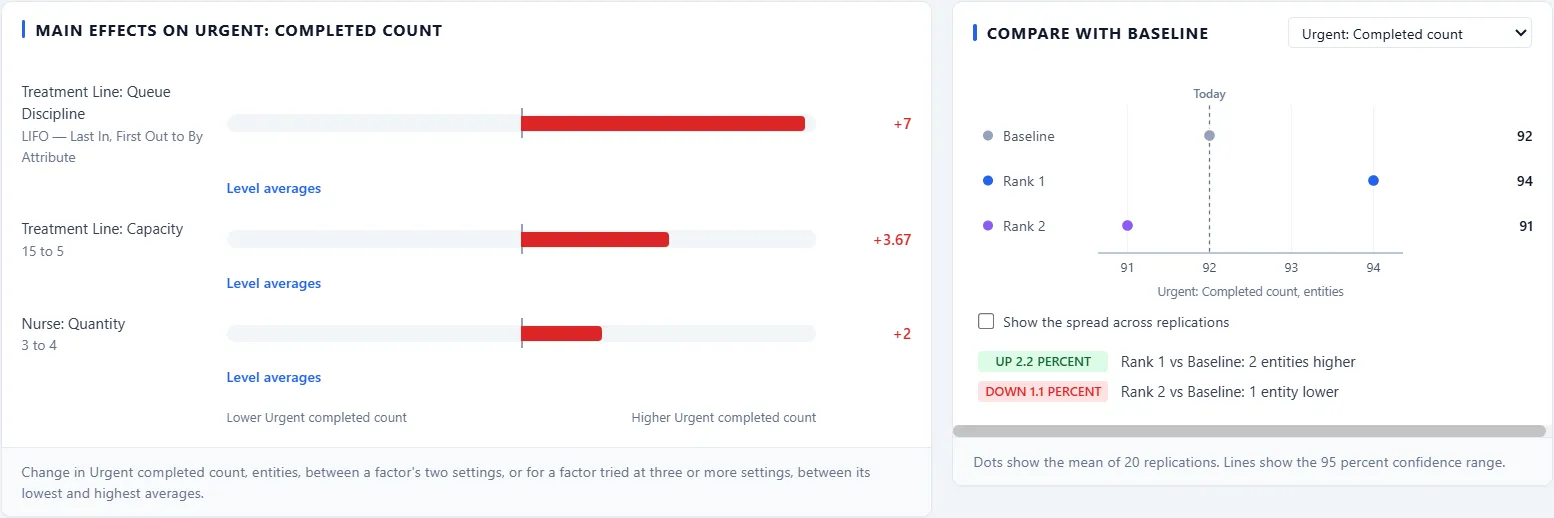
The Results step names one winner, the configuration with the best overall score, and says why it beat the next. Every configuration inside your limits is ranked, with your model as it is today leading the table. A comparison with the baseline shows the confidence ranges. Save a configuration as a scenario to run it like any other.
What it can do
What PM Optimizer does
Varies many kinds of settings
Change settings across your model: entities, activities, queues, resources, gates, routes, arrivals, inventory and variables.
Tries what is not built yet
Add a resource, add a backup connection, grow a resource group or compare shift patterns, so you can test a change before you build it.
A catalog of measures
Measure the whole process, a single step, an entity type, a resource, inventory, or a value of your own such as a variable or an array cell.
Screens before it searches
Cheap probe runs rank the settings by how much each moved the overall score, so you can hold the rest out before the full study starts.
Two ways to explore
The Smart Optimizer works within a run budget you set. Full Factorial runs a planned set of combinations, and offers a Fractional slice when the grid is big.
Limits on a result
Set a limit on a result, such as a cost ceiling. A configuration that breaks it is still reported, but it is held out of the ranking and can never win.
A fair comparison
By default every configuration is tested against the same random conditions, replication for replication, so the differences come from your settings. When two setups score the same within the run's noise, the one that uses less comes first.
Starts from the Output Report
Optimize This hands a finding from the Output Report to PM Optimizer as a ready-made experiment, already pointed at the problem.
Saved with your model
Experiments and their last finished run are saved with the model. Save as Scenario copies a configuration into your model as an ordinary scenario.
Questions
Questions, answered
What is PM Optimizer?
PM Optimizer runs experiments on your model. You choose the settings it may change, called factors, and the results to measure, called responses, and it explores the combinations for you. Open it from the Simulate menu or from the toolbar button just after Simulate. It opens in its own window, and your model is left exactly as it was.
How is an experiment different from a scenario?
A scenario is one hand-built what-if, such as what if I add a second nurse. An experiment is a whole family of runs that varies your chosen settings in a systematic way, so you can see not just whether a change helps, but which changes matter, and how they interact.
Do I need to know which settings matter first?
No. The screening panel on the Define step runs a small set of probe runs, each moving several settings at once, and ranks the settings by how much each moved the overall score. A depth control sets how hard it looks: Quick, Standard or Thorough. One click on Keep These Factors unticks the settings that barely moved the overall score, and nothing is deleted.
What is the difference between Full Factorial and the Smart Optimizer?
Full Factorial runs a planned set of combinations so each setting's own effect can be told apart, which suits a few factors and gives the complete picture, including how settings interact. The Smart Optimizer, the default, runs a batch, learns from it and chooses where to look next, within a run budget you set from 20 to 1,000 runs. It suits the search for a strong configuration.
What can I vary, and what can I measure?
You can vary settings on entities, activities, queues, resources, gates, routes, arrivals, inventory and variables, and try things your model does not have yet, such as an added resource or a different shift pattern. You can measure the whole process, a step, an entity type, a resource, inventory, or a variable or array cell of your own.
How many runs will it take?
The footer on the Define step does the arithmetic before you start: the points, the replications per point, the total runs and about how long it will take. A run that would take a while asks first, so a heavy grid never starts by surprise. Every factor you add multiplies the runs, so start with the few settings you think matter.
How does PM Optimizer pick the winner, and can I keep it?
Every response you check counts toward one overall score at its weight, which starts at 1, and the winner is the configuration with the best score. The Results step names it and says why it beat the next one. A configuration that breaks a limit cannot win. When two score the same within the run's noise, the one that uses less comes first, and when the run cannot separate them it marks them as tied. Save as Scenario copies the winner into your model as an ordinary scenario, and the last finished run is saved with the model.
Can I try it before I buy?
Yes. The 14-day free trial includes the full app, PM Optimizer too. ProcessModel runs on Windows and macOS.
Keep reading
More about PM Optimizer
Find which settings fix your problem
Start a free trial, set up a study on your own model and let PM Optimizer run it. The trial includes the full app.