

PM AI Bridge
Ask your own AI to build and run your model
PM AI Bridge lets the AI app on your computer, such as Claude or ChatGPT, read, change and run your models in ProcessModel. You see everything it does, and you can take control back at any time.
PM AI Bridge is included with Professional. The 14-day free trial includes the full app, with PM AI Bridge available to turn on.
Why PM AI Bridge
Ask in plain words
Describe the model you want in your AI app's own window. Your AI builds it in ProcessModel, runs it and reads back what happened.
Watch it work
The title bar says when your AI is working, the canvas tags what it just added or changed, and the activity log lists every request.
Take control any time
One button hands the model back at once. What your AI did on the canvas stays as one step in Undo.
How it works
From a switch in Settings to your AI at work
Turn it on and read what it asks
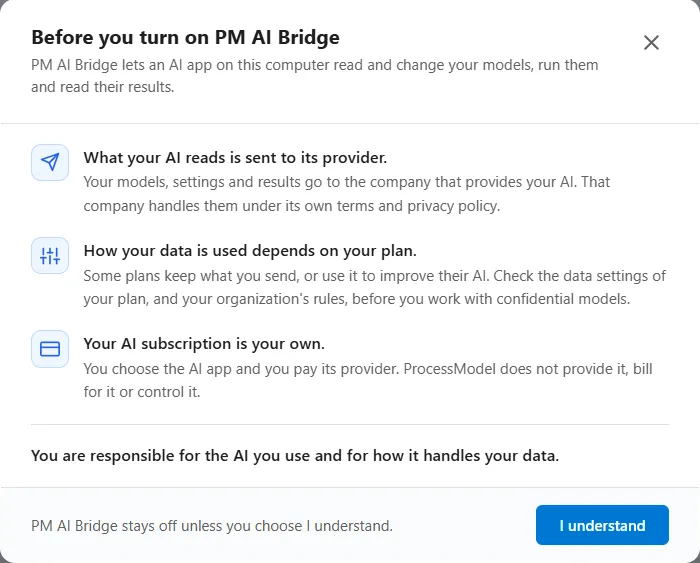
PM AI Bridge is a switch in Settings, and it is off until you turn it on. A short window opens first. It says what your AI reads is sent to its provider, and asks you to confirm.
Set up your AI once
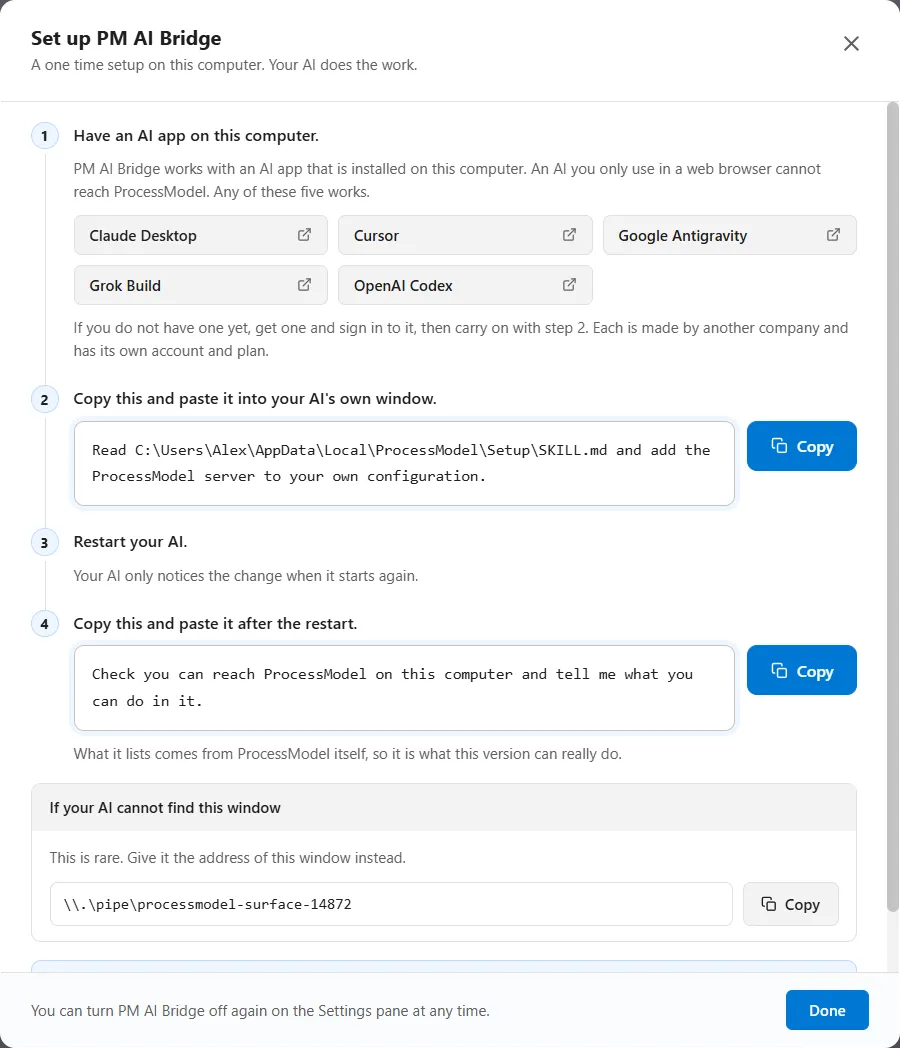
Copy one line into your AI app's own window and restart the app. Then paste a second line that asks it to check it can reach ProcessModel. Your AI does the setup work itself.
Ask, and watch it work
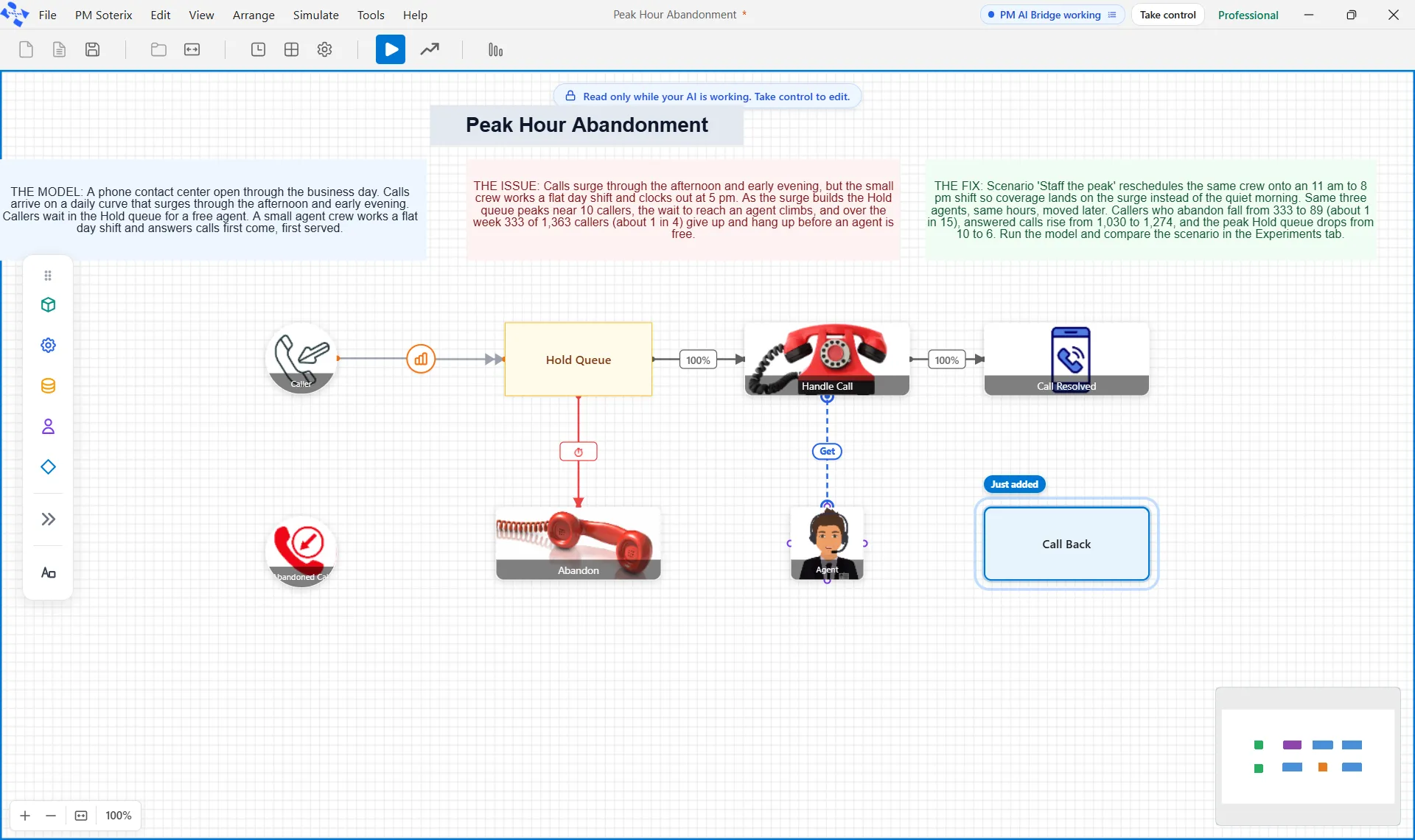
Describe what you want in your AI's own window. In ProcessModel the title bar reads PM AI Bridge working, the canvas is read only, and each shape your AI adds or changes wears a tag such as Just added.
Take control any time
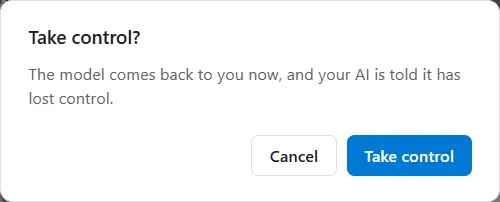
Take control sits beside the title bar label. It asks first, then hands the model back at once. A run your AI started stops, and its next request is refused until you ask it to carry on.
Check the activity log
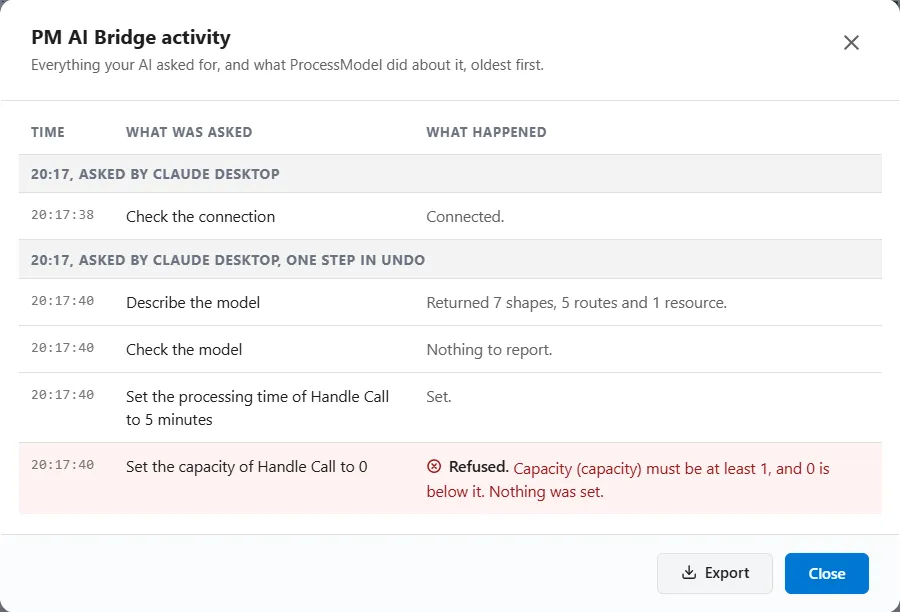
Everything your AI asked for, and what ProcessModel did about it, is listed oldest first. A request ProcessModel would refuse from you is refused from your AI too, in red, with the reason. Export the log as a text file.
What it can do
What your AI can do in ProcessModel
Works with the AI you already use
AI apps you install on your computer, such as Claude, ChatGPT (Codex), Cursor, Google Antigravity and Grok Build, with your own account.
Read and check your model
Your AI can read the model you have open and check it for problems.
Change what you can change
Add a shape, set a time or a capacity: it can change anything in the model that you can change.
Run it and read the results
It runs the model as the Simulate button does, follows the run and reads the results from the Output Report.
Work with PM Optimizer
It can open PM Optimizer and run or screen a study in it.
Start, open and save models
It can start, open, close and save models, as the File menu does.
Demo models and the Emergency Department
It can open the demo models, start a typical Emergency Department from your visits a year, and read its report.
Show the AI's work
Turn this on and a change that lives in a dialog is made inside that dialog for a couple of seconds, while you watch.
The same rules apply to your AI
ProcessModel refuses your AI where it would refuse you, and says why, so your AI can tell you and ask for something else.
Questions
Questions, answered
What can my AI do in ProcessModel, and what can it not do?
It can do what a person can do in ProcessModel: read your model and check it, change anything in it that you can change, start, open, close and save models, run the model and read the results from the Output Report, and open PM Optimizer and run or screen a study. It cannot create an account or change your license, edit files outside ProcessModel, or press Undo or Redo. Protecting a model needs your own password and your confirmation.
Which AI apps does it work with?
AI apps that are installed on your computer, such as Claude, ChatGPT (Codex), Cursor, Google Antigravity and Grok Build. You use your own account. ProcessModel does not provide, bill for or control the AI. An AI you only use in a web browser cannot reach ProcessModel.
What if my AI cannot reach ProcessModel?
Check that the PM AI Bridge switch in Settings is on and a ProcessModel window is open, that your license includes PM AI Bridge, and that your AI is an app on this computer, not a web page. Then check that you pasted the first line from the Set up window and restarted your AI. If it still cannot find ProcessModel, copy the address from the box named If your AI cannot find this window and give it to your AI. The help guide lists every check in order.
Where does my model data go?
Your model, your settings and your results go to whoever provides your AI, because your AI is what reads them. That company handles them under its own terms, and some plans keep what you send or use it to improve their AI. Check the data settings of your plan, and your organization's rules, before you work with confidential models.
How do I know what my AI is doing, and can I undo it?
While your AI works, the title bar reads PM AI Bridge working, the canvas is read only, and what it just changed wears a tag. Every request goes into the activity log, with refusals in red. Everything it changes on the canvas in one stretch is one step in Undo, so one press of Undo takes the stretch back. Changes made in dialogs, such as a scenario or Simulation options, are not taken back by Undo.
Is PM AI Bridge included with my license?
PM AI Bridge is part of Professional. It is off on the Personal license. The 14-day free trial includes the full app, with PM AI Bridge available to turn on.
Keep reading
More about PM AI Bridge
Put your own AI to work on your model
Start a free trial and turn on PM AI Bridge. Your AI is yours, and you stay in control the whole time.